
Genie 3.4: Introducing Connectors
Genie 3.4 connects the agent in FileMaker to Asana, GitLab, Klai and the other apps behind your project. Plus Cursor, full Genie in your calculation dialogs, two files that connect themselves, and far more of your layouts changed in place.
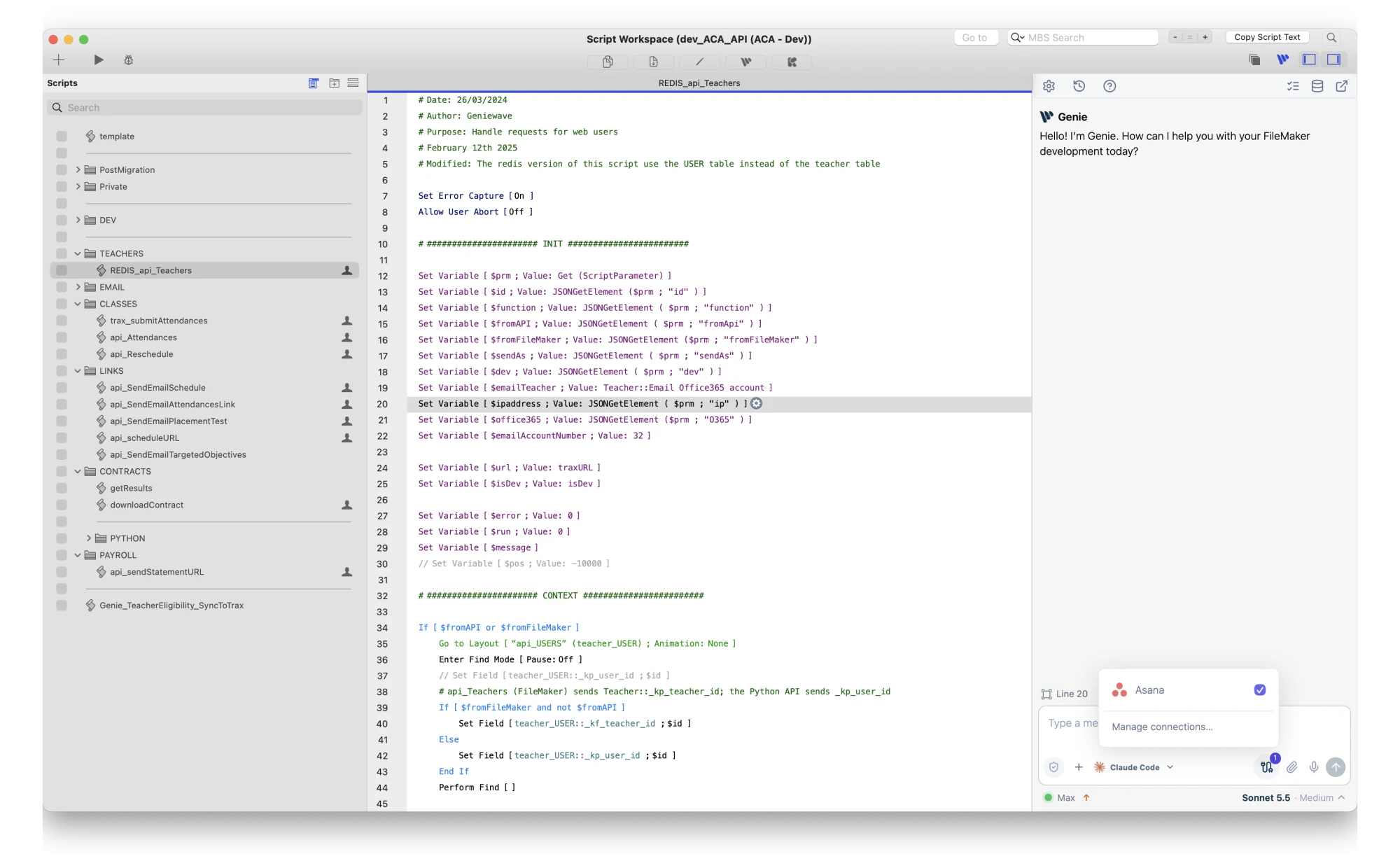
Genie 3.4 introduces Connectors. The agent in FileMaker can now read the task in Asana, the issue in GitLab or the page in Klai, right beside the script or layout it is about. Connect an app once, choose which conversation may use it, and decide app by app when Genie asks before a call. It works the same with Genie’s own agent, Claude Code, Codex and, new in 3.4, Cursor.
There is more in 3.4, and we’ll get to it. Connectors first.
On Windows: Genie for Windows (1.5.11) is a separate plug-in with its own features and doesn’t include Connectors yet.
Connectors
The request lives in another app
A FileMaker change rarely starts in the file. It starts in a task that says what the invoice should show, an issue that describes the bug, a page where the client changed their mind. Until now you read it there, copied the part that mattered and explained it to the agent. The agent only knew what you remembered to paste.
With a connector, the agent reads it itself. Ask it to read the task and look at the script it describes, and both inform the same proposed change.
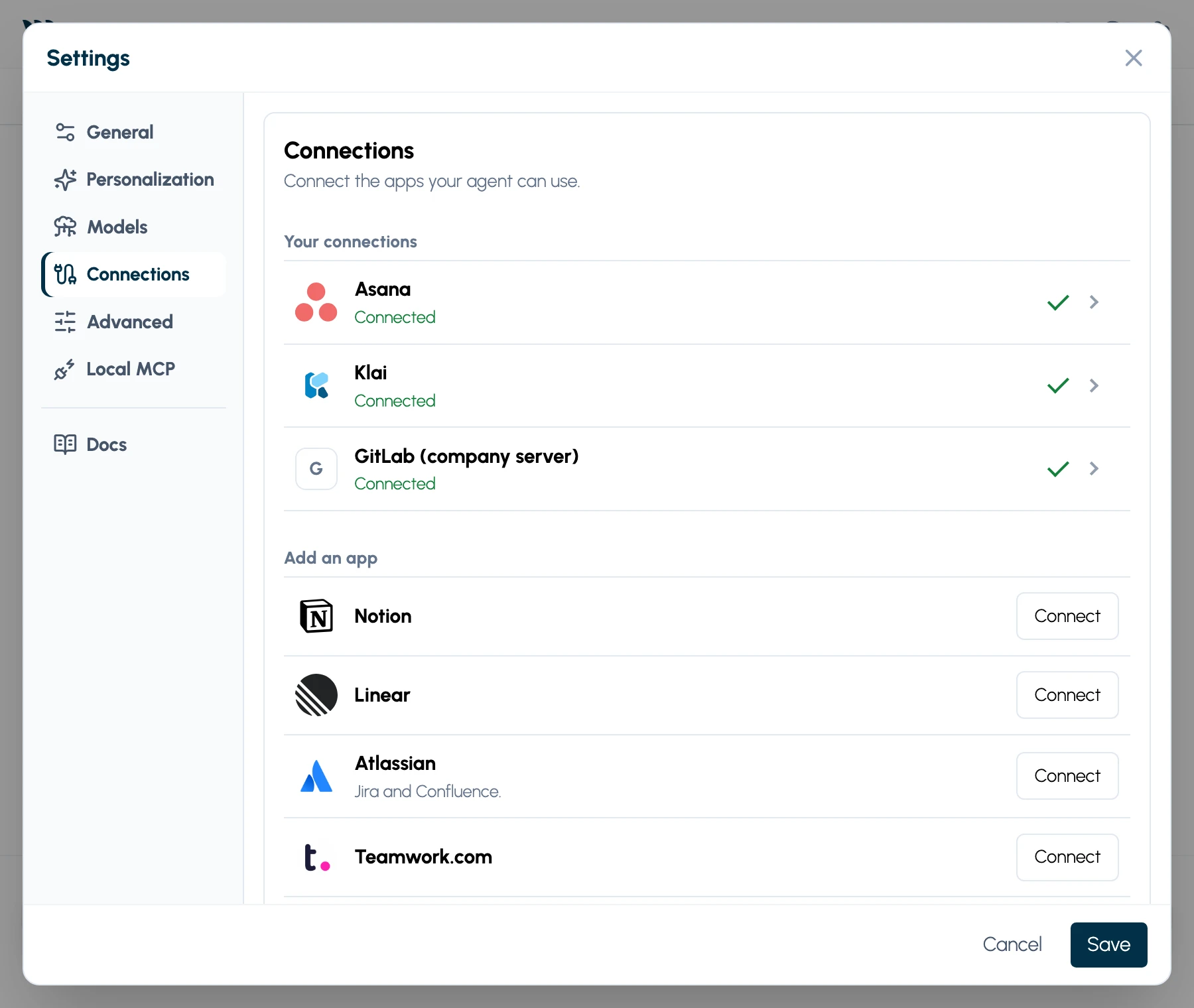
Connect once
Open Settings › Connections and click Connect next to the app. Most apps sign in in your browser; a few take an access token in Genie’s own secure window or a pasted configuration. Genie checks that it can reach the app’s tools, then shows Connected.
Choose which conversation may use it
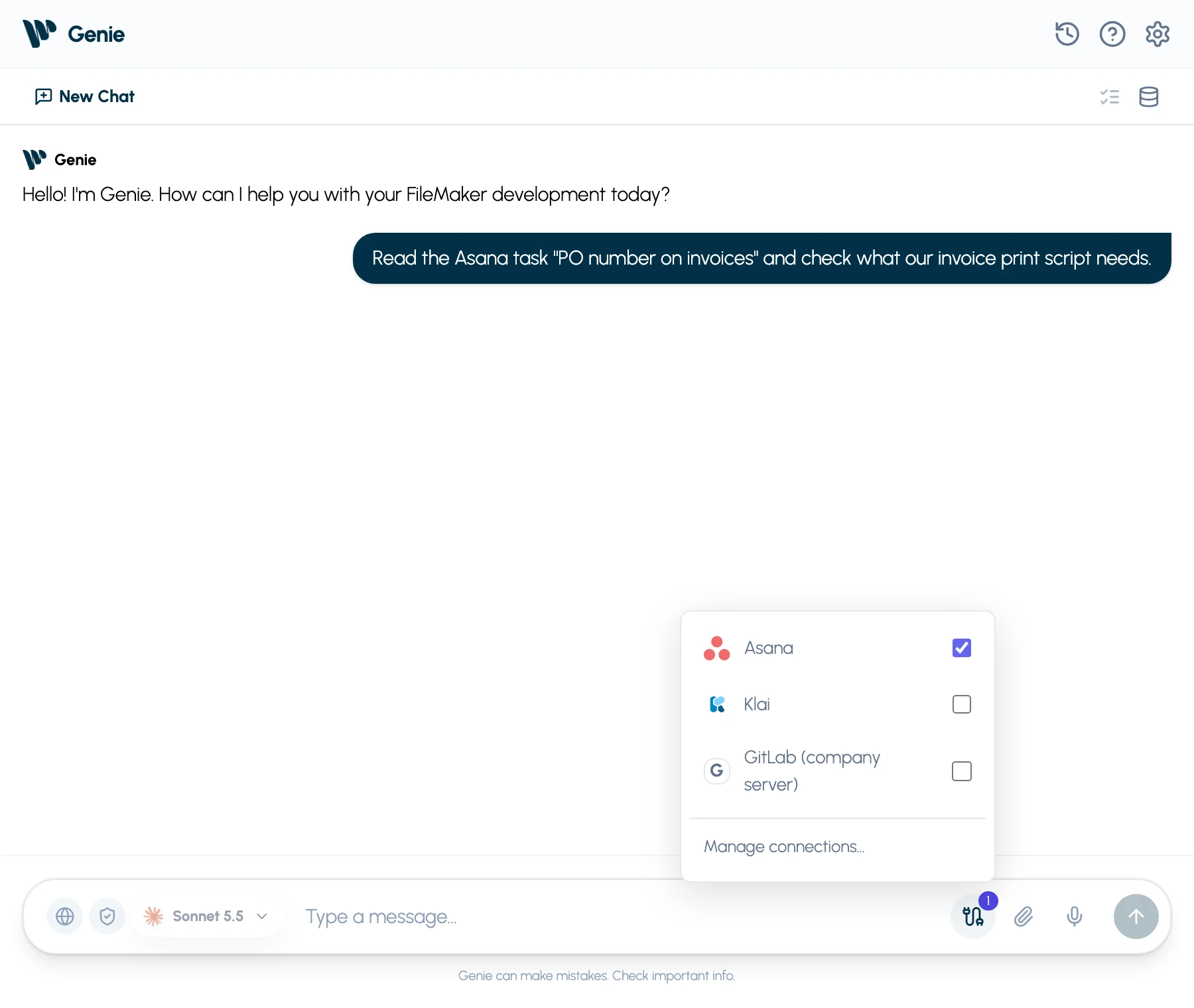
Connecting an account doesn’t let any conversation use it. Under the message box, open Connections and tick the apps this conversation may use. The choice follows the conversation between the Genie window, Script Workspace and Layout mode, and when you switch agents.
Decide when Genie asks, app by app
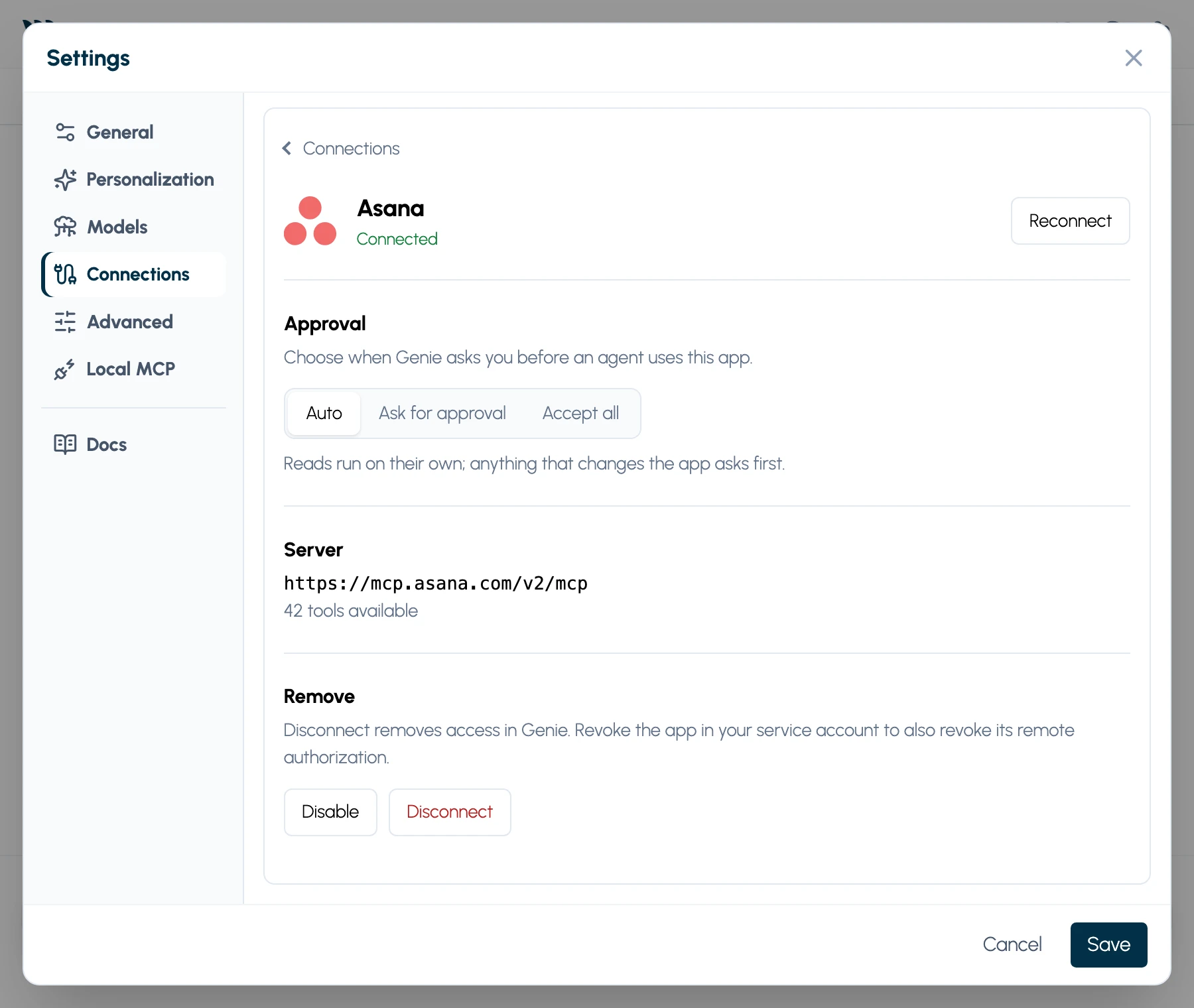
Each app has its own Approval setting, so Asana can run on its own while GitLab keeps asking:
- Auto, the default: reading a task, an issue or a page runs on its own; anything that changes the app asks first.
- Ask for approval: every call asks first.
- Accept all: nothing asks. Genie confirms this choice, because it can’t undo a change made in another app.
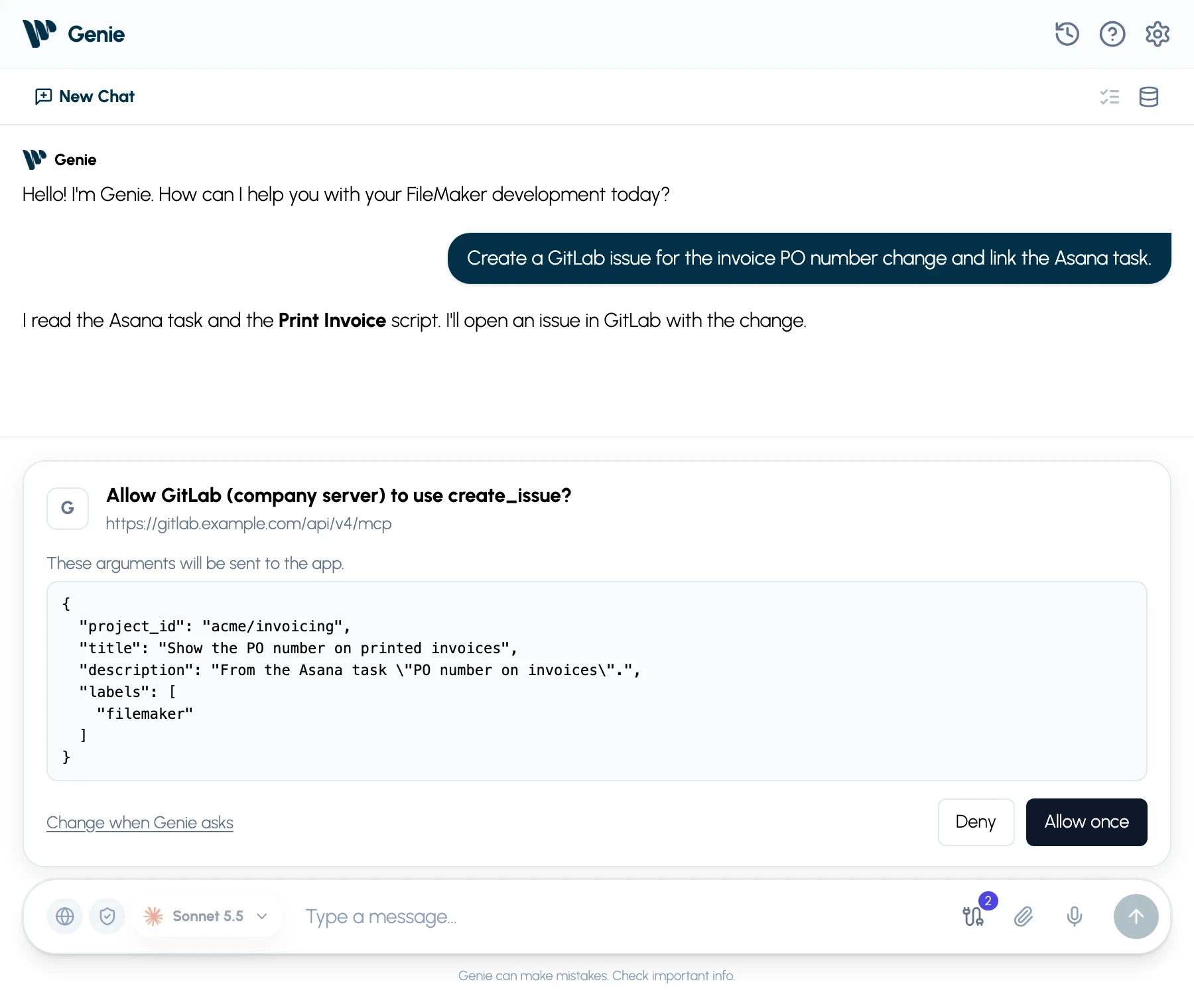
When Genie asks, a card shows the app, the tool and the exact arguments it will send. Allow once or Deny. This is separate from Auto apply, which only decides how changes reach your FileMaker file.
Which apps
Asana, GitLab (including a GitLab server your company runs), Klai with your Klai Studio account, Notion, Linear, Jira and Confluence, Teamwork.com, monday.com, ClickUp, Basecamp, GitHub and OttoFMS, plus any other app that offers an MCP server. What the agent can do depends on the tools each app offers and on your account; Genie never gives it more than your account can do.
Your credentials stay yours
Sign-ins and tokens stay in your Mac’s Keychain. They never appear in the chat and are never handed to the agent, Claude Code, Codex and Cursor included. Calls go straight from your Mac to the app, and Privacy Mode blocks them all.
A full connectors walkthrough is coming in its own demo. Here is the short version: a task in Asana asks for the purchase order number on invoices. You ask the agent to read it and check the invoice print script. It reads the task, then the script and the layout, and proposes the change for you to review.
Also in 3.4
Cursor joins Claude Code and Codex
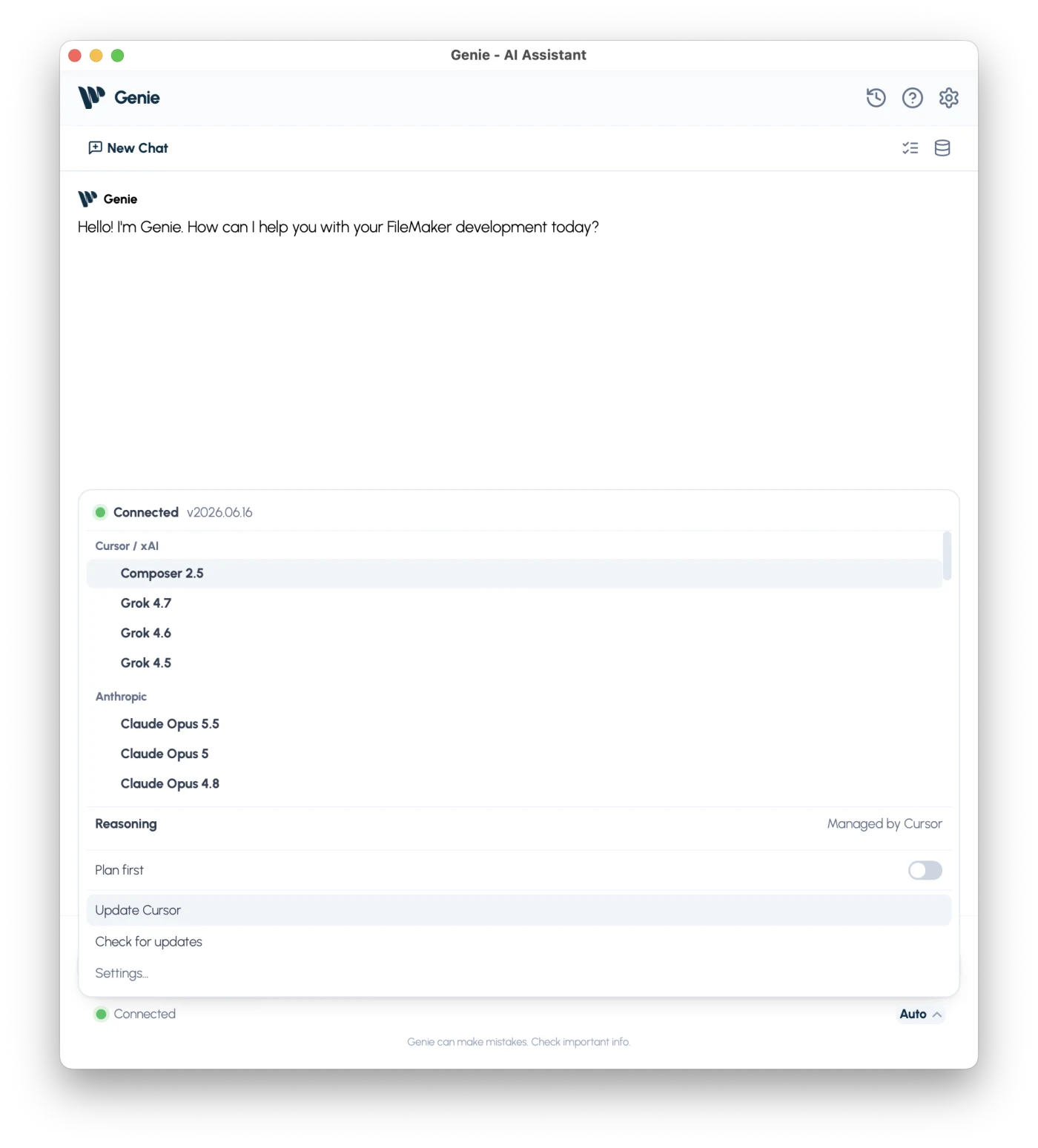
Pick Cursor under Your own agent and it works in the Genie window and both panels, on your Cursor plan, with the same review cards, Auto apply and connectors as Claude Code and Codex. New to these agents? The 3.3 post walks through the setup.
Full Genie in your calculation dialogs
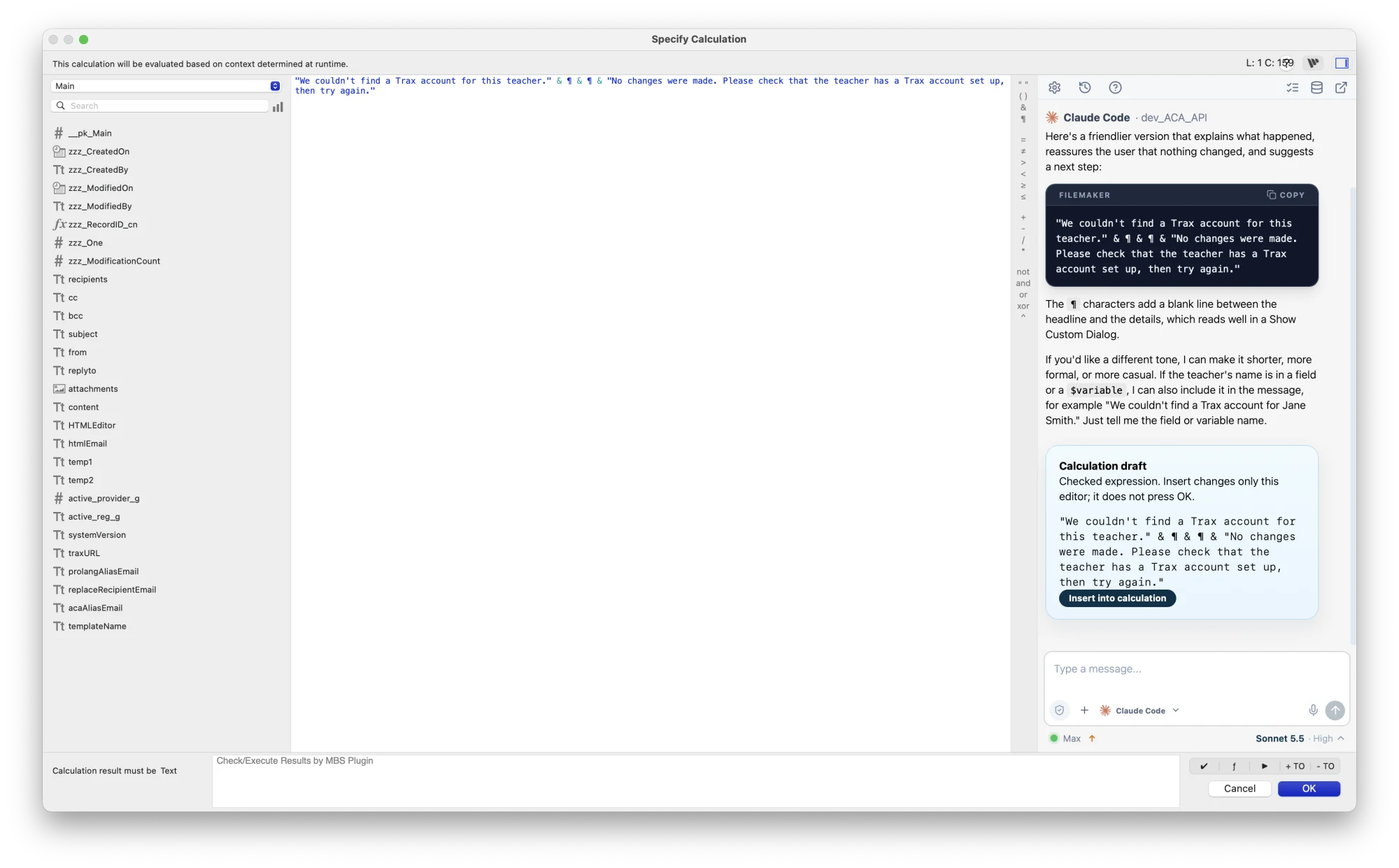
Quick AI in Specify Calculation, the Data Viewer and the custom function editor used to draft one expression from one request. In 3.4 it becomes a full Genie conversation in a tab beside the functions list. Pick any agent, Claude Code, Codex and Cursor included, talk the calculation through over several messages, then click Insert into calculation. Genie checks the expression first and reads only the calculation and the fields and functions it needs. Clicking OK stays yours.
Two files that connect themselves
Ask Genie to link your invoicing file to your customers file and it can do the whole thing: create the external data source, add the first table occurrence through it, relate tables across the two files, and write a Perform Script that calls a script in the other file. Until now, the first occurrence on a new data source was a trip to Manage Database.
Almost anything on a layout, changed in place
In 3.3, Genie learned to change the layouts you already have. In 3.4 it reaches most of what the Inspector and Layout Setup show, on the object you already have, keeping everything you didn’t ask about. A few things you can now just ask for:
- “Make this web viewer’s JavaScript able to run FileMaker scripts.”
- “Show the hand cursor on every button in the header.”
- “Turn on Quick Find and alternating row colors in Table View.”
- “Show quarters in this date, and put the currency symbol after the amount.”
- “Group these four objects” and, later, “ungroup them.”
- “Give the hover state of this button a darker fill.”
The release notes have the full list. A few settings need a newer FileMaker; Genie says so and changes nothing.
Fixes you’ll notice
- No more freezes on big hosted files. Reading the scripts list of a large hosted file used to stall FileMaker for seconds at a time. It no longer does.
- A safeguard for script edits. If an edit would leave a script with far fewer steps than it should, Genie refuses it and says how many steps would remain. Nothing is changed.
- Ampersands stay ampersands. An edited script no longer turns
&into&in its calculations, and a calculation that holds a web page with<!DOCTYPE html>is accepted. - Scripts with transactions. Edits to scripts with a Commit Transaction inside a loop were refused. They work now.
- Data changes in several steps run to the end. Later steps used to be checked against the wrong file and rejected.
- Stop always works, even after another file comes to the front, and the model list is ready as soon as Genie opens.
- French and Spanish, accented and punctuated properly throughout.
What you need
- Genie 3.4 on Mac, with a FileMaker Pro version Genie supports;
- an account in each app you connect. Connectors work on every Genie plan, Free included;
- for Cursor, a Cursor plan that includes the Cursor agent;
- a paid Genie plan to create or edit in FileMaker. Reading, inspecting and explaining stay on the Free plan.
Get Genie 3.4
If Genie is already installed, it will offer the update. If not, download it, open a test file, connect one app in Settings › Connections, tick it for a conversation and ask the agent to read one task.
Coming next: a full Connectors demo, from a task in your project tool to a reviewed change in your file.