
Claude Code and Codex, directly inside FileMaker
Genie 3.3 runs the real Claude Code and Codex agents beside your scripts and layouts, on the plan you already have. No API key, no API bill.
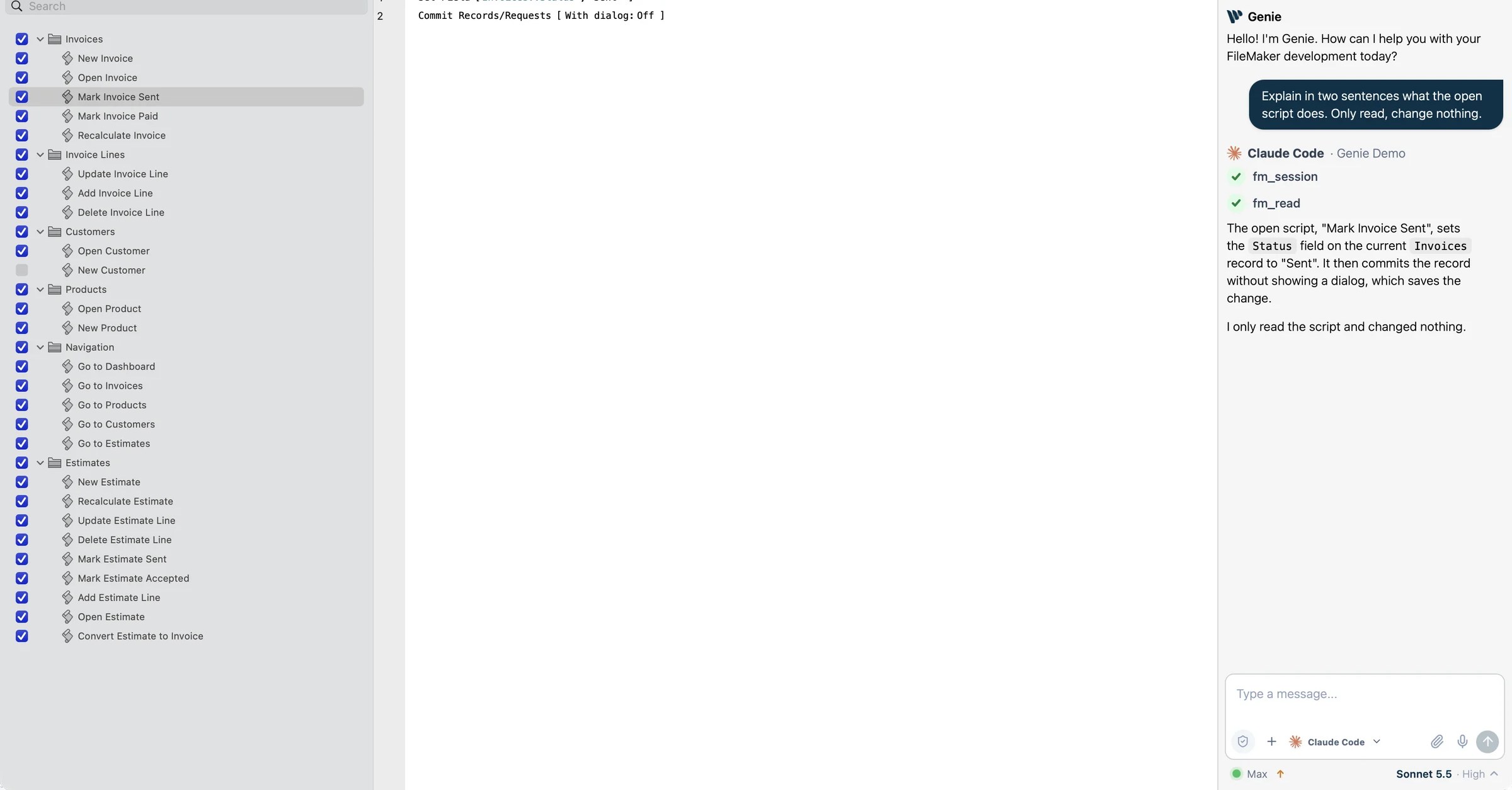
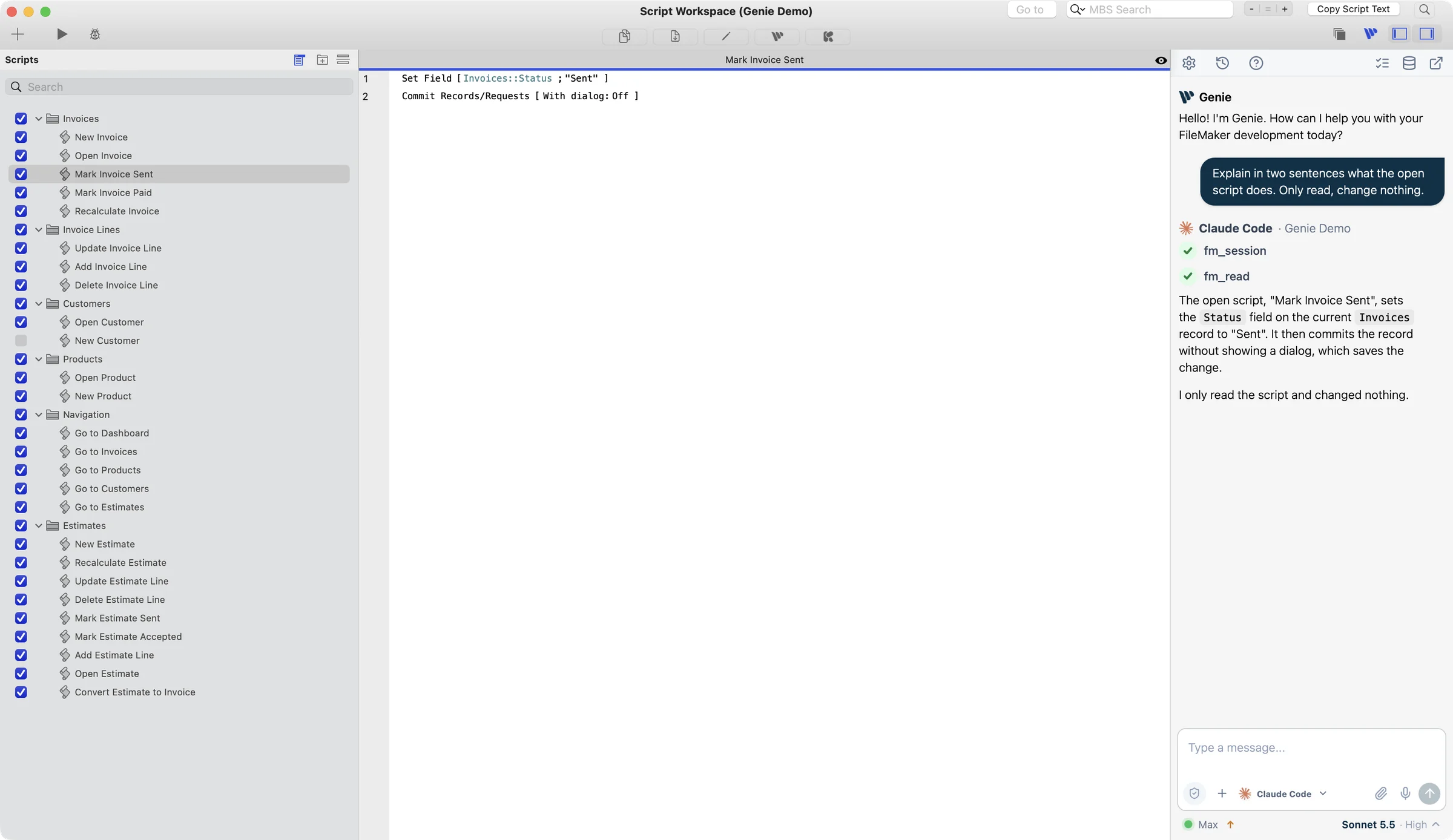
Genie 3.3 brings the real Claude Code and Codex into FileMaker. They work in the Genie window and in the panels next to your scripts and layouts. These are the makers’ own programs: Genie installs them for you and runs them on the Claude or ChatGPT plan you already pay for. No API key. No API bill. Leave Auto apply off and you review each change on a card. Turn it on and they write the changes in your file for you.
What this changes for you: the agent reads your file through Genie, so it works from your real tables, scripts and layouts, not from a description you typed. It works in the Genie window, in Script Workspace and in Layout mode, where it can ask Genie which script is open or which objects you selected. Ask for Plan first and it proposes steps before it acts. The same connection (Local MCP) is open to other agents you use, such as Cursor or Claude Desktop.
On Windows: Genie for Windows (1.5.11) is a separate plug-in with its own features. It does not include Claude Code and Codex in Genie, the panels in Script Workspace and Layout mode, or layout creation and editing yet. We are aiming for Windows to match the Mac version at the start of November 2026. That is an aim, not a promise.
For FileMaker developers, this removes a lot of setup. Until now, agent work in FileMaker meant opening an API account, adding credit, pasting a key into Genie and watching the usage bill. Now you can use the plan you already have.
The problem: API bills and keys to manage
Agents are chatty. An agent reads the file, thinks, proposes, reads again. With an API key, every step is billed by the amount of text it reads and writes, so the bill depends on how much the agent reads and how long the session runs.
Many developers already pay for a Claude or ChatGPT plan. An API key then means a second account, a second bill, and a key to create, store and renew. Genie keeps that key safe on your Mac, but it is still one more thing to set up.
What changes in 3.3
Genie’s model menu now starts with a group called Your own agent: Claude Code and Codex. Pick one and connect it with the plan you already have. It works in the same panels as Genie’s own agent. Usage comes out of your plan’s limits instead of an API bill. They read your file and propose changes you review or, with Auto apply on, write the changes for you.
Genie’s own agent, with your API key or a local model, is still there just below. Nothing is removed: this is a second way to work.
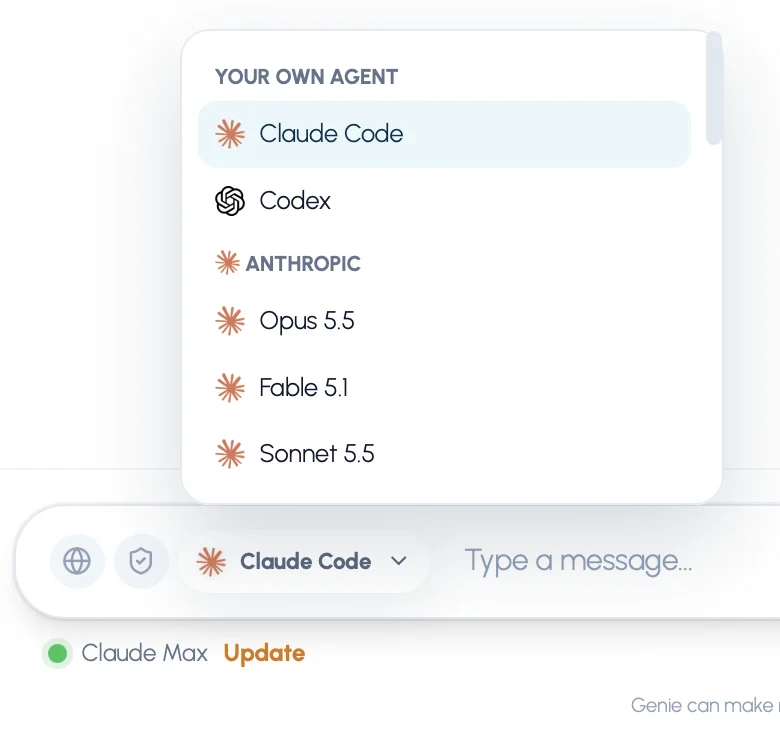
Set up inside Genie, no Terminal
Three buttons do it, and Genie only shows the ones you need: Install, Connect and Turn on. You manage the agents in Settings › Models, under Your own agent, or right under the composer.
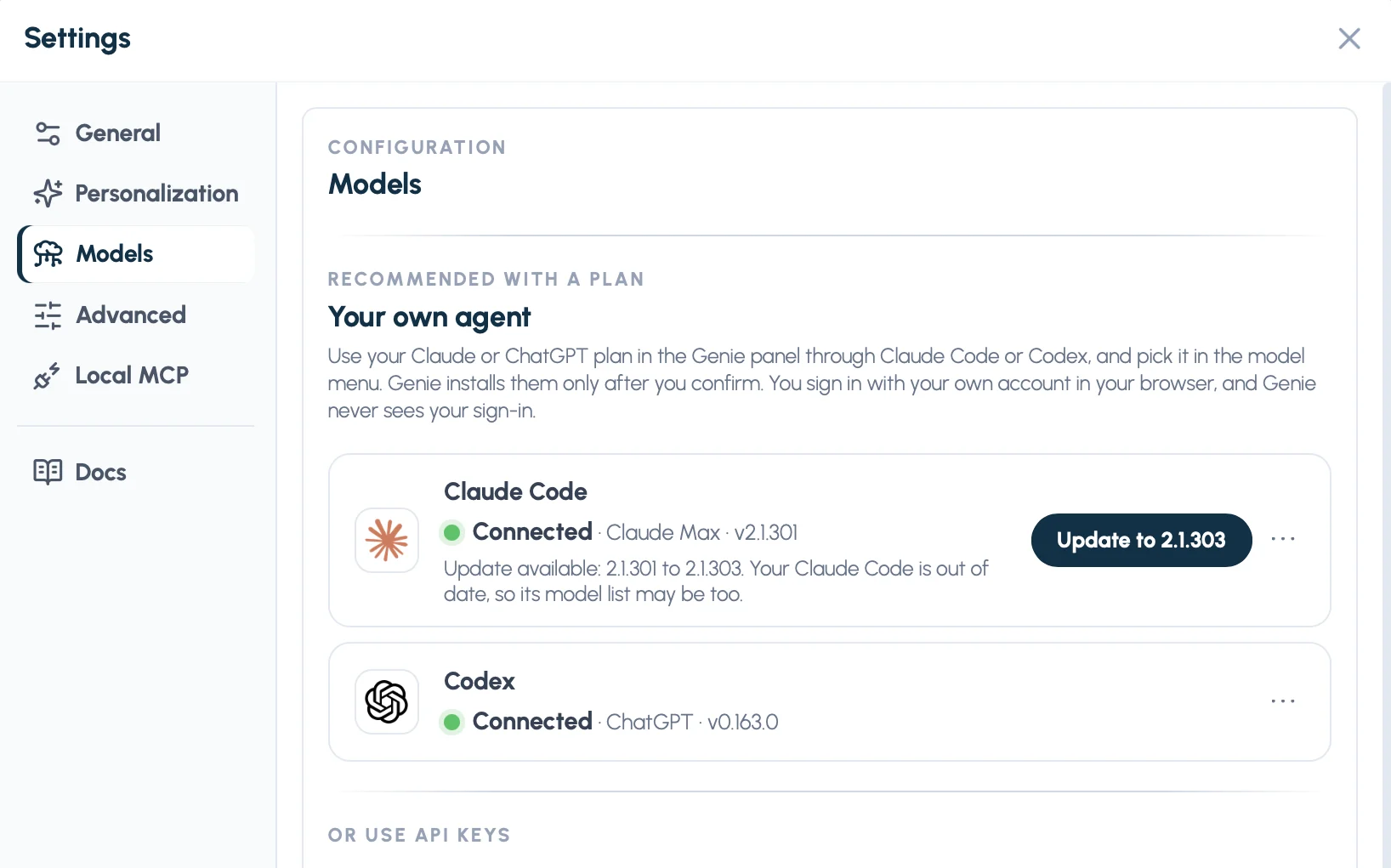
Install: Genie installs the agent for you
If the agent isn’t on your Mac, Genie offers Install. A window shows where it comes from and where it will go, and nothing happens until you click Install. Genie uses the maker’s own installer, with no extra tools to install and no administrator password. Afterwards, Genie checks that the installed program really comes from the maker. The installer may change your Terminal settings so you can also run the agent there, and the window tells you.
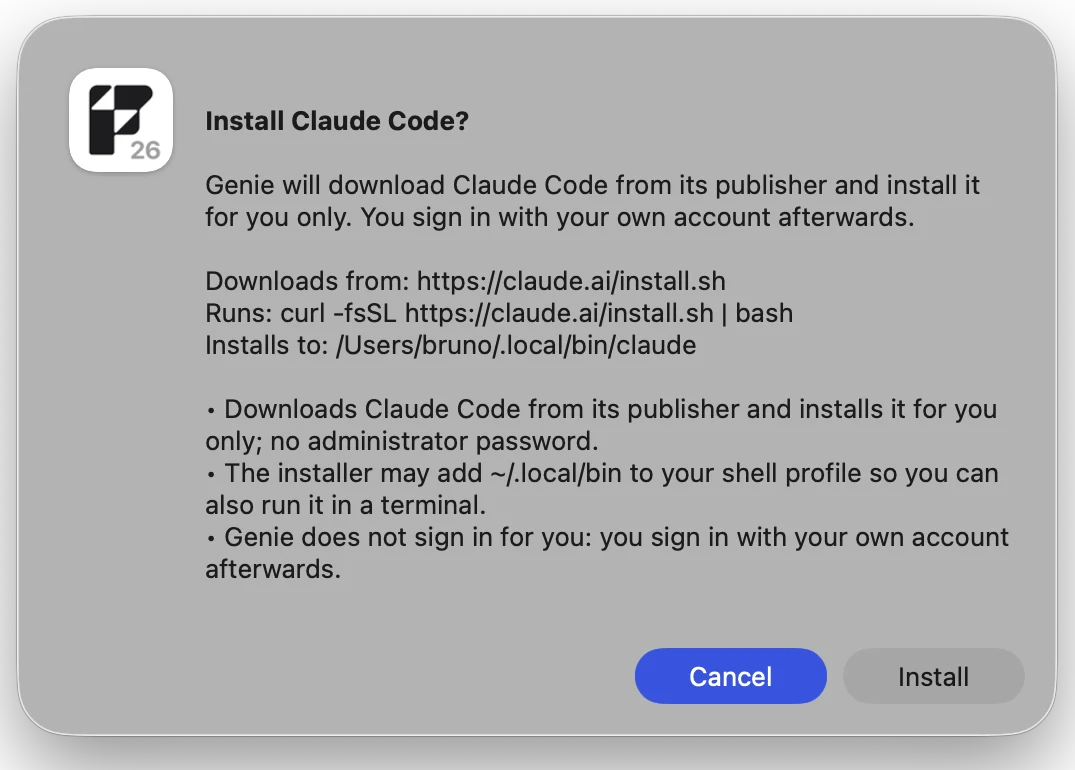
Connect: sign in with your browser
Click Connect. Genie opens the maker’s own sign-in page in your browser, and you sign in there. Genie never sees or stores your sign-in. While you finish, Genie shows that it is waiting, with Open the page again and Cancel.

Connected: your plan, in view
When you’re done, Genie shows Connected with your plan, for example Connected · Claude Max or Connected · ChatGPT Plus, and the version of the agent. If you’re already signed in to Codex, Genie sees it and doesn’t ask again. Signing in again replaces the current sign-in, so Genie asks you first.

Turn on: Genie switches on the local connection
Claude Code and Codex reach FileMaker through Genie’s local connection (Local MCP). It only works on your Mac and is protected by a private key. While it’s off, the line under the composer says “Local connection off” with a Turn on link. Genie asks you to confirm, then does exactly what Settings › Local MCP does and opens the agent for you. You can turn it off any time in Settings › Local MCP.

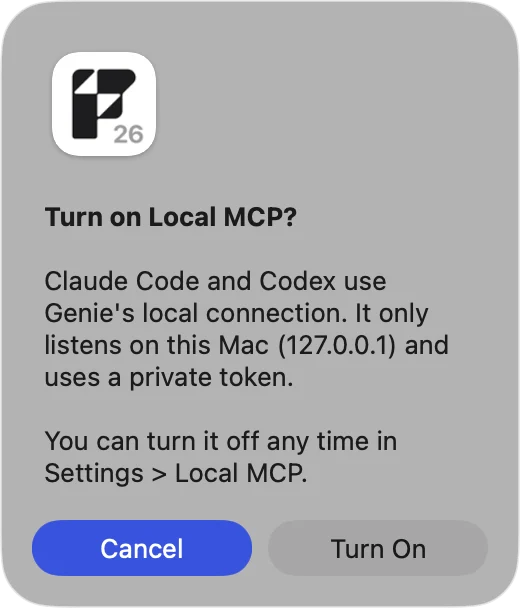
Where you already work
One line under the composer
Under the composer, one line shows the connection. On the left, a dot and your plan, for example Claude Max. When something needs doing, it shows that instead, with a small link: Not connected with Connect, Local connection off with Turn on, Not installed with Install, or Update when Claude Code is out of date. On the right, one button shows the model and effort, for example Sonnet 5.5 · High. Click it to open the options.

Effort is a slider, model is a list
The options window shows your connection, the model list, a draggable Effort slider (Low, Medium, High, Max), a Plan first switch, Check for updates or Update Claude Code, and Settings…. The lists come from your own Claude Code or Codex, so they match what you have installed. Plan first asks the agent to propose steps instead of acting. Type / at the start of the message to see the agent’s own commands.
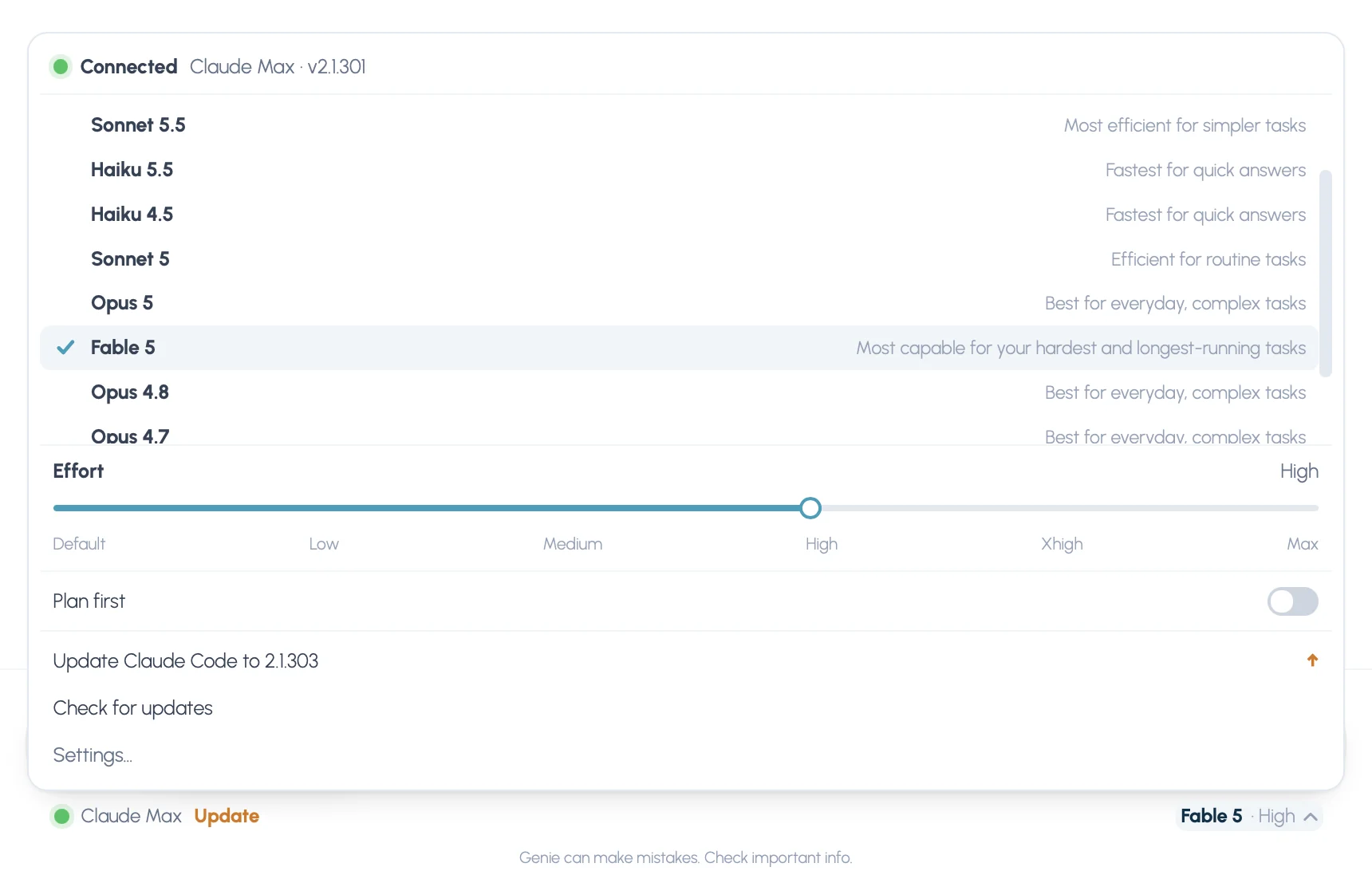
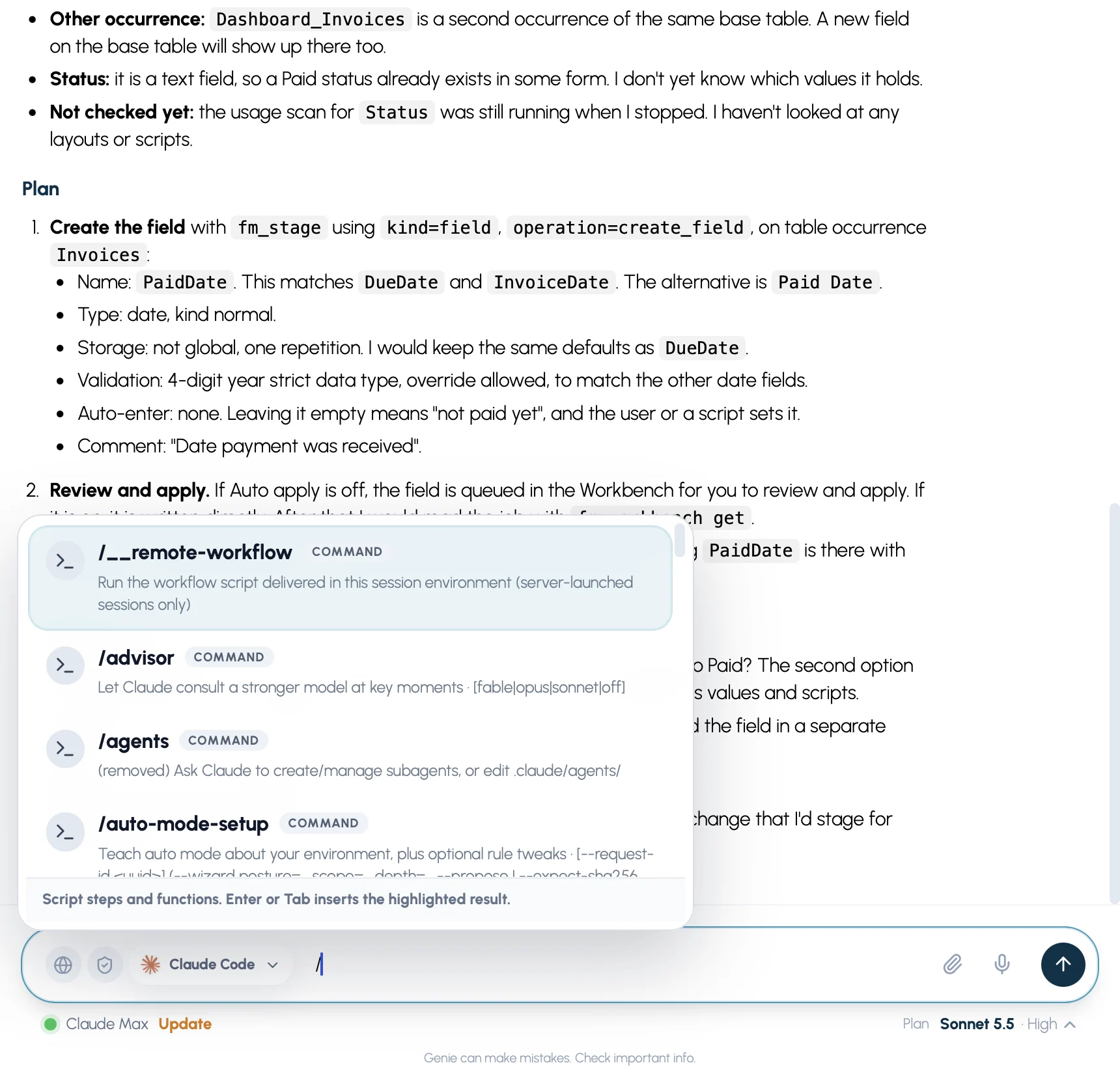
In Script Workspace
The Genie panel docked on the right takes Claude Code and Codex too. In the narrow panel the line stays on one row: a dot and “Max” on the left, the model button on the right, and everything else in the options. The agent can ask Genie which script is open and which lines are selected, so there’s nothing to paste.

In Layout mode
Same in the Genie tab, beside Fields, Objects and Add-ons: the agent can ask Genie what you have selected, then read the layout to prepare the change.
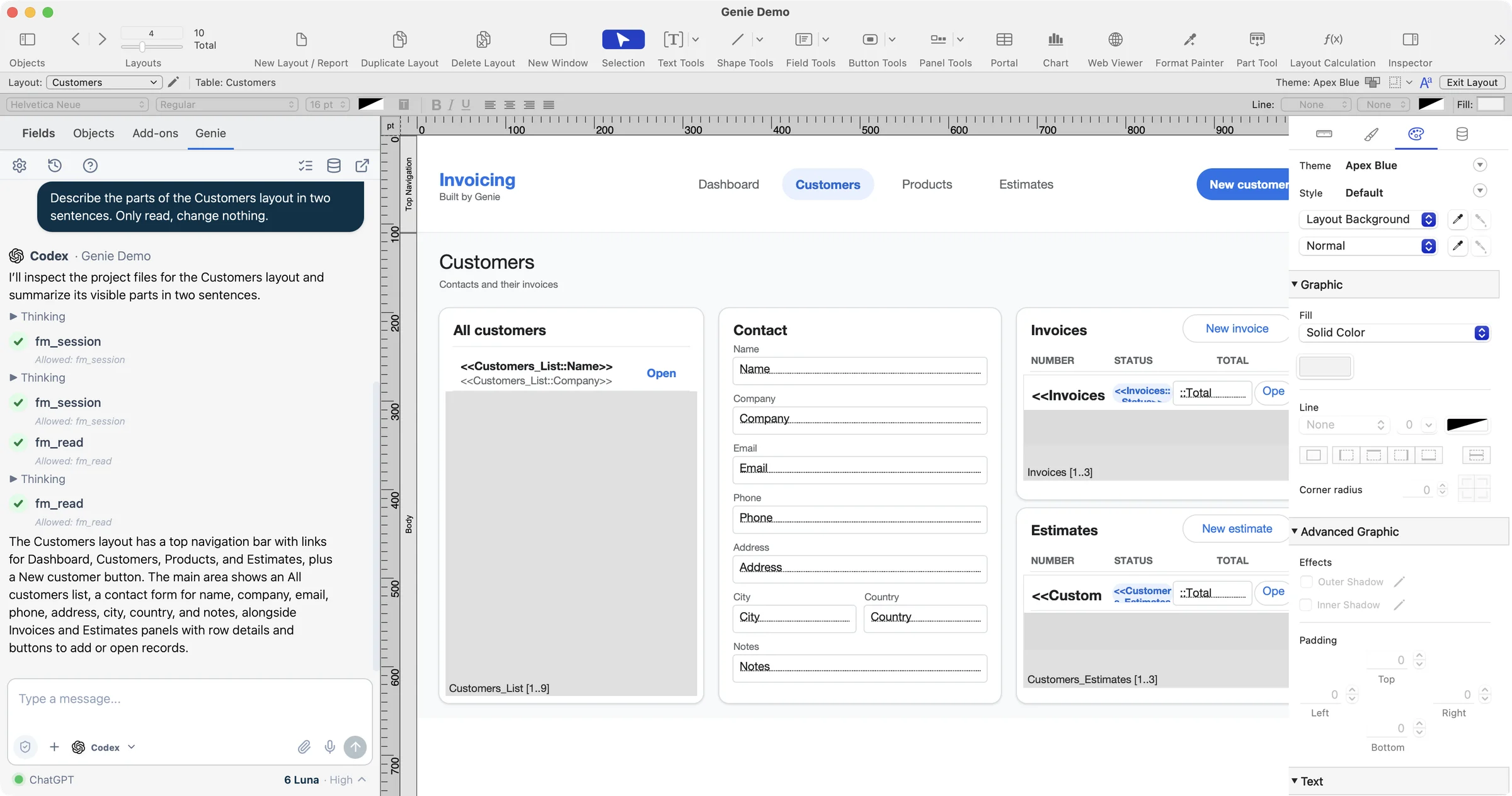
Each panel keeps its own conversation, and it comes back when the panel reloads, for example when you switch files.
Watch it work, then choose how changes land
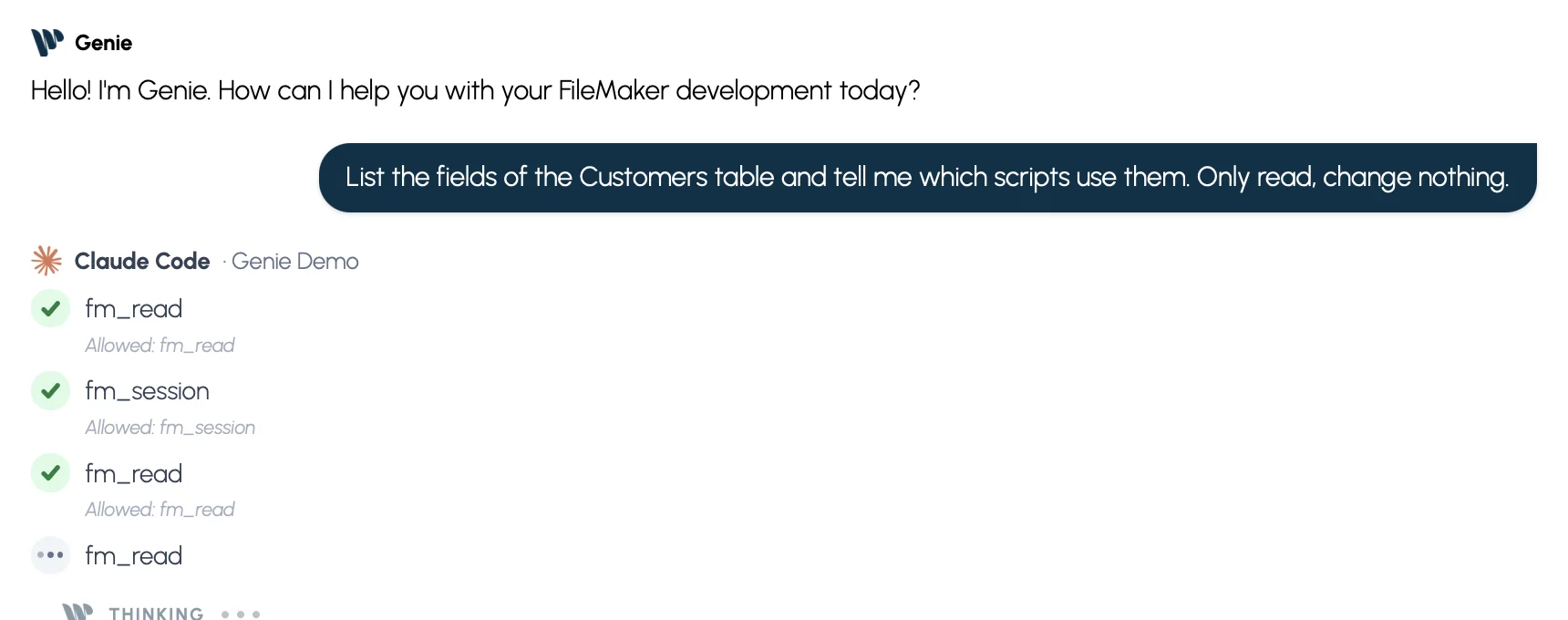
Each tool the agent uses shows as a step: a green check when it’s done, moving dots while it runs, a red mark if it failed. The details stay folded until you open them.
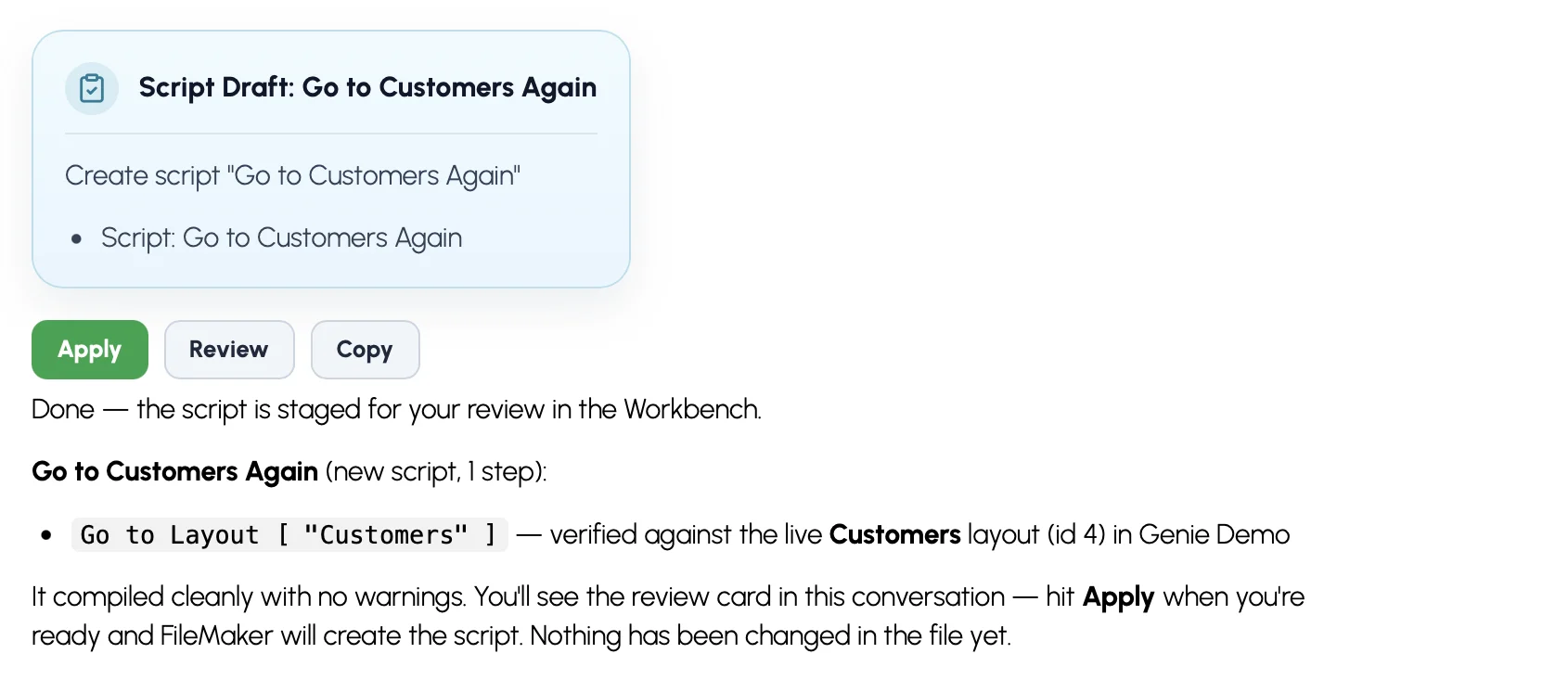
When the agent proposes a change, it appears as a card in the conversation with Apply, Review or Copy, and you decide. Apply asks for the usual confirmation, and by default nothing is written before you click. If you turn on Auto apply (optional, in Settings), Claude Code and Codex apply supported changes directly, like Genie’s own agent, including layouts in the docked panel. Genie checks each change by reading it back from FileMaker and lists it in Workbench › Submitted, where you can undo some of them. Your paid plan, the file and Privacy Mode checks, and Local MCP’s Privacy Mode still apply.

Update in one click
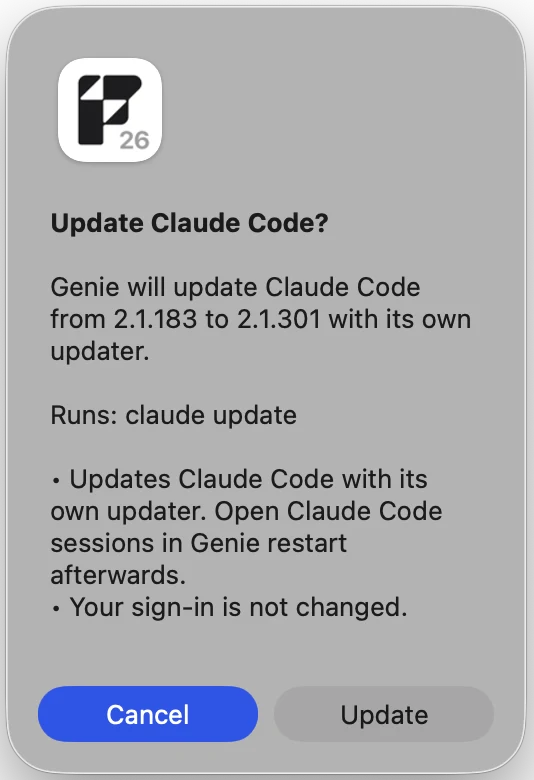
The models you can pick come from the version of the agent installed on your Mac. When a newer Claude Code is available, Genie says so: the line shows Update and Settings puts Update up front. Genie asks you to confirm, closes that agent’s open conversations, runs the maker’s own updater, checks the program again and reloads the model list. The options window also always has Check for updates, or Update Claude Code or Update Codex.

Agent work on your real file
The agent works on your open file through Genie’s tools, the same ones Genie’s Local MCP gives any outside agent. It can:
- read your schema, scripts, layouts, relationships and custom functions, one exact item at a time;
- search the file and look up your data, without changing it, before it proposes anything;
- draft scripts, layouts, schema changes and data changes, shown as a card you Apply, Review or Copy, or written directly when Auto apply is on;
- ask to run one of your existing scripts, which always needs your confirmation in Genie.
Reading, inspecting, explaining and debugging stay on Genie’s Free plan. Creating or editing needs a paid Genie plan.
What it can touch, and how changes land
Limited to Genie’s tools. The agent has no Terminal, no access to your files, no web access and none of your other tools. Genie’s tools are the only way into FileMaker.
By default, you review every change. What the agent proposes appears as a card you Apply, Review or Copy. Auto apply is off by default. If you turn it on, Claude Code and Codex apply supported changes directly, like Genie’s own agent. The trade-off: with Auto apply on, an agent’s change isn’t checked against what you asked, an extra check Genie’s own agent does and Claude Code and Codex don’t. Leave Auto apply off to review every change.
Your sign-in stays between you and the maker. Genie never sees or stores it.
What leaves your Mac. Your requests, and the parts of your file the agent reads to answer them, go to Anthropic or OpenAI under your plan’s terms and privacy settings, as with any use of those tools. Genie’s Local MCP Privacy Mode still applies: the agents aren’t offered while it’s on.
Start on a development copy, as you would with any new tool.
Plans and limits
Which plans. Claude Code needs a Claude plan that includes it (Pro, Max, Team or Enterprise). Codex needs a ChatGPT plan that includes Codex access.
Limits. Usage comes out of your own plan’s limits. Those limits, which plans include these tools, and the publishers’ terms are set by Anthropic and OpenAI and may change. Genie doesn’t control them. If you reach a limit, switch to Genie’s own agent in the model menu to keep going, or wait until your plan allows more use.
Genie’s licence. No API bill doesn’t mean no Genie licence. Reading, inspecting, explaining and debugging stay on the Free plan; creating or editing scripts, layouts, schema and data needs a paid Genie plan.
Who it’s for
- You already pay for Claude or ChatGPT and don’t want a second bill.
- You build in FileMaker and want an agent in Script Workspace and Layout mode without managing API keys.
Keep the API-key route if you need another provider or a local model, the extra check Genie’s own agent adds under Auto apply, or Genie for Windows.
What you need
- Genie 3.3 on Mac, with a FileMaker Pro version Genie supports;
- a Claude plan that includes Claude Code, or a ChatGPT plan that includes Codex access;
- Genie’s local connection (Local MCP): Genie turns it on for you after you confirm. Engines aren’t offered while Local MCP’s Privacy Mode is on;
- an internet connection, since the install downloads from the publisher;
- a paid Genie plan to create or edit.
Genie for Windows doesn’t include these engines yet. We are aiming for Windows to match the Mac version at the start of November 2026.
Rather have your own AI agent install Genie for you? See install with your agent
Quick answers
Do I still need an API key?
Not with Claude Code or Codex. Genie’s own agent still works with an API key or a local model, and you switch between them in the model menu.
What does it cost?
Your Genie licence doesn’t change. What goes away is the API bill, because Claude Code and Codex use the plan you already pay for, with its own price and limits.
Can it change my file without asking?
Not by default. With Auto apply off, its changes appear as a card you Apply, Review or Copy. If you turn Auto apply on, Claude Code and Codex apply supported changes directly, and an engine’s change isn’t checked against what you asked, so leave it off to review every change.
Does it work on Windows?
Not yet. These engines are on the Mac for now. We are aiming for Windows to match the Mac version at the start of November 2026.
What if I hit my plan limit?
The publisher decides when your plan allows more use. Meanwhile, Genie’s own agent stays in the model menu.
More answers on the product page
Get Genie 3.3
If Genie is already installed, it will offer the update. If not, download it, open a test file, pick Claude Code or Codex under Your own agent and start with one small request.