
Your First 60 Seconds with Genie
Open Genie in FileMaker, confirm your model, and let AGENT inspect the project. Metadata Explorer is there when you want to make the context more precise.
You do not need to map your whole FileMaker solution before asking Genie a useful question.
Assuming Genie is installed and activated, the first minute is simple: open the file you want to work on, confirm the model, and let AGENT inspect the project for you.
Open Genie where you are working
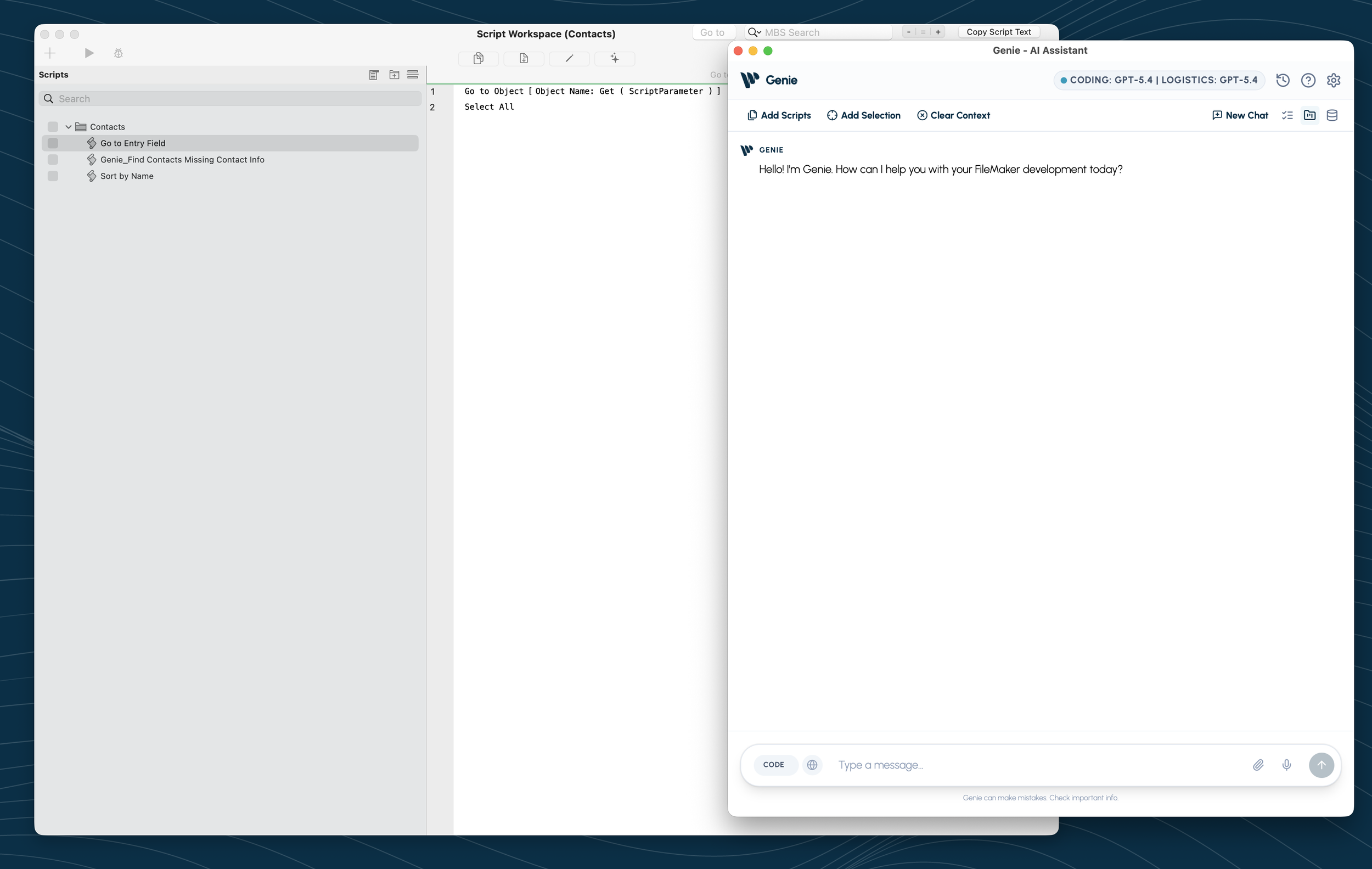
Start in FileMaker Script Workspace. Open the script you are working on, then launch Genie from the lower-right corner.
The compact view is enough for a quick question about the current script or selected steps. Choose Open Genie when you want the full conversation, settings, attachments, Workbench, or Metadata Explorer.
This is the normal starting point: FileMaker on one side, Genie on the other.
Confirm the model
Look at the model shown at the top of Genie. If it is the provider and model you want, keep moving.
If this is your first session, open Settings → Models, add the provider credentials, choose a model, and test the connection. You can use separate Coding and Logistics models later; one reliable model is enough to begin.
Provider keys belong in the secure model settings—not in a prompt, project instructions, or a screenshot.
Ask AGENT to inspect first
Start a new chat and make the first request read-only:
Inspect the active FileMaker file and the current script. Explain what the script does and which tables, layouts, and related scripts it depends on. Do not prepare or apply any changes yet.
That is enough to see whether Genie is connected to the right file and understands the work in front of you.
AGENT can discover most of the required context automatically as the task develops: scripts, tables, fields, layouts, relationships, value lists, and custom functions. You do not have to select the entire schema before you start.
Once the explanation looks grounded, ask the real question:
Review this script for context errors, missing error handling, and unsafe assumptions. Explain the findings before suggesting an edit.
You are now moving.
Where Metadata Explorer fits
Metadata Explorer is not an onboarding requirement. It is the control you reach for when automatic discovery needs a little help.
Open it from the database icon in the upper-right corner of Genie.
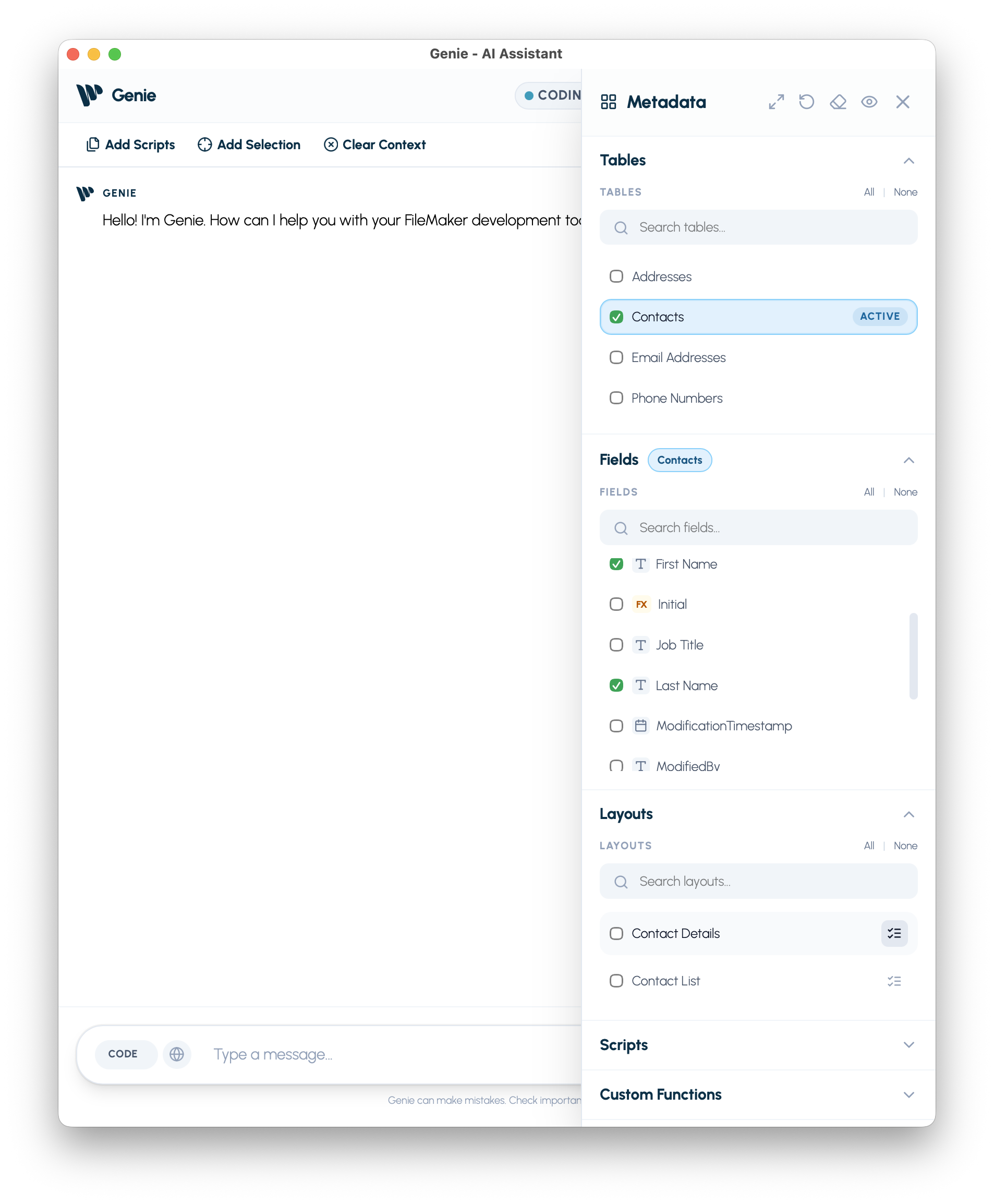
Select the objects that matter to the task; more context is not automatically better context.
I use Metadata Explorer when:
- two tables, layouts, or scripts have similar names;
- a task depends on a custom function that is not obvious from the current script;
- layout context or relationships materially change the result;
- I want Genie to consider an object the current script does not reference directly;
- an answer feels disconnected from the actual file.
Select the smallest complete set of relevant objects. For a script that processes an inbox, that might be the Inbox table, four important fields, the layout where it runs, the parent script, and one parsing function. Selecting every table and script usually makes the context less focused, not more intelligent.
A practical habit
Let AGENT inspect automatically first. Add a manual Metadata Explorer selection only when you know something about the solution that will improve the logic.
Refresh metadata after structural changes such as renaming a field, changing a layout, or editing a custom function. Clear an old manual selection when you move to an unrelated task.
That is the whole onboarding loop:
- Open the correct FileMaker file and launch Genie.
- Confirm the model.
- Ask AGENT to inspect before it edits.
- Use Metadata Explorer only when a deliberate selection will make the reasoning more precise.
Genie handles the normal discovery. You step in when your knowledge of the system can make the context better.