
FM Culprit: find out what makes a FileMaker solution slow
A free, open-source tool that reads FileMaker Server logs and uses Genie to check each finding in the live file: the field, the formula, the script and the line.
Someone says the solution is slow. FileMaker Server has usually been recording why for weeks: TopCallStats keeps the slowest calls, Access.log every Perform Script on Server session, Event.log every script error and schedule run. The trouble is that the logs speak in IDs. “table(129)::field definitions(790)” is not something you can open and fix.
FM Culprit is a free, open-source tool (MIT licence) that reads those logs, then asks Genie what each ID is in your live file: which field, whether it is stored, what its formula is, which script ran and on which line. You get a report you can act on, not a ranking to interpret.
Get it on GitHub: github.com/Geniewave/FMCulprit
One command, three files
Give it a folder or a zip of FileMaker Server logs. TopCallStats.log is required (turn on Top Call Statistics logging in the Admin Console). ClientStats, Stats, Event, Access and fmdapi logs are recommended, and each one adds evidence. Then run:
git clone https://github.com/Geniewave/FMCulprit FMCulprit
cd FMCulprit
bin/fmculprit auto --logs ~/Downloads/Logs --hours 168
With --hours 168 the analysis covers the last week. Options leave out weekends or a known nightly schedule, or read the schema from a development copy when production is not open. The command writes three files:
- SUMMARY.md: the short version, a few bullets you can paste into a ticket.
- REPORT.md: every finding, with its numbers and their basis.
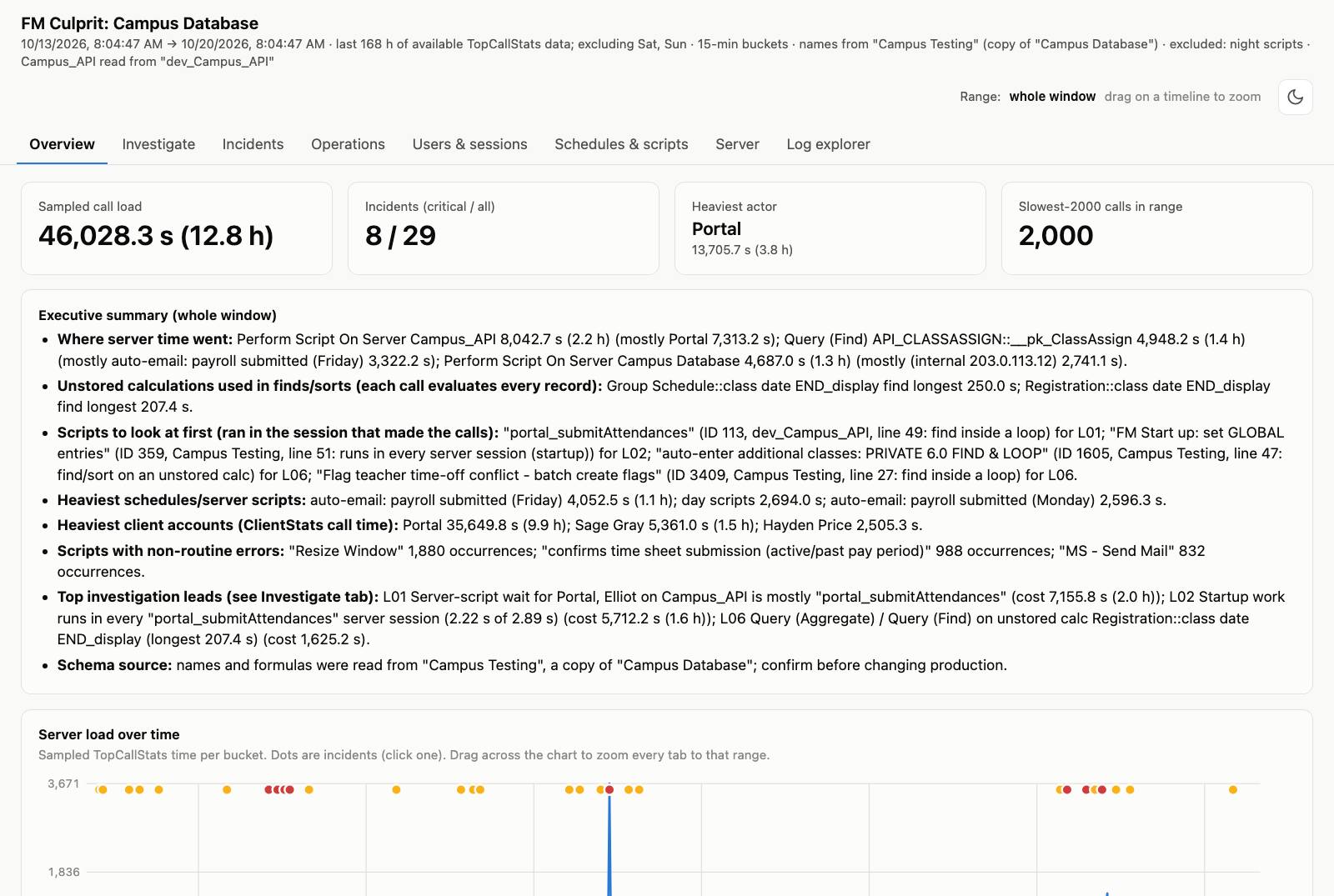
- report.html: one self-contained page with tabs for Overview, Investigate, Incidents, Operations, Users & sessions, Schedules & scripts, Server and Log explorer. Drag across any timeline to zoom every tab to that range.
The Overview tab on a week of real logs, with every file, product, account, machine and address name replaced by a fake one.
What Genie checks in the live file
FM Culprit talks to Genie’s local MCP server on your own computer. The free plan is enough, because everything it asks for is a read. For the operations that matter, Genie:
- turns table and field IDs into names, storage type (stored, indexed, unstored calculation) and formulas;
- reads the live text of the scripts involved;
- finds which scripts call them;
- reads the file’s OnFirstWindowOpen script.
Nothing is staged, applied or run, and nothing leaves your machine: the only network connection is to Genie on 127.0.0.1. If Genie is not running, you still get the report from the logs alone, and it says what it could not check.
Leads with evidence, a cost and next steps
The Investigate tab turns patterns in the logs into leads. Each one shows its evidence, an estimated cost with its basis, a confidence level and what to check next. The cost tells you where to look; it is not a measured saving. FM Culprit currently looks for:
- waits on Perform Script on Server, traced to the server script and to the Data API call that launched it;
- startup scripts running in every server session;
- one find per record inside a loop;
- finds and sorts on unstored calculations;
- record-lock contention;
- window or dialog steps running on the server;
- a newer version of a script that is never scheduled, while the old one still runs;
- aborted schedules.
Then comes the script design review. The scripts behind each lead are read live and flagged line by line: finds or commits inside loops, fixed pauses, finds and sorts on unstored calculations, and startup steps that run on the server.
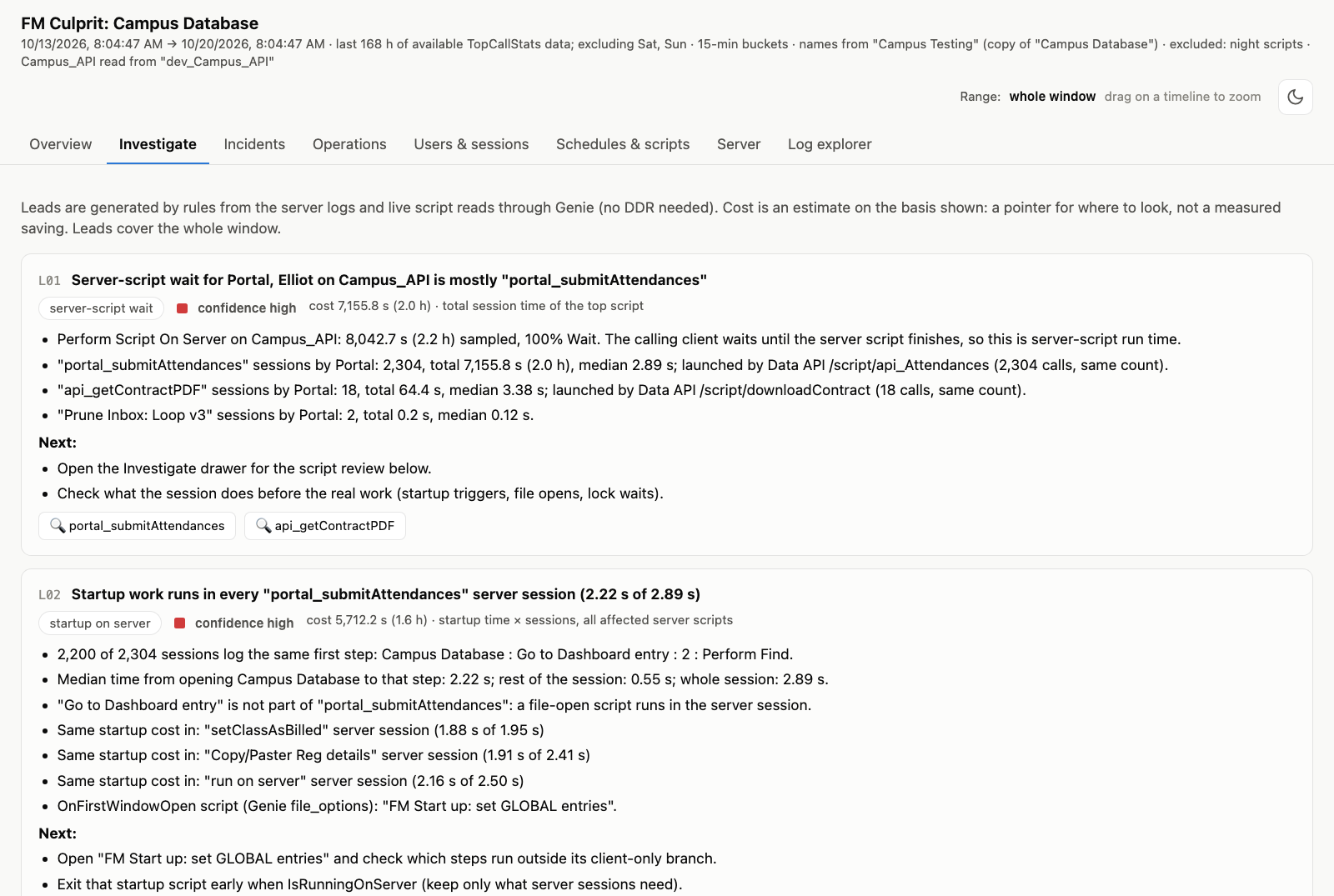
Each lead shows its evidence, an estimated cost with its basis, and what to check next.
A real case: 2.9 seconds per API call
On a customer system, an API that marks attendance took about 2.9 seconds per call, more than 2,000 times in the week. Server-script time was the biggest item in the logs, and the report traced it to the server-side script the Data API call launched.
The surprise was not in that script. In almost every session, the first step logged belonged to the file’s startup script. About 2.2 seconds of each call went there, because OnFirstWindowOpen runs in every Perform Script on Server session, and this one did work that only someone in front of a screen needs. The fix is small: exit the startup script early when it runs on the server, and keep only what server sessions need.
The same report found slow nightly finds on an unstored date calculation. Dig deeper listed the 25 scripts that find or sort on that field, and the 6 of them the logs show running. That is where you start, not with all 25.
Dig deeper, one field at a time
When a field looks expensive, ask which scripts use it. For one field, Genie lists every script that runs a find or a sort on it (find requests, constrain and extend, sort orders), with line numbers, and the report marks the ones that ran during the log window. The page has a button that copies the command:
bin/fmculprit dig --out fm-culprit-2026-10-20-0930 --field "Invoices::balance_due"It scans scripts only. On a file with about 2,000 scripts it takes one to two minutes, and FileMaker stays usable while it runs. Asking again within 30 minutes answers at once.
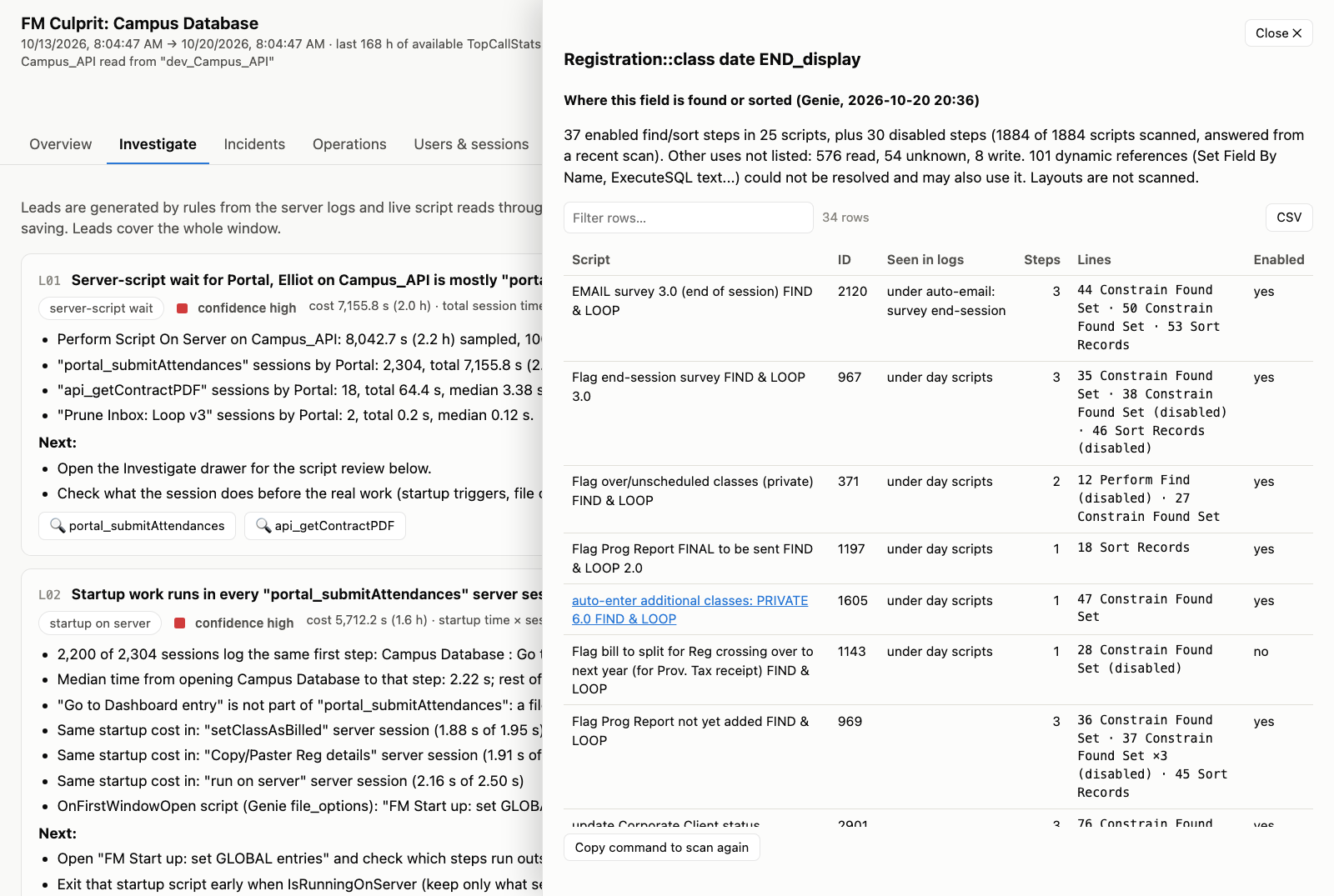
Dig deeper on one field: every find or sort that uses it, and the scripts seen in the logs.
A performance tool must not slow FileMaker down
Genie only looks up one thing at a time: a field, a script, a formula. Those reads are quick. Questions that would mean scanning the whole file, such as “where is this field used, everywhere?”, run only when you ask, one field at a time, and only in scripts. Layouts are left out on purpose: FileMaker reads them on its main thread, and scanning every layout of a large file would freeze it for seconds at a time, for the very people you are trying to help.
If you need layouts as well, pass a Database Design Report with --ddr, and the report adds every other use of the slow fields from it.
Or let your agent run it
The repository is also an agent skill for Claude Code, Codex and others. Link the folder into your agent’s skills directory and ask “what is slow in these logs?”. The agent runs one command and answers from SUMMARY.md. The skill is short enough for small local models to follow.
Get started
- Install Genie. Ask your agent:
Install Genie for FileMaker on this computer. Read https://www.geniewave.com/install.md and follow it exactly.
Or install it by hand from docs.geniewave.com.
- In Genie, open Settings > Local MCP and turn it on. If one of your AI clients already connects to Genie, FM Culprit finds the token on its own.
- Open the hosted file in FileMaker Pro. Window order does not matter.
- Run bin/fmculprit auto with your logs and open the report.html it prints.
You need Python 3.9 or later (standard library only) and FileMaker Pro 19 to 26. The page contains account names, machine names and IP addresses from your logs, so treat it like the logs. Claris recommends turning Top Call Statistics off when you are done measuring.
Try it on a week of your logs
Download a week of logs from the Admin Console, open the file, run one command. Start with the Investigate tab. If a lead is wrong or a pattern is missing, open an issue on GitHub: the rules are plain Python and easy to extend.