
Using Claude Desktop to code in FileMaker
Connect Claude Desktop to FileMaker through Genie's Local MCP server so it can inspect schema, review scripts, stage edits, and help build layouts from real solution context.

Introduction
Claude Desktop becomes dramatically more powerful when it can work directly with your FileMaker environment. In this post, I will walk through how Genie’s Local MCP server connects Claude Desktop to your database so you can inspect schema, review scripts, generate new logic, and even build layouts with much more context than a standalone chat experience can provide.
The goal is simple: reduce friction, move faster, and let Claude work with the real structure of your FileMaker solution instead of relying on guesswork.

Claude Desktop becomes a hands-on FileMaker assistant when connected through Genie’s Local MCP server.
What we’ll cover
In this tutorial, we’ll look at three practical workflows:
- Asking questions about your database structure and script contents
- Creating and editing FileMaker scripts
- Building a FileMaker layout from a design screenshot
Before you begin
Before getting started, make sure the Local MCP server is properly configured for Claude Desktop.
The first step is to launch your FileMaker database and open Genie. From there, you can access the Local MCP setup flow directly from the app.
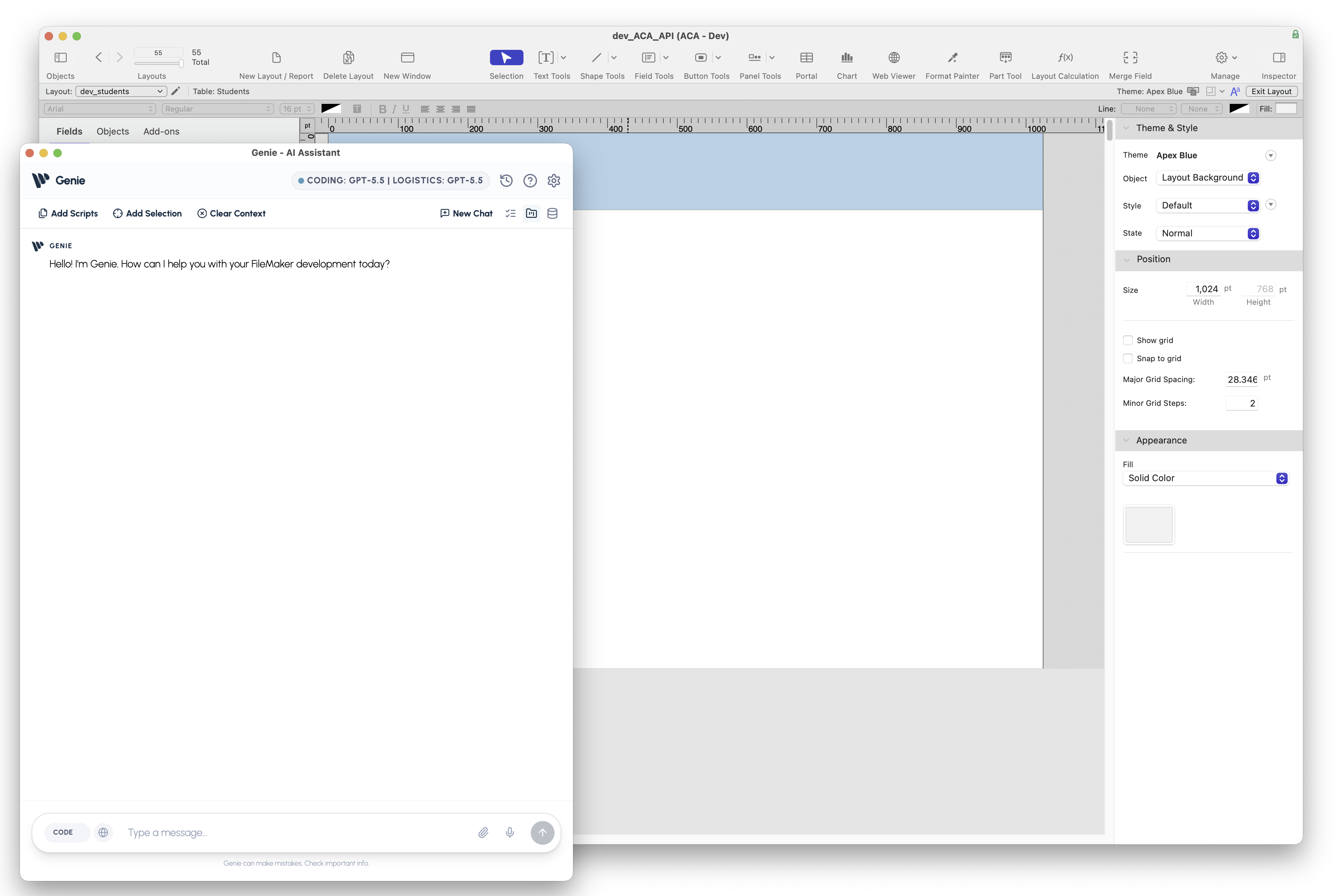
Launch Genie from your FileMaker environment to begin the Local MCP setup.
Next, navigate to Settings -> Local MCP and choose Claude Desktop as the setup guide. Genie will provide the exact instructions required to connect Claude, and you can click Copy Snippet to prepare for the next step.
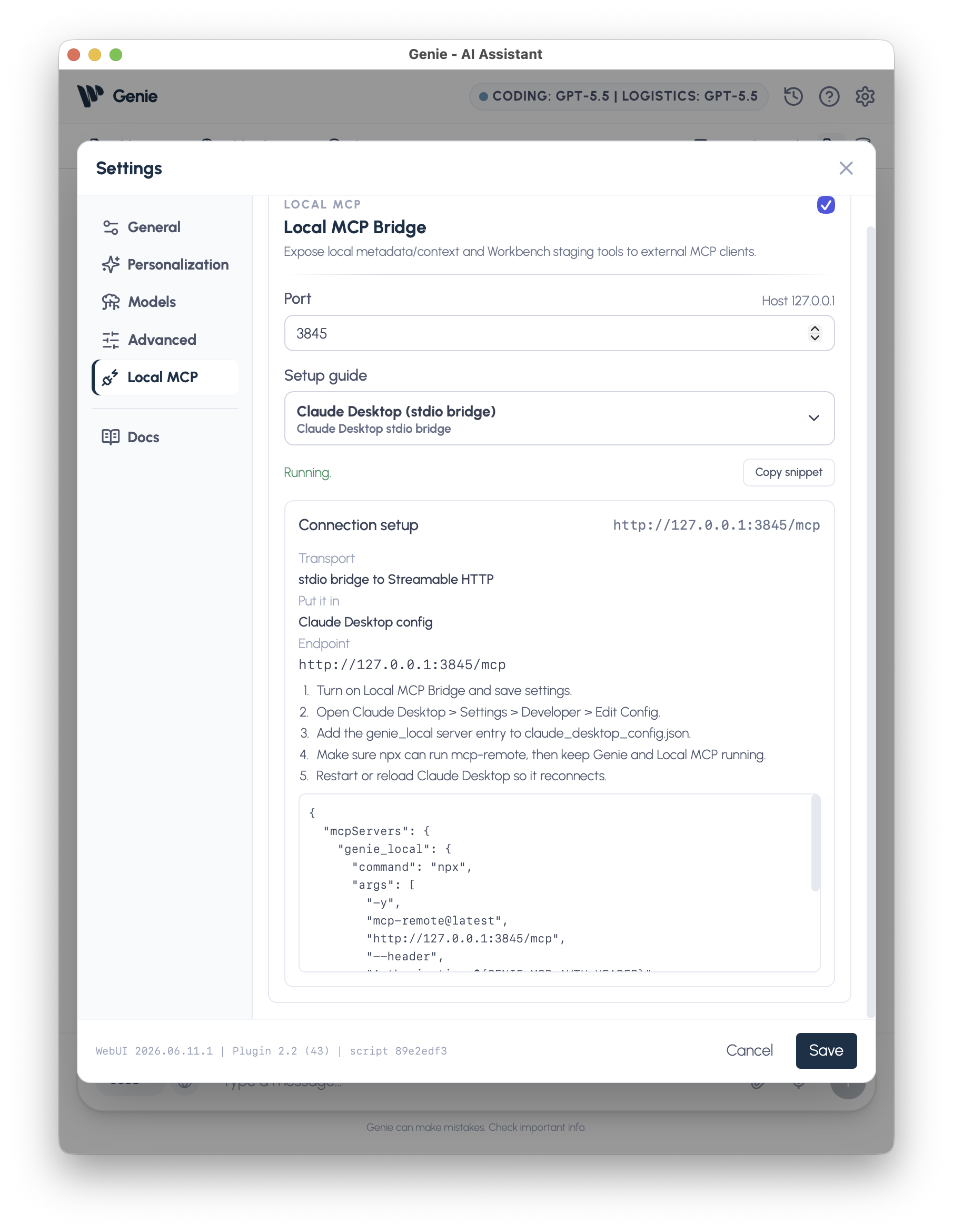
Genie generates the Local MCP snippet you’ll add to Claude Desktop.
Adding the MCP server to Claude Desktop
Open Claude and go to Settings -> Developer, then click Edit Config.
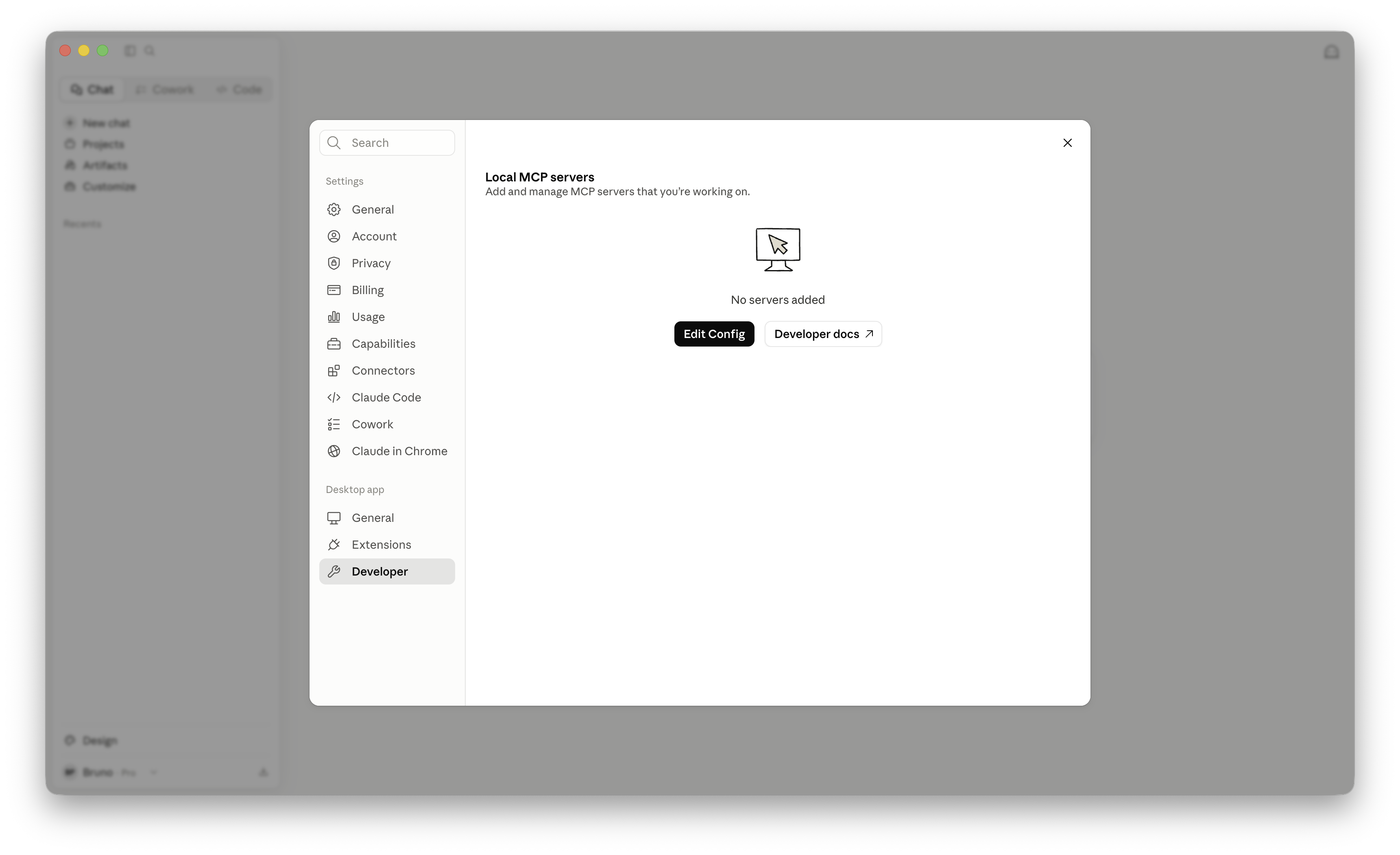
Claude Desktop’s Developer settings provide direct access to the MCP configuration file.
Claude will open Finder and automatically select the correct configuration file.
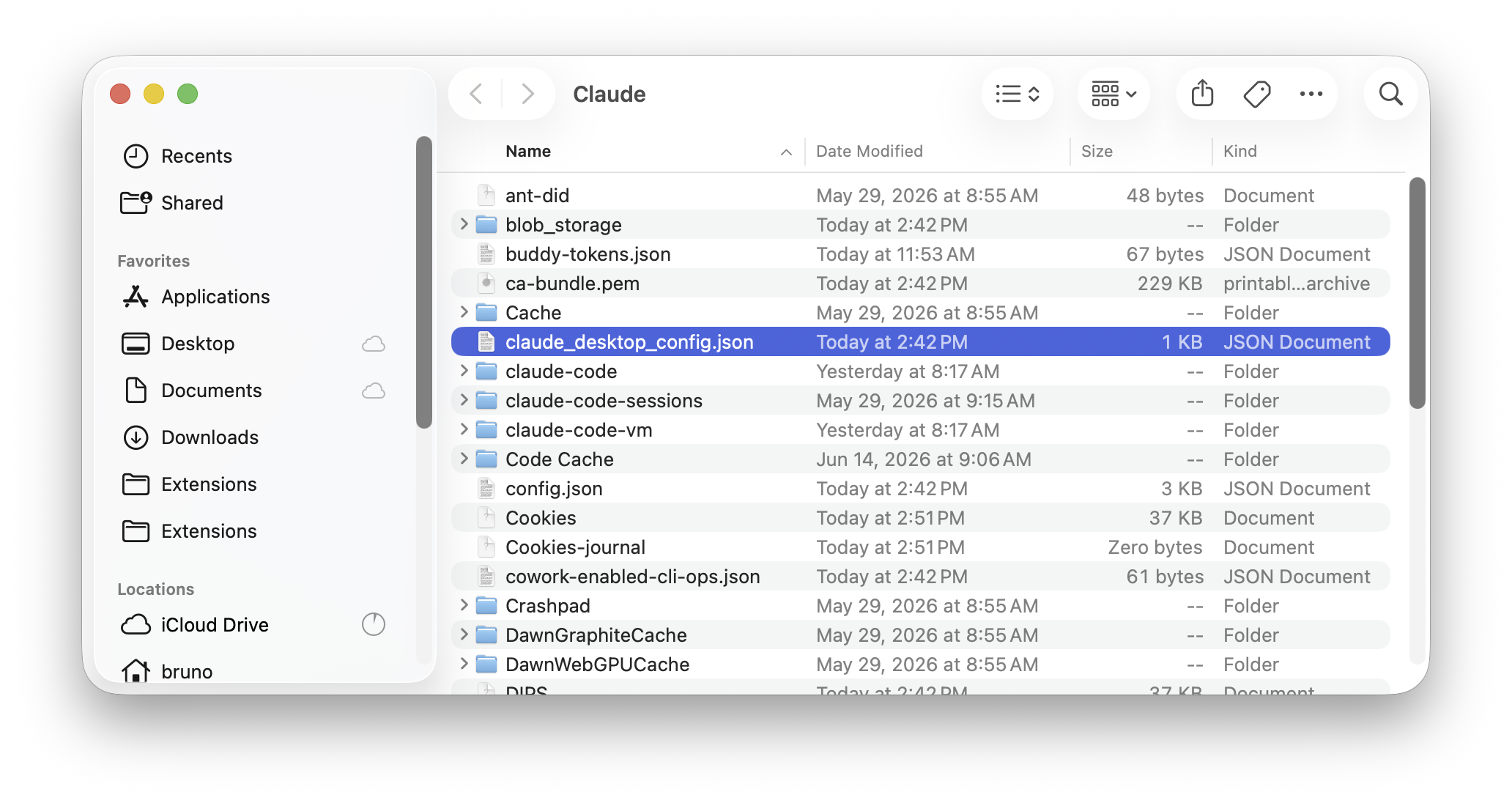
Claude opens the exact config file you need, which keeps setup fast and straightforward.
Paste the MCP configuration at the top of the file, then save your changes.
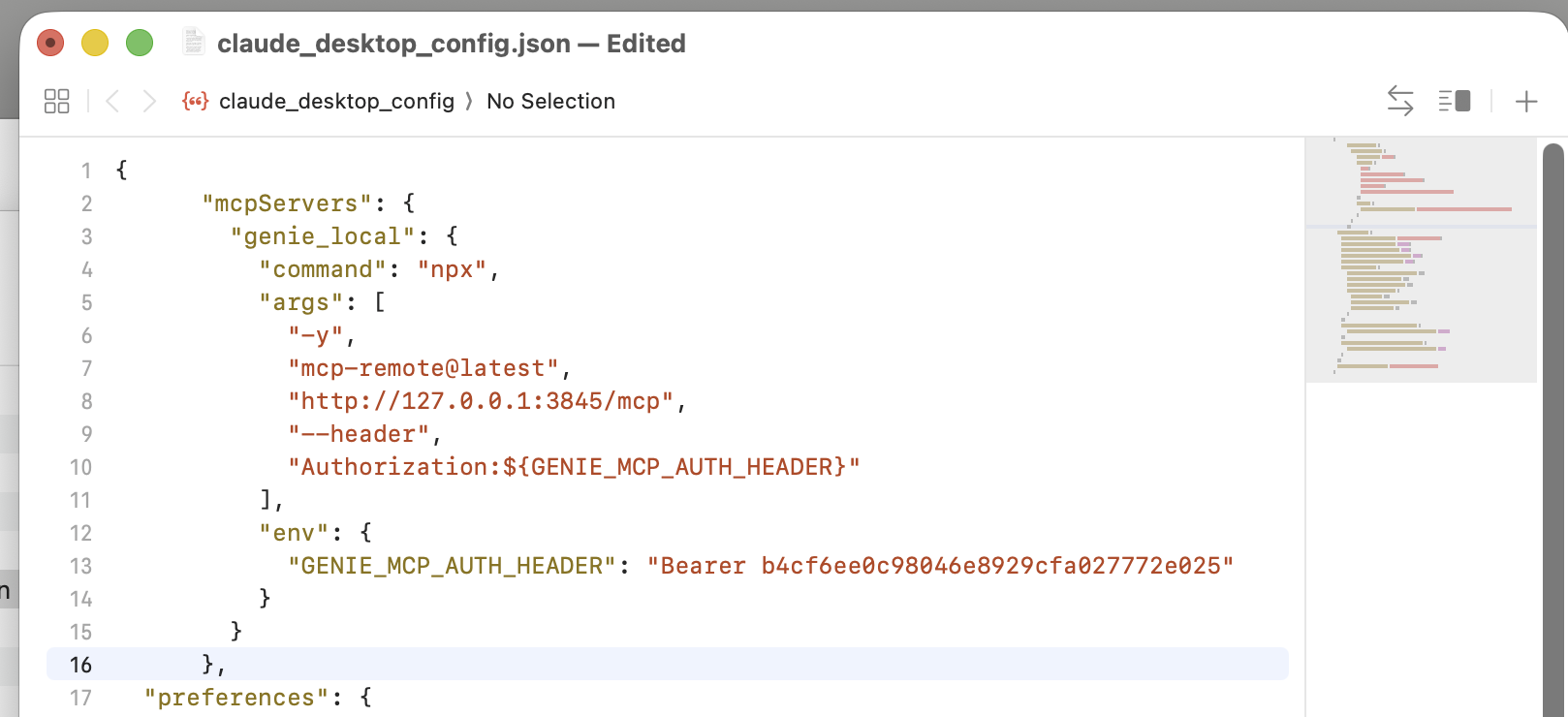
Paste the Genie MCP snippet into Claude’s config file and save it.
Once that’s done, restart Claude and return to the Developer settings to confirm that Genie is available.
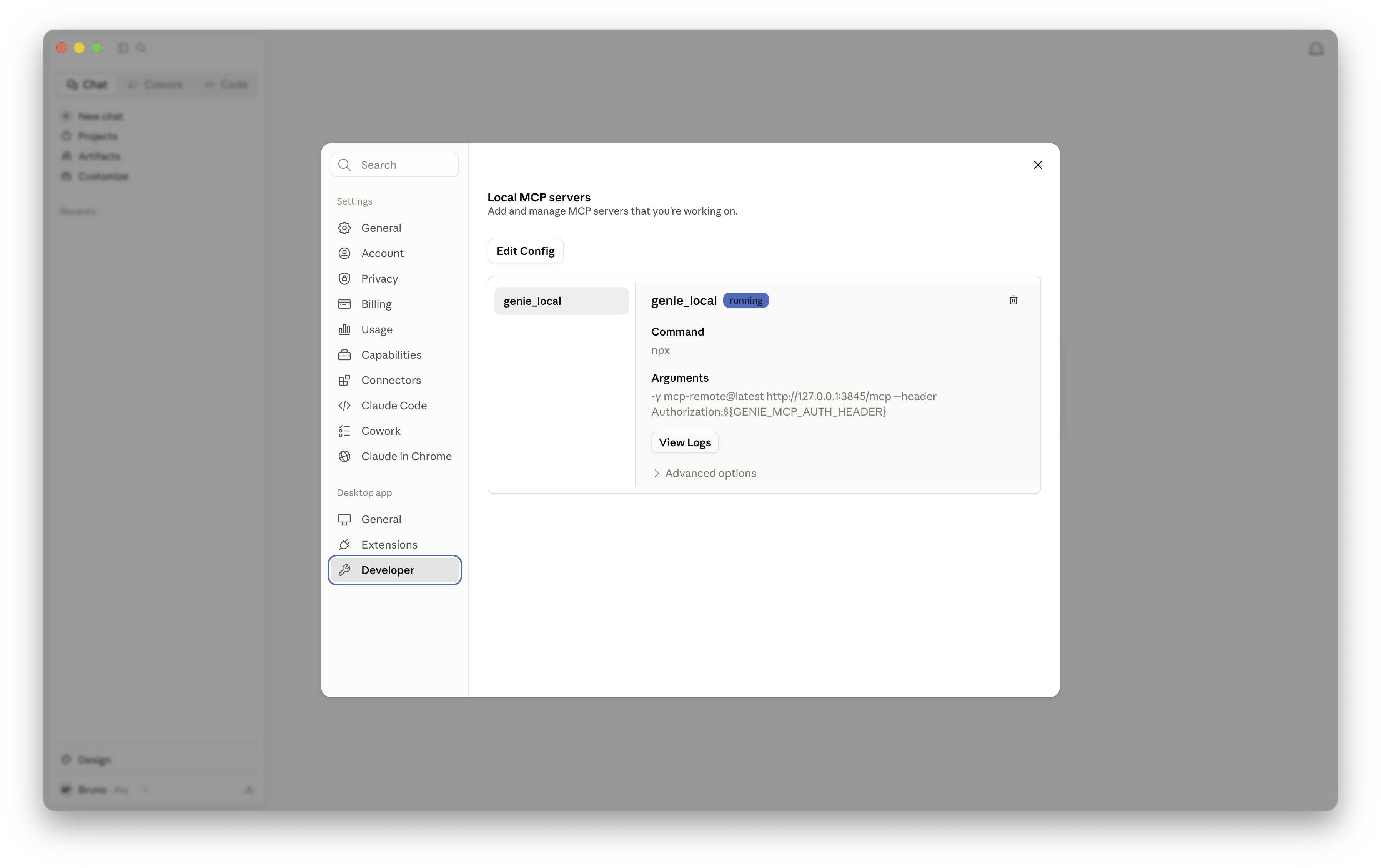
After restarting, Genie should appear as an available MCP integration inside Claude Desktop.
Start using Claude with Genie
Once the MCP server is active, Claude can begin working with the tools and resources exposed by Genie. In practice, that means you can ask real questions about your FileMaker solution, generate implementation-ready outputs, and iterate faster with far more context than a generic assistant would have on its own.
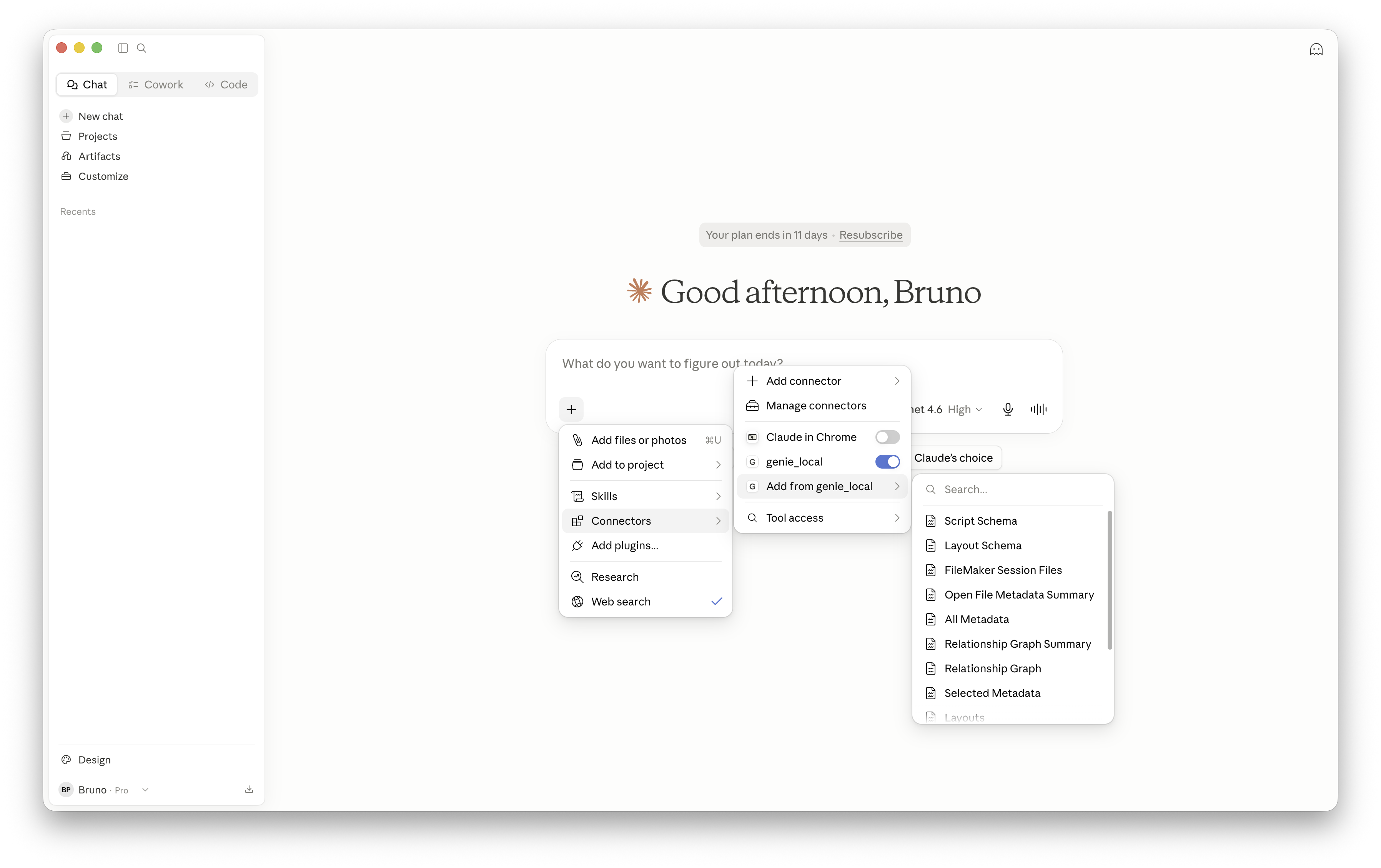
With Genie connected, Claude can access the right tools and context directly from your workflow.
Asking questions about your database
One of the most immediate benefits is exploratory work. With the tools and resources available through the plugin, Claude can inspect relationships, scripts, tables, and supporting metadata to answer detailed questions about your system.
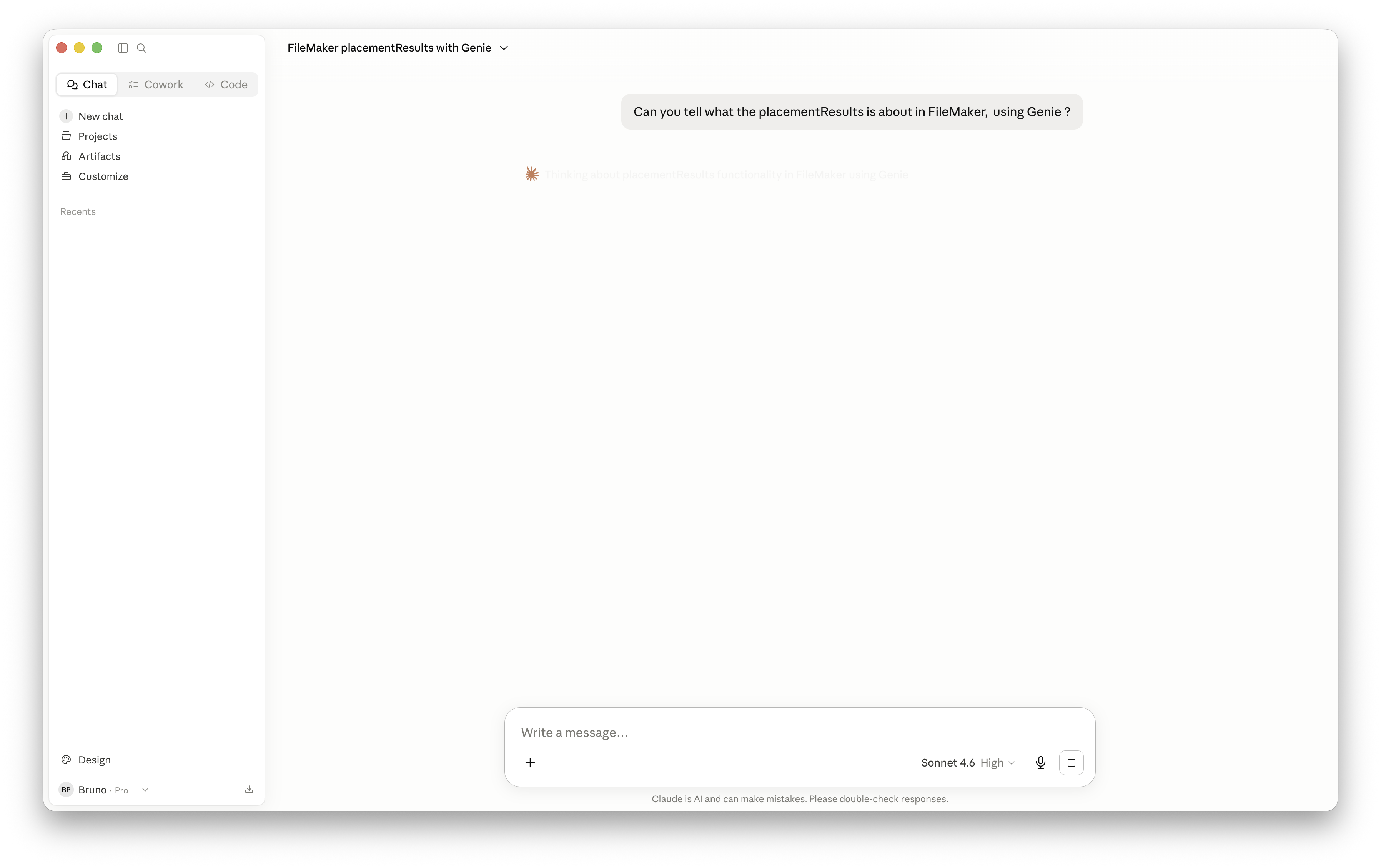
A simple prompt is often enough for Claude to begin analyzing your FileMaker environment.
Because Claude can use multiple tools across the available context, it can often produce stronger answers than what you’d expect from a single, isolated in-app exchange.
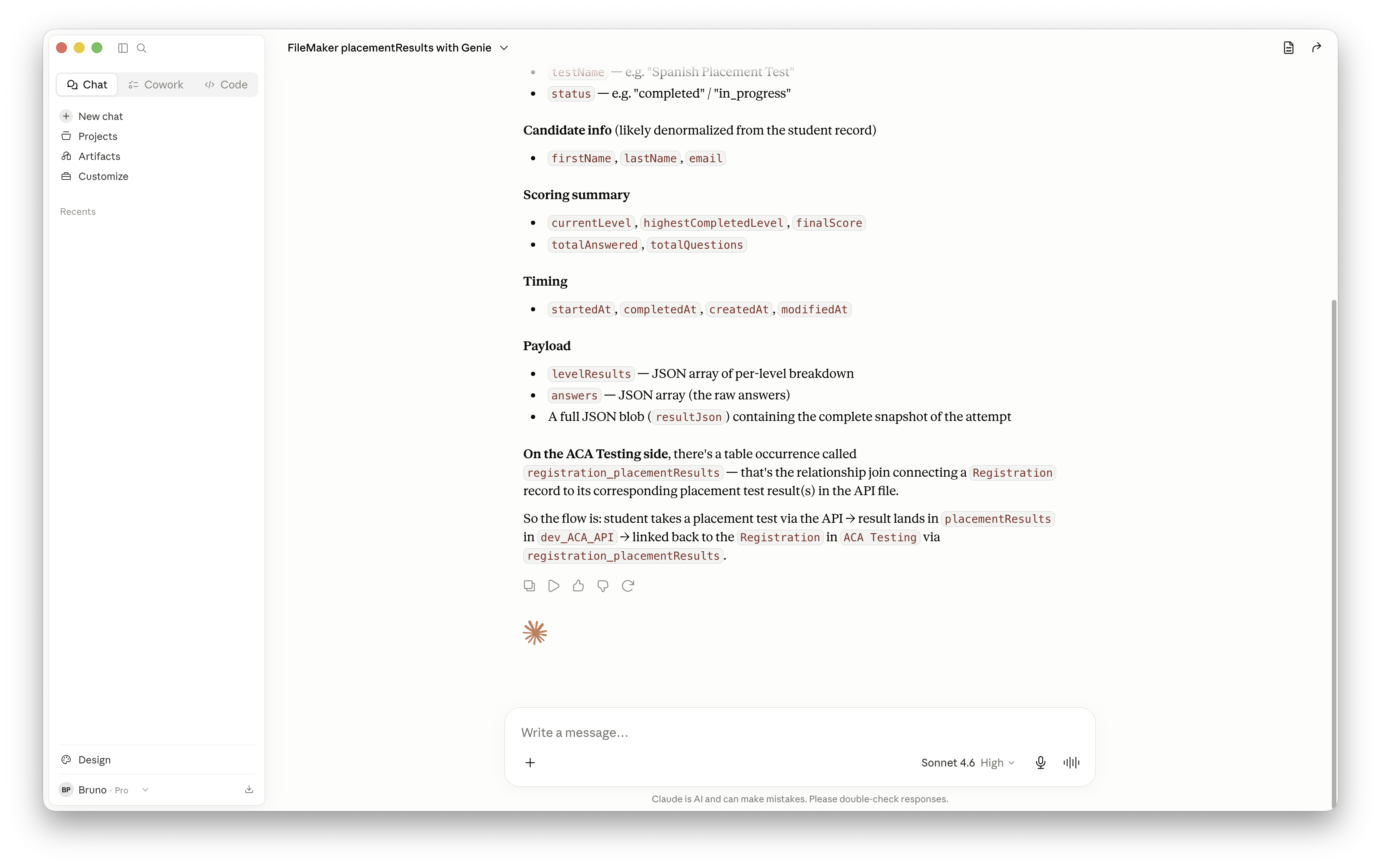
Claude can combine context from multiple sources to deliver more complete answers.
You can also ask directly about a specific script without manually attaching every relevant resource first.
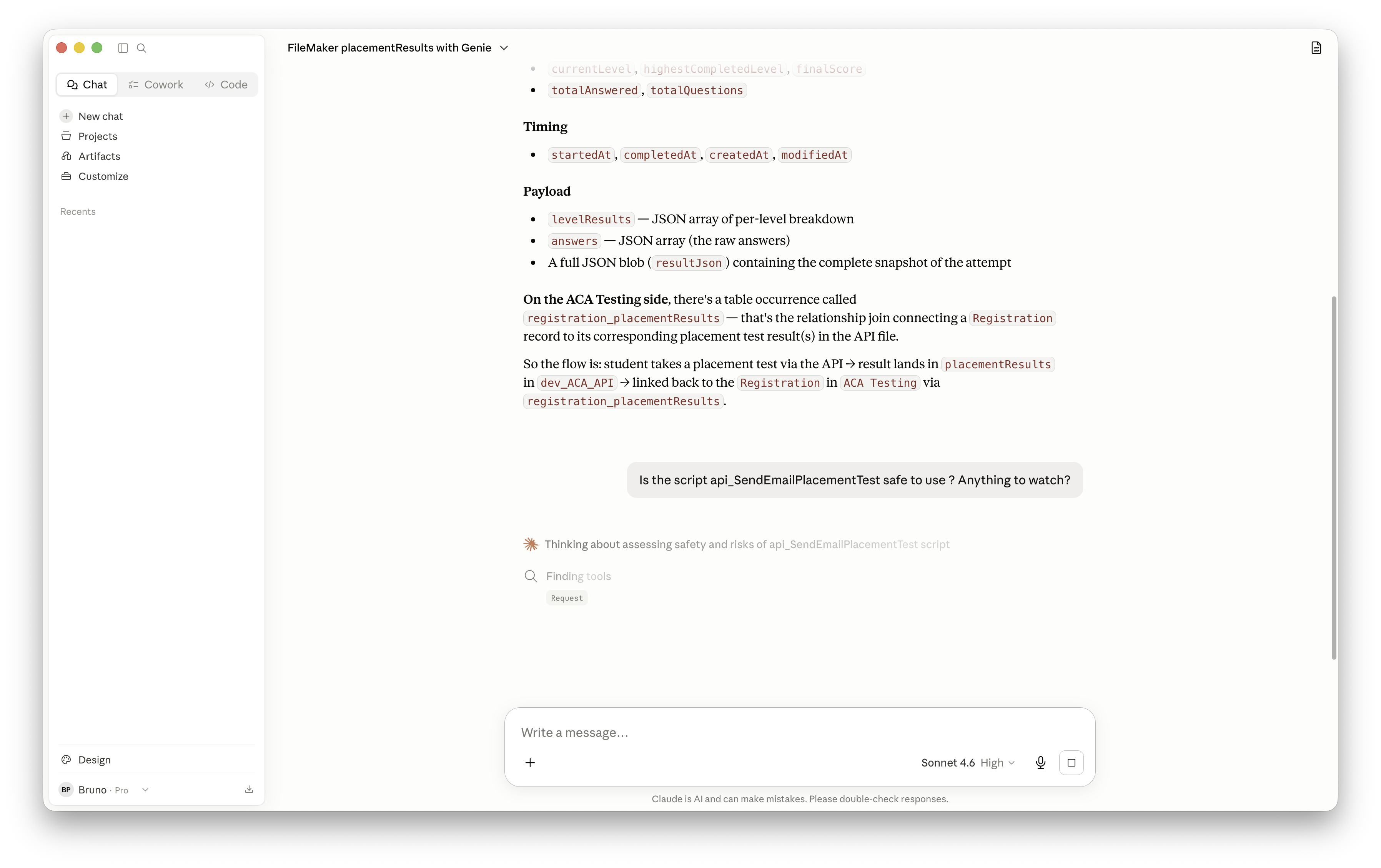
Claude can investigate individual FileMaker scripts without requiring a fully manual setup each time.
That deeper access often leads to more precise debugging and better implementation guidance.
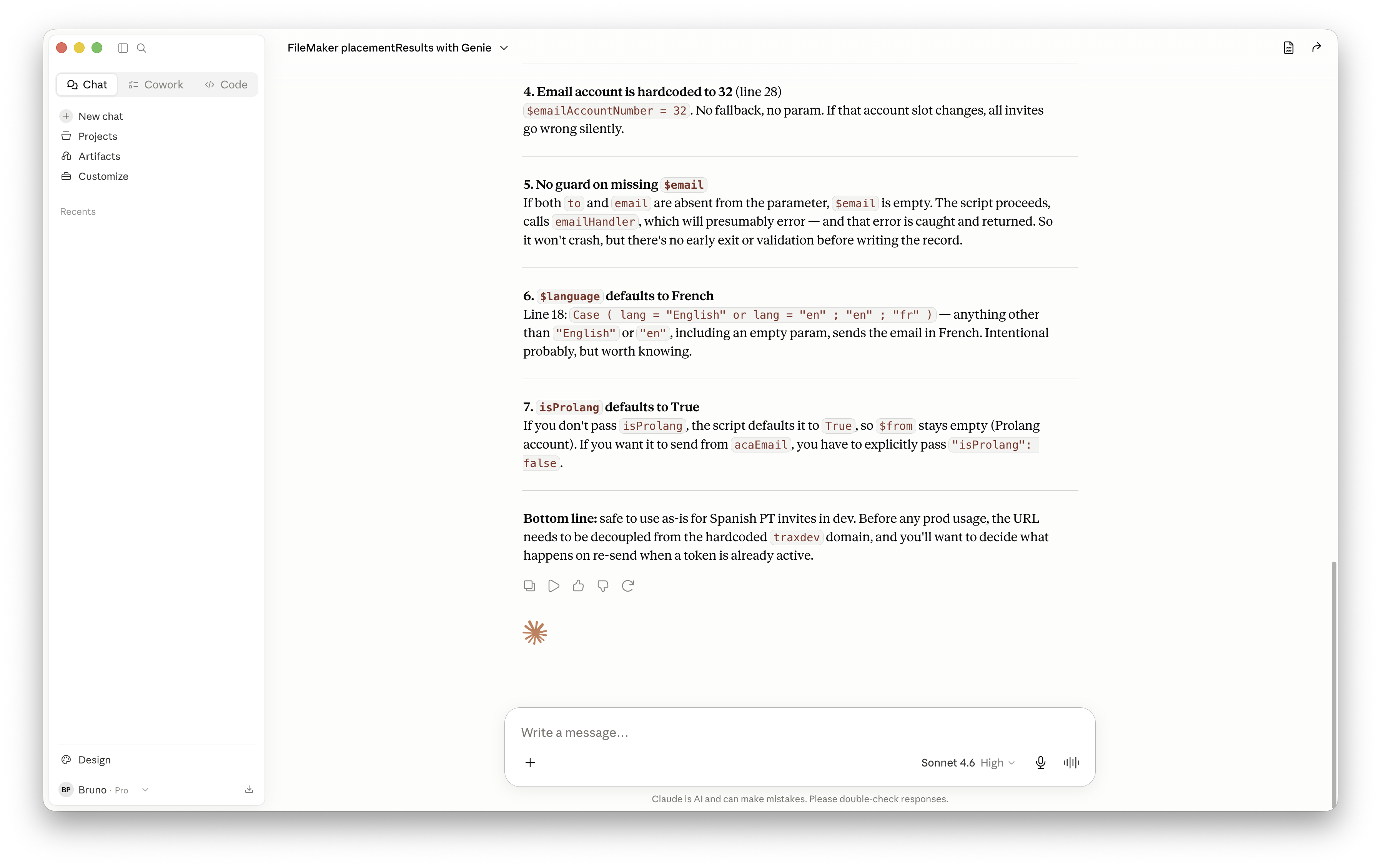
Richer context produces more useful debugging results and clearer recommendations.
Generating a new script
Another powerful use case is script generation. In the same conversation, I can ask Claude to create a revised version of a script based on the bugs or weaknesses it identified earlier. Claude can then prepare a staged version for review inside Genie.
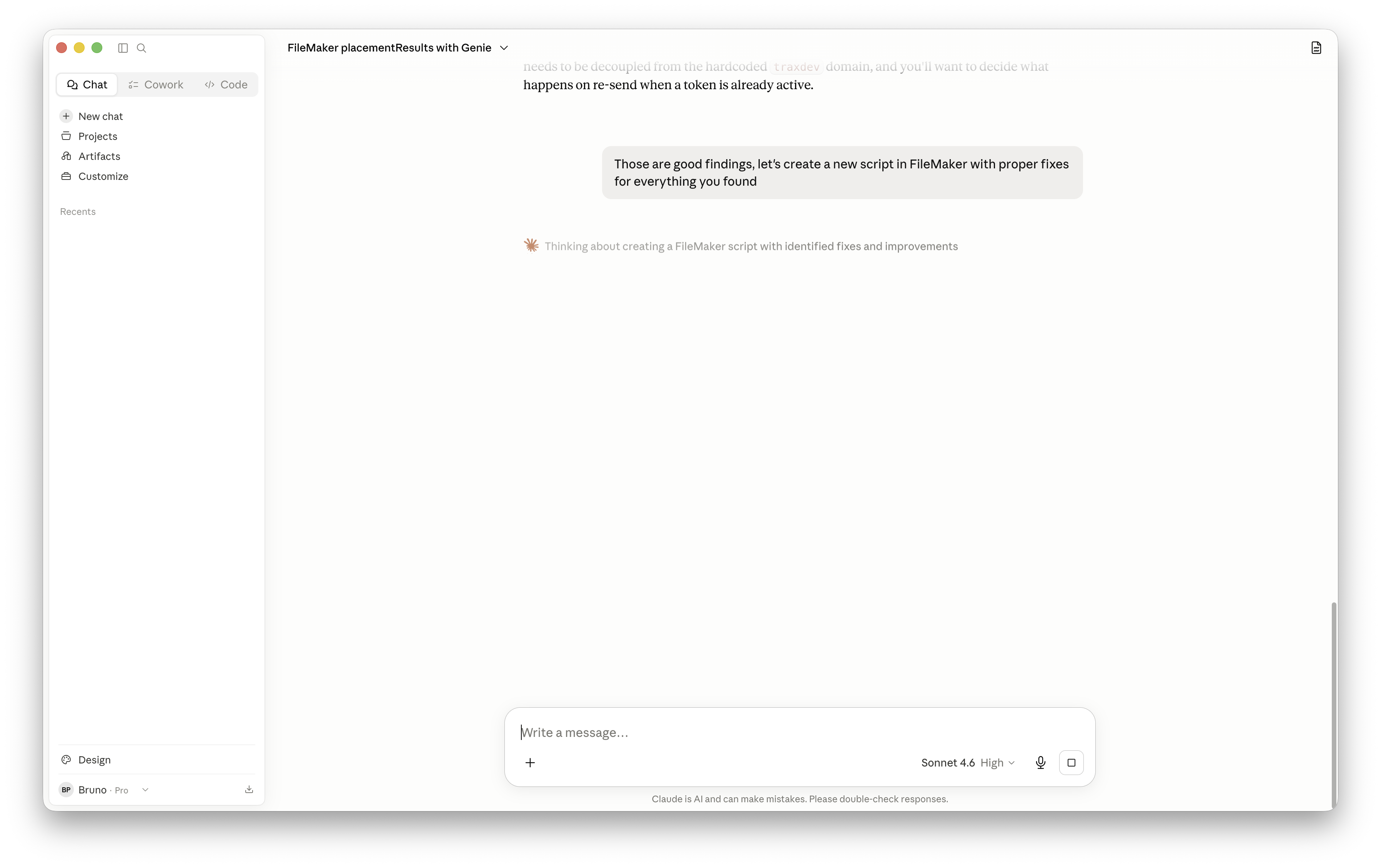
Claude can generate a revised script directly from the issues identified in earlier analysis.
Using both its general knowledge and Genie’s tooling, Claude can build the script and stage it so the result is ready for human review before anything is applied.
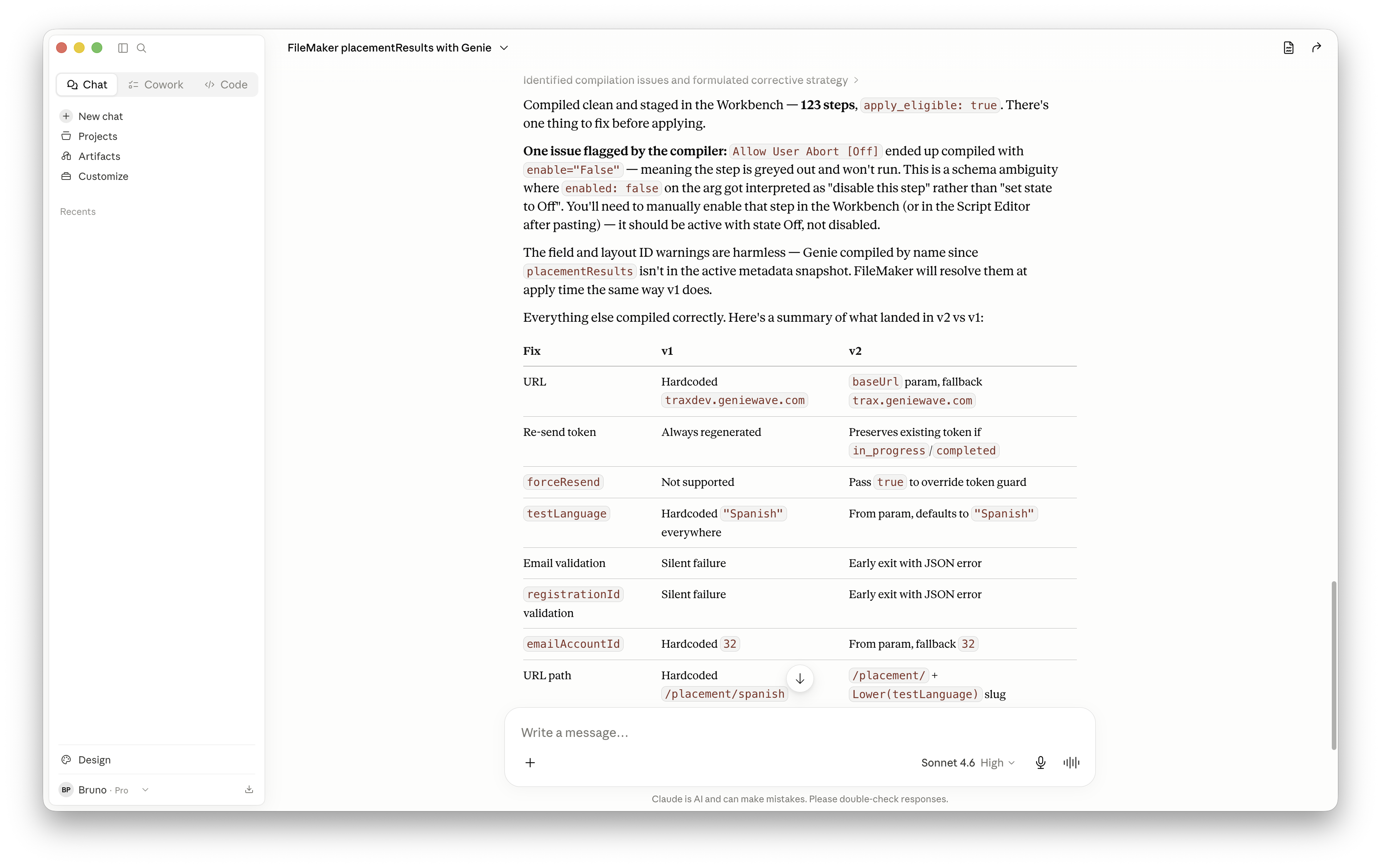
Genie stages Claude’s output so you can validate it before applying changes.
In Genie, click the Workbench button to review and apply the generated script.
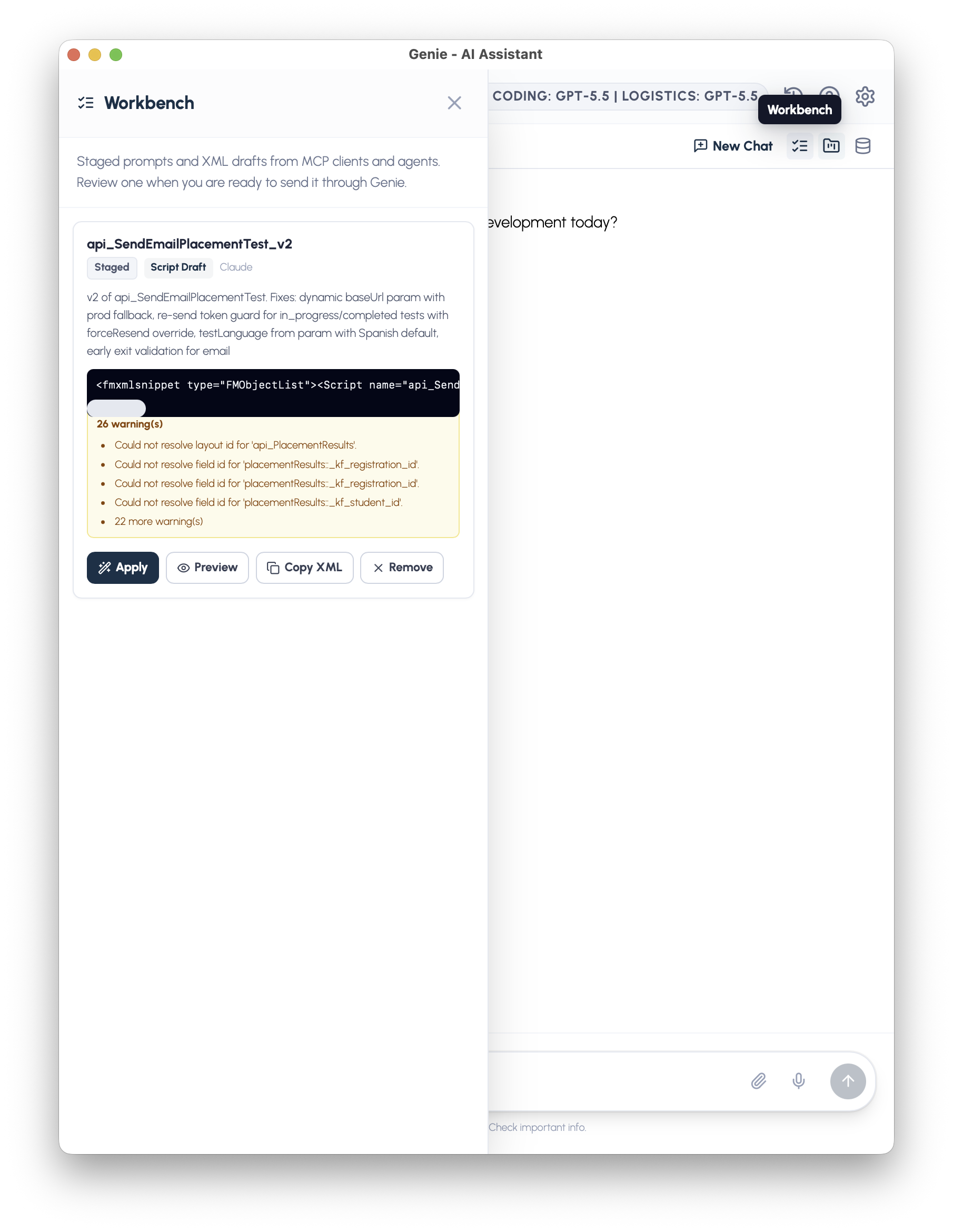
Genie’s Workbench gives you a final review step before changes reach your script workspace.
The compiled previews are available as both XML and text, giving you flexibility in how you inspect the result before clicking Apply.
Editing an existing script
Creating a new script is useful, but where Genie really stands out is in live script editing. Instead of regenerating a script from scratch every time you need a change, you can target a specific selection and let Claude update the right part of the logic.
Start by selecting the script you want to modify in Genie, then click Add Selection.
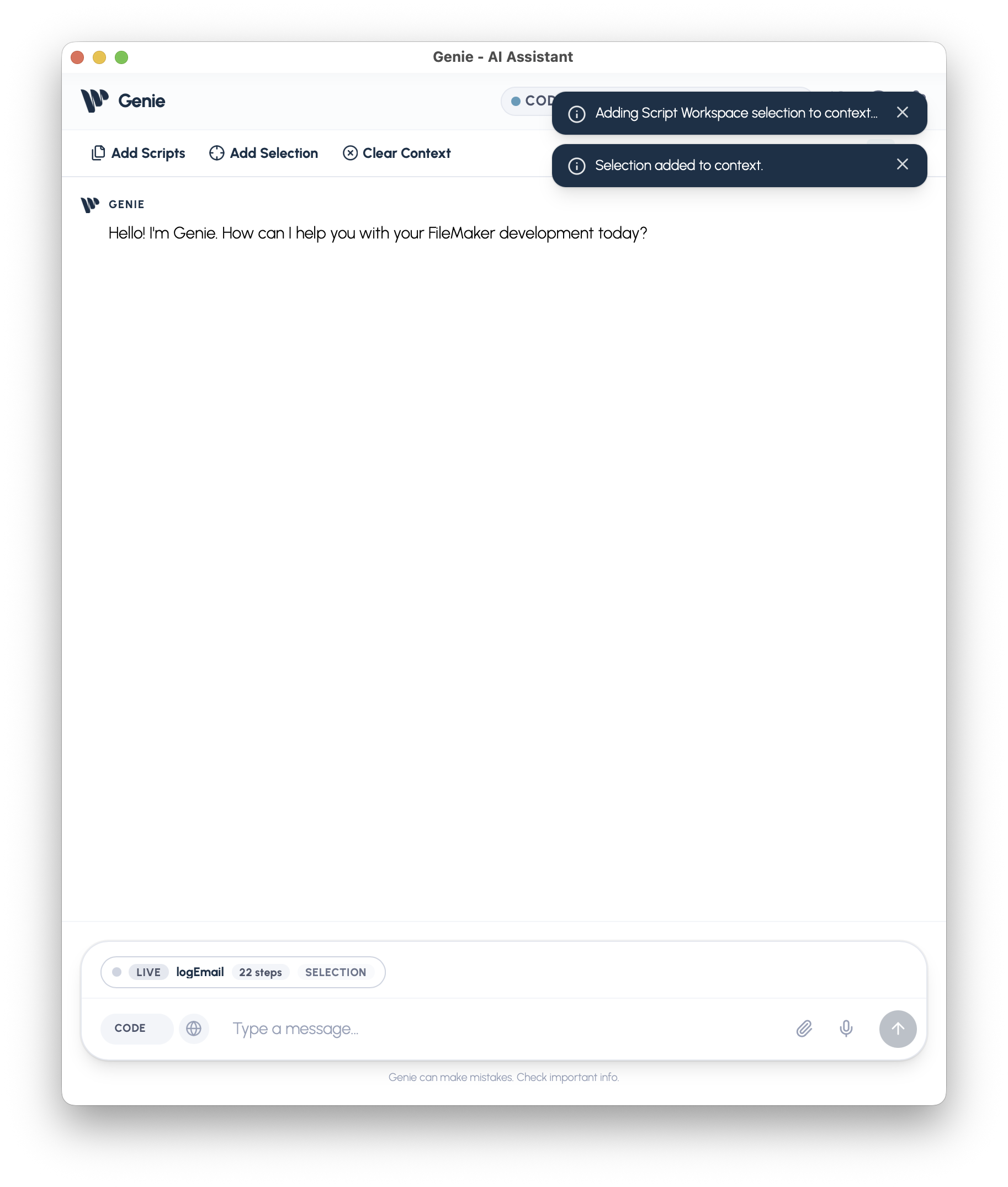
Add the active script selection in Genie so Claude can work on the exact target.
Then switch to Claude and request the edit you want. In this example, I asked for a full conversion of the selected script.
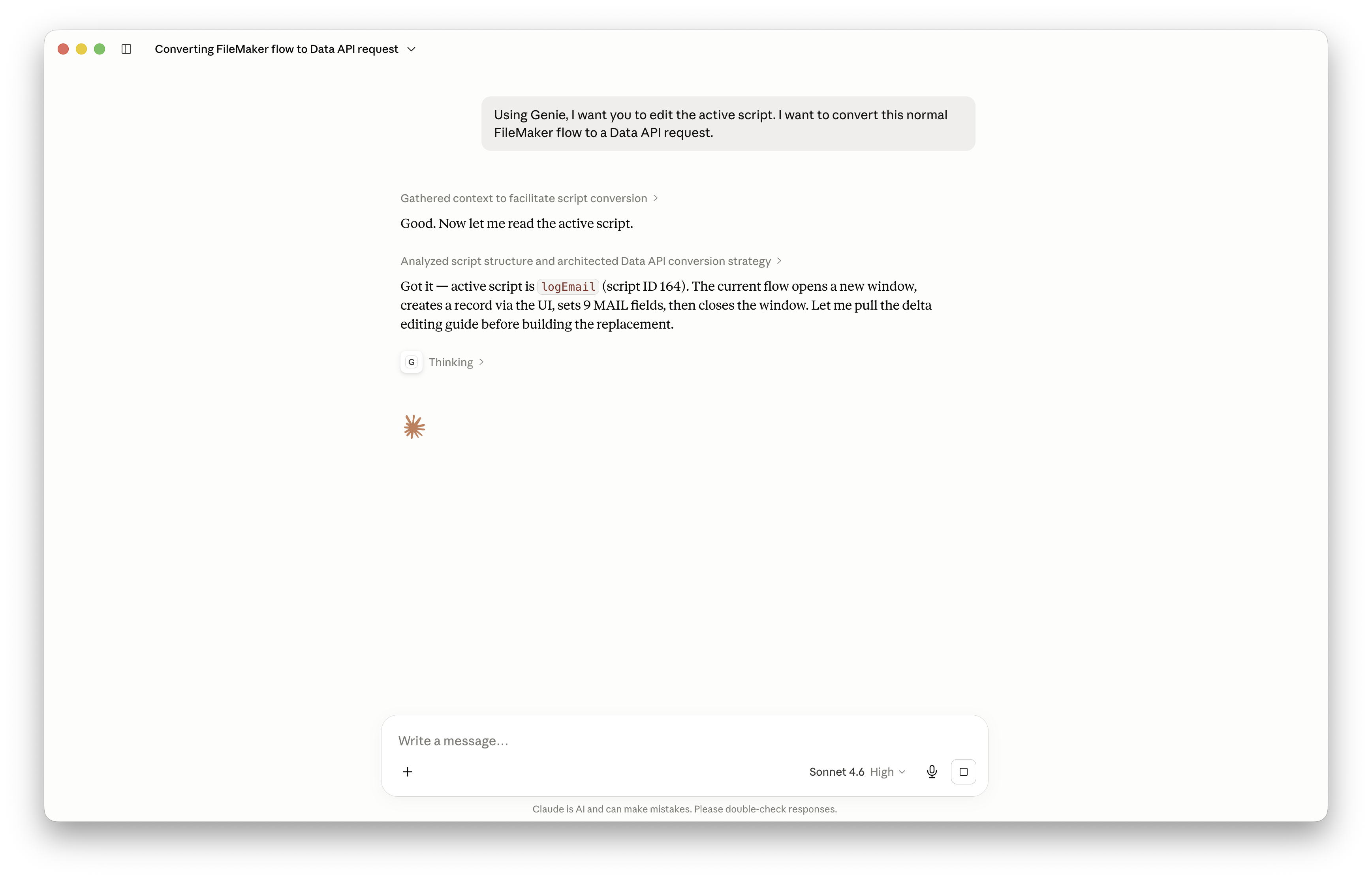
Claude can take a focused selection and transform it according to the requested change.
Claude will stage the necessary work, and Genie can apply those edits directly back into the script.
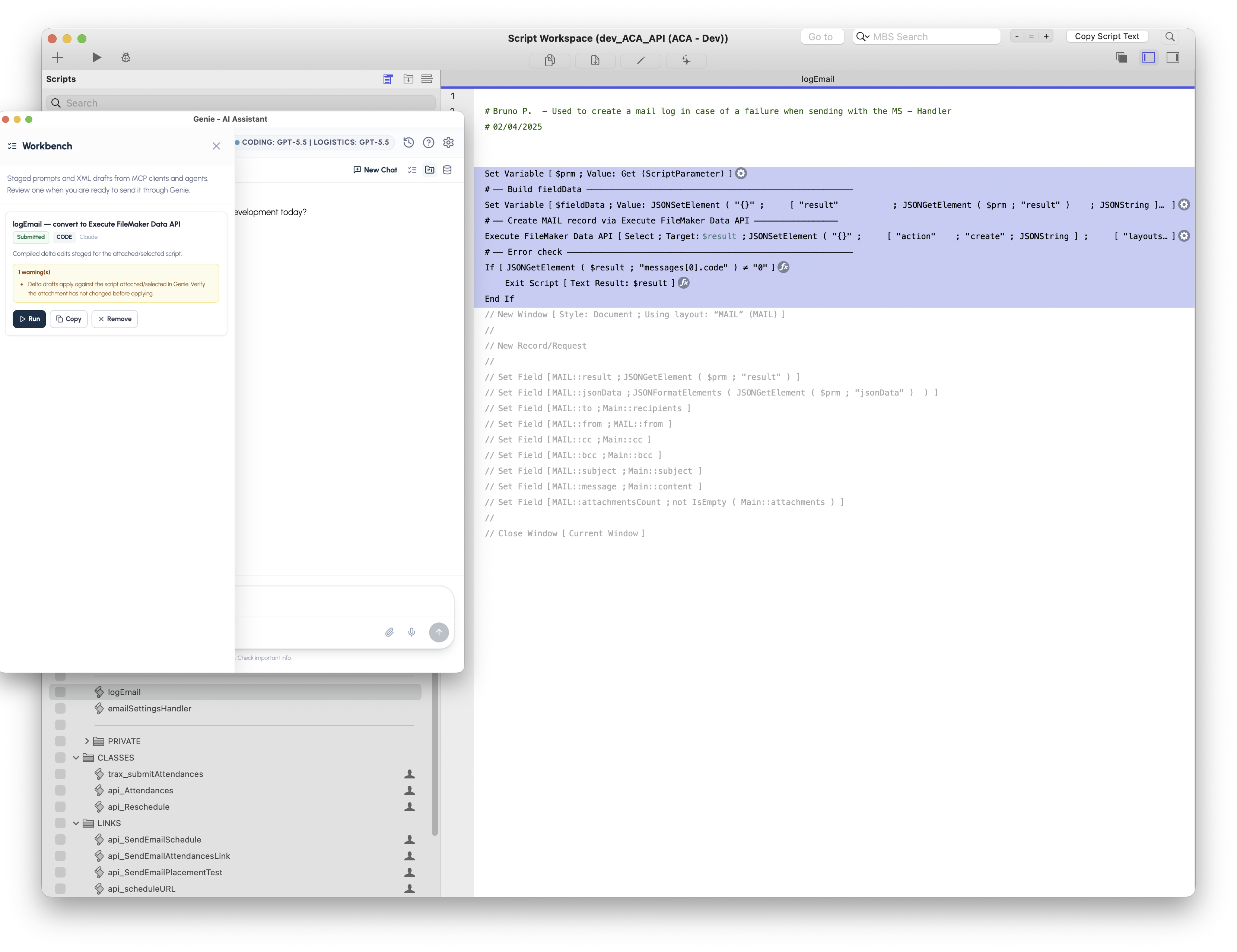
Genie turns Claude’s staged changes into a reviewable, ready-to-apply script update.
Building layouts from a screenshot
One question I hear often is whether this workflow can help with layouts too. The answer is yes.
Genie can generate and compile the XML required for FileMaker layouts, and Claude is strong at interpreting design intent. Together, that makes it possible to start from a screenshot and move toward a working layout in just a few minutes.
Here’s the reference image I provided to Claude:
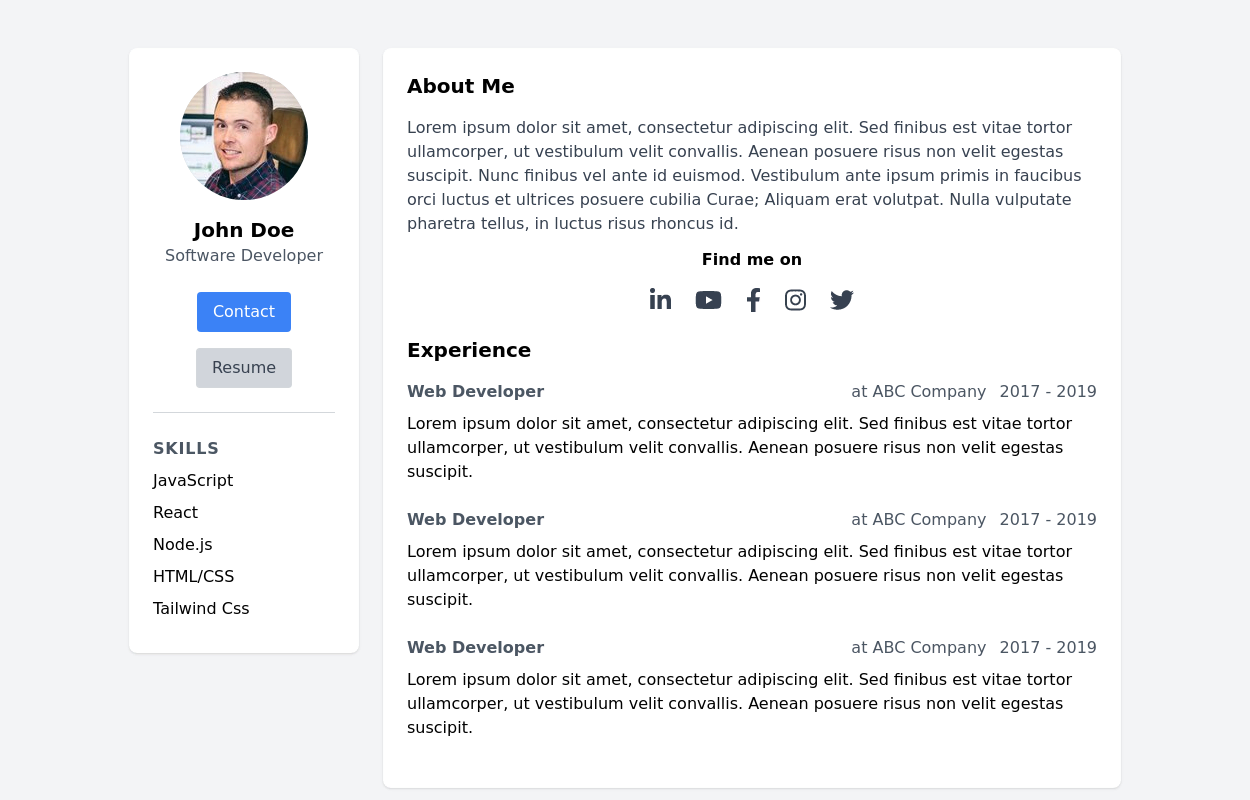
A simple design reference can be enough for Claude to begin constructing a FileMaker layout.
I then asked Claude to use my dev_students table and fields to recreate that layout appropriately for my system.
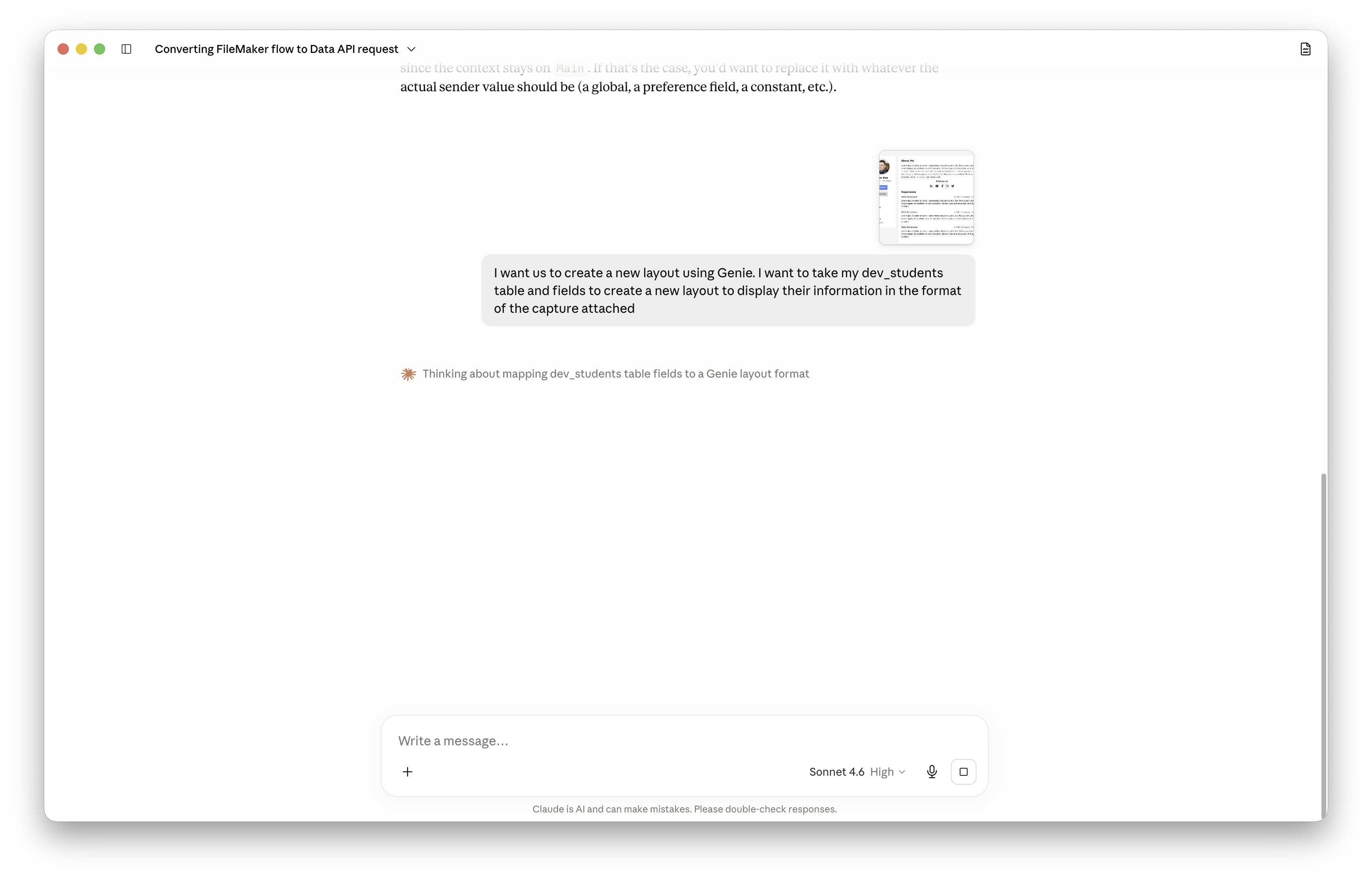
Claude adapts the visual reference to your actual FileMaker schema and fields.
The resulting layout code appears in Genie’s Workbench, where you can preview it, copy it, or continue refining the output. From there, you can paste it into FileMaker as native layout elements, then fine-tune styling either in layout mode or by giving Claude more precise design instructions.
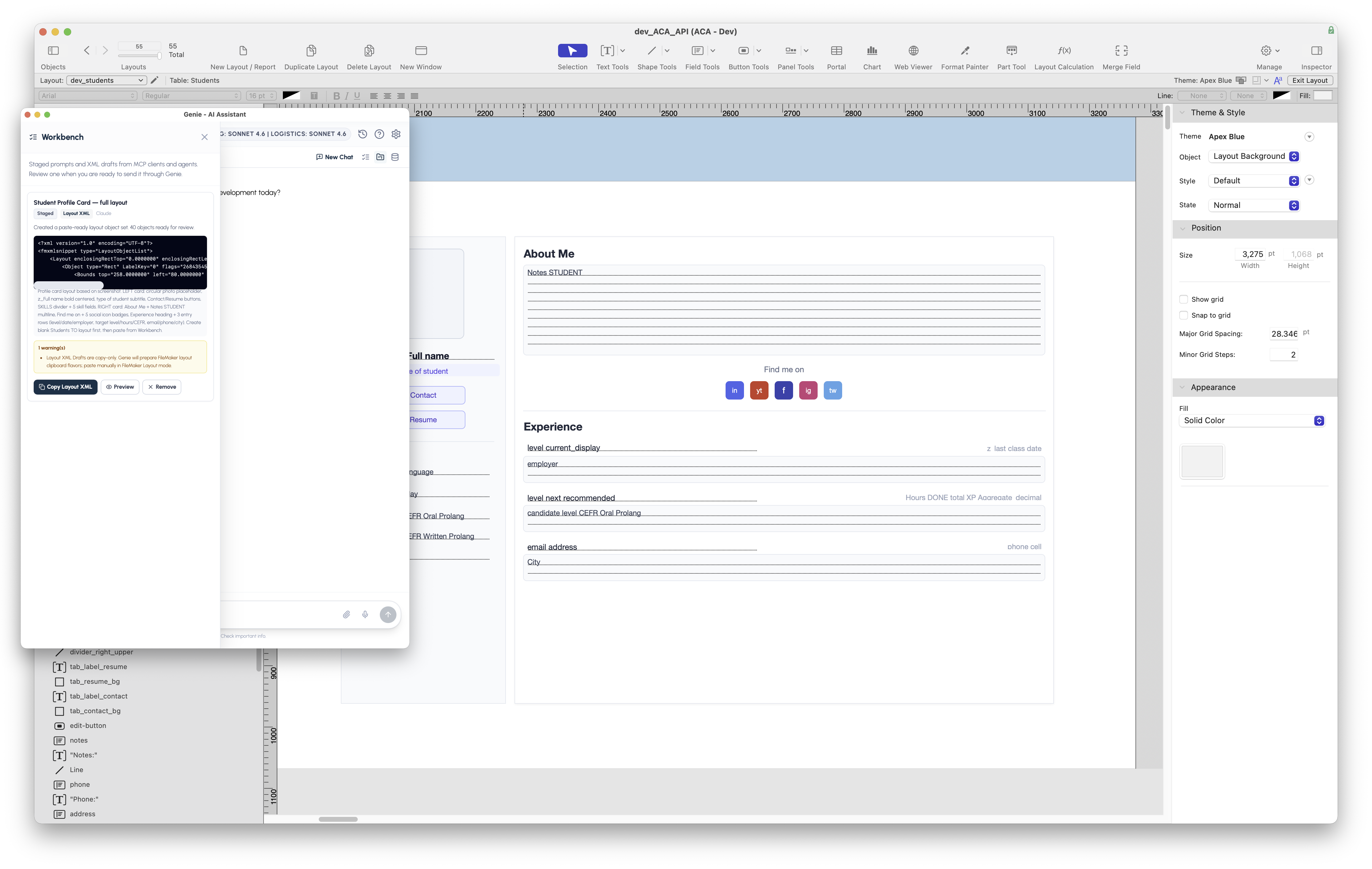
The generated layout can be previewed and transferred back into FileMaker for final refinement.
Conclusion
Claude Desktop and Genie make a compelling combination for FileMaker development because they connect language-driven workflows to the actual structure of your system. Instead of working from isolated snippets or vague prompts, Claude can reason over scripts, tables, layouts, and supporting context in a way that feels much closer to collaborating with a technical assistant inside your environment.
Whether you’re debugging a script, generating a new implementation, or translating a design into a working layout, this workflow shortens the distance between idea and execution. The more context you provide through Genie, the more useful Claude becomes, and that’s what makes this setup so practical for real-world FileMaker work.
Try it in your own FileMaker solution
Bring Claude Desktop closer to your FileMaker work.
Download Genie, turn on the Local MCP server, and start giving Claude real context from your scripts, tables, and layouts.