
Genie: Quick Tour (AI inside FileMaker's Script Workspace)
A quick tour of Genie's FileMaker plugin workflow: capture script XML and metadata, run preflight, validate or repair output, then apply changes.

Genie: Quick Tour (AI inside FileMaker’s Script Workspace)
After getting a few messages asking how the flow actually works, I wanted to put together a quick tour of the Script Workspace workflow, how Genie captures context, hands it to the model, and applies changes back into FileMaker safely.
Where Genie lives: Script Workspace buttons
Buttons / actions:
Copy selection as XML
Paste XML from clipboard into FileMaker
Edit selection directly (overlay editor)
Open AI Assistant (Genie)
Why this matters: FileMaker scripting is structured, and Genie’s workflow keeps everything grounded in that structure from the start.
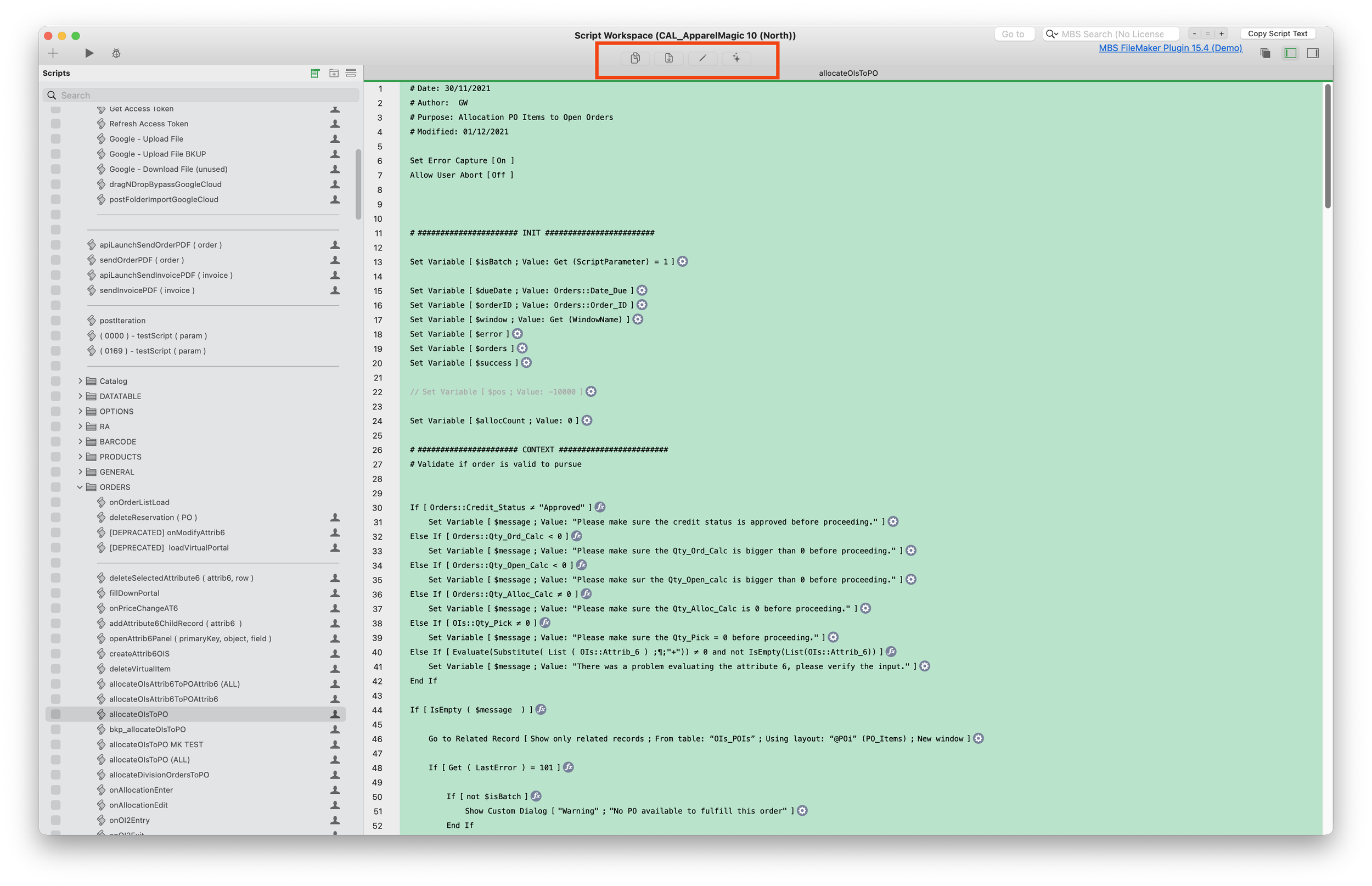
Script Workspace Buttons
The magic ingredient: native metadata (no guessing)
When you click the AI button, Genie quickly parses your open file and pulls solution structure using the Plugin SDK —so the assistant isn’t blind.
tables, TOs, fields
scripts
layouts
IDs and internal references
Custom Functions
So when you ask “update this script,” Genie can attach the right context (layout IDs, table IDs, field IDs, etc.) to the request.
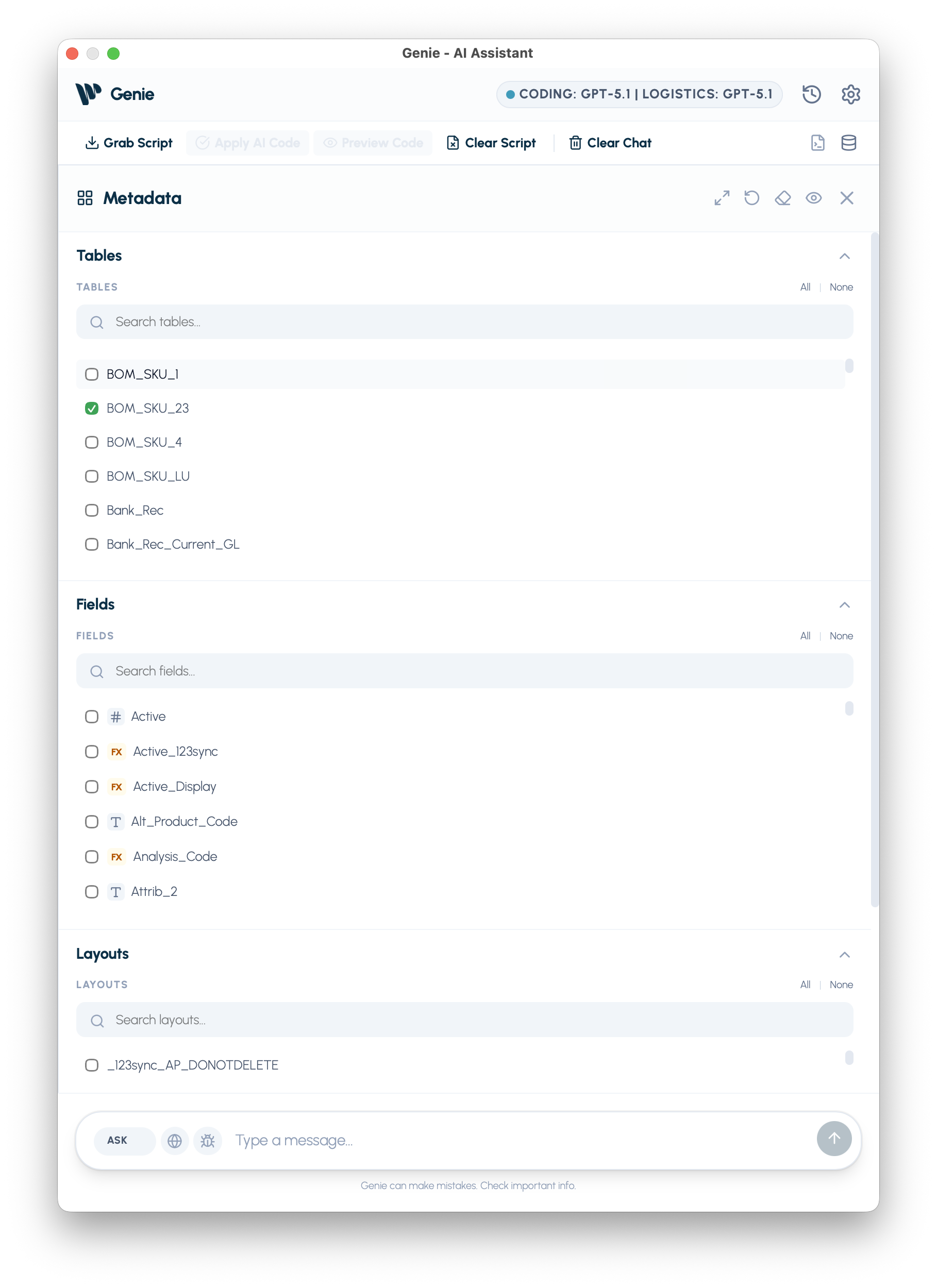
Metadata Explorer
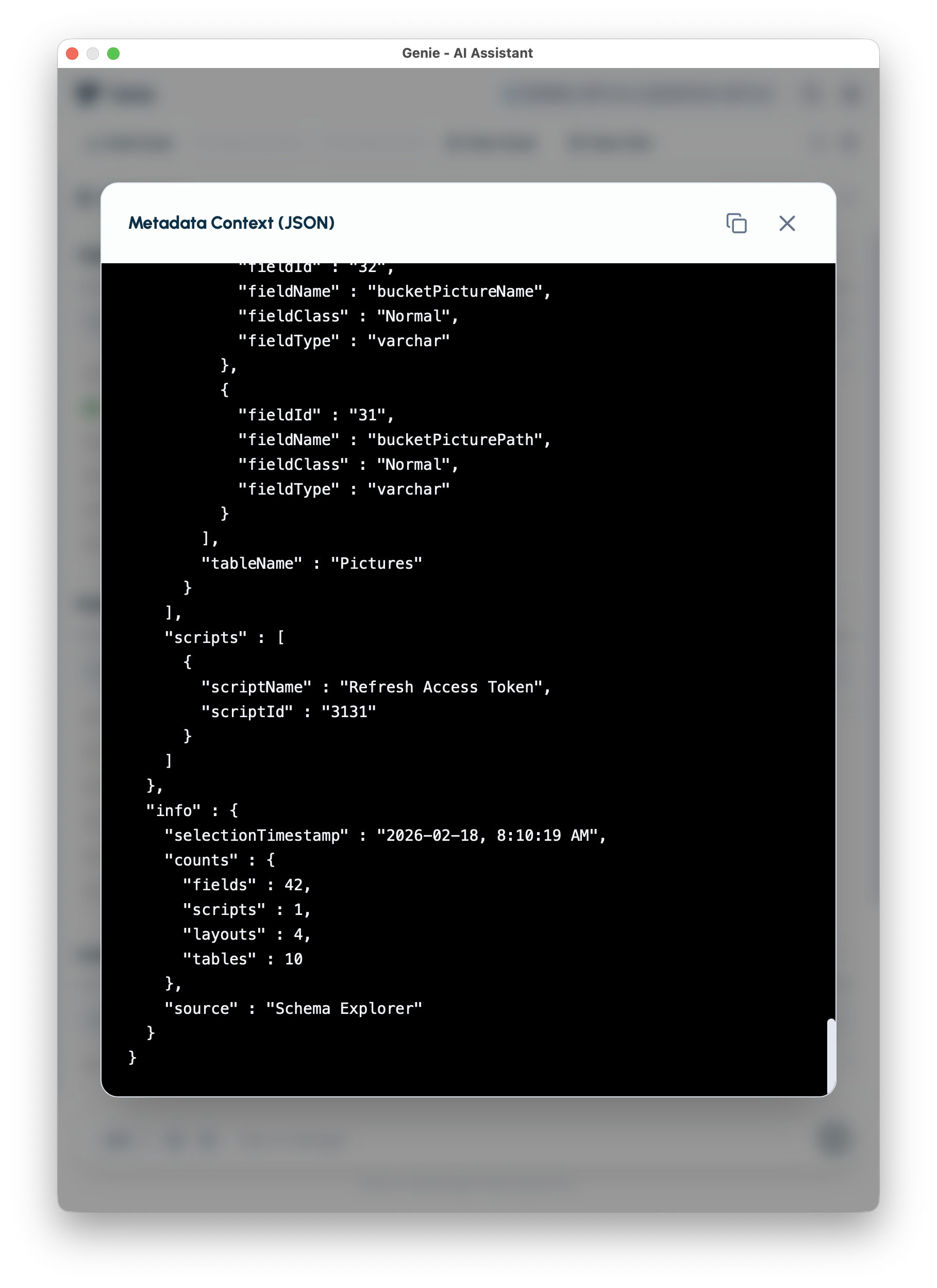
Metadata Preview ( JSON )
The Script Workspace workflow (end-to-end)
Here’s the typical “Genie loop”:
Step 1 — Select script steps
Pick a block of steps (or a full script) in Script Workspace. Open up the Assistant and let’s go.
Step 2 — Grab Script
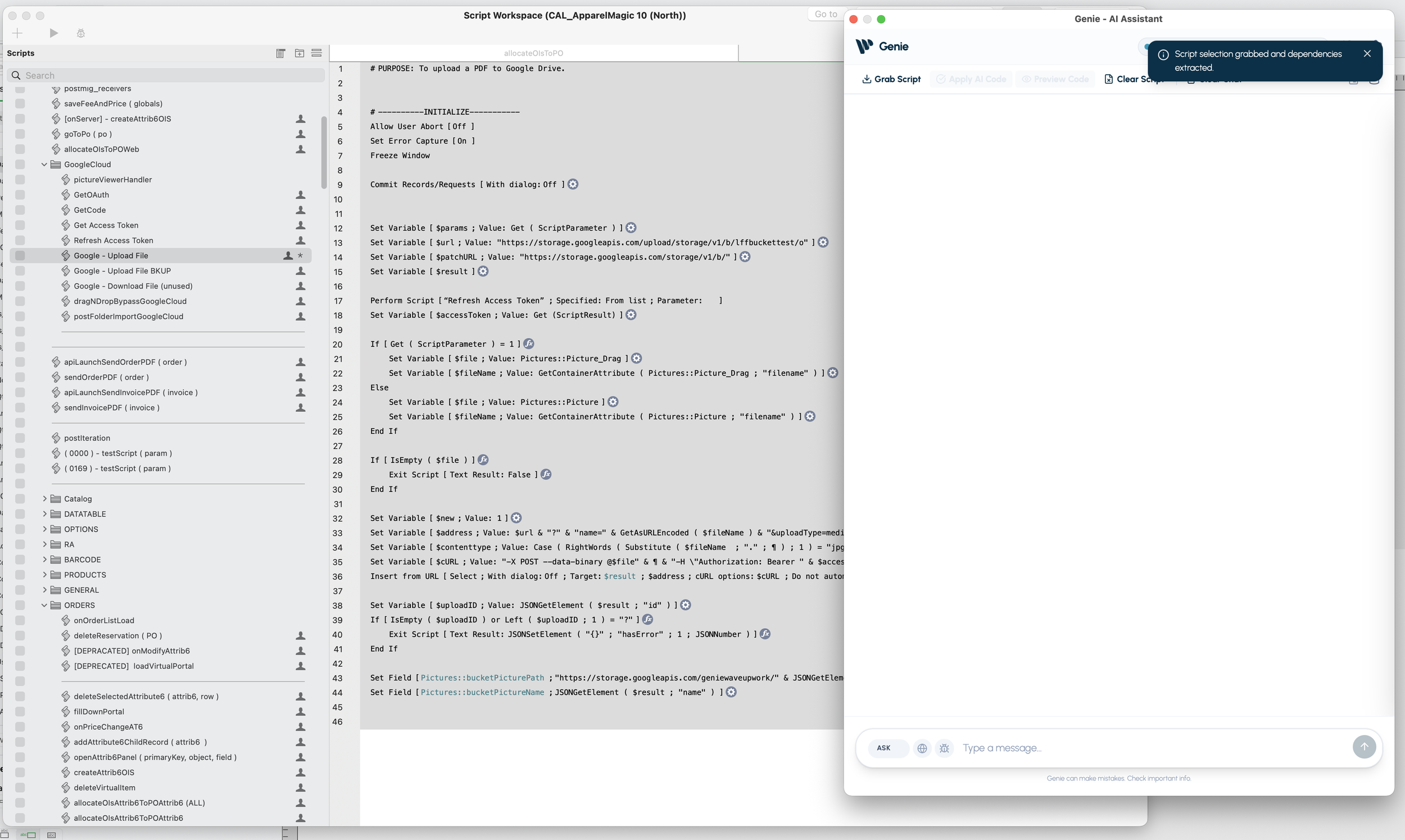
Upon clicking the Grab Script - Metadata is pulled at the same time.
Step 3 — Ask Genie what you want
Examples:
“Debug this—why does it fail on X layout?”
“Refactor this block into a subscript with parameters”
“Add error trapping + logging”
“Convert this to use SQL instead of looping”
Before anything goes out, Genie attaches:
the script selection XML
relevant metadata
FileMaker conventions (step IDs, formatting rules, error patterns)
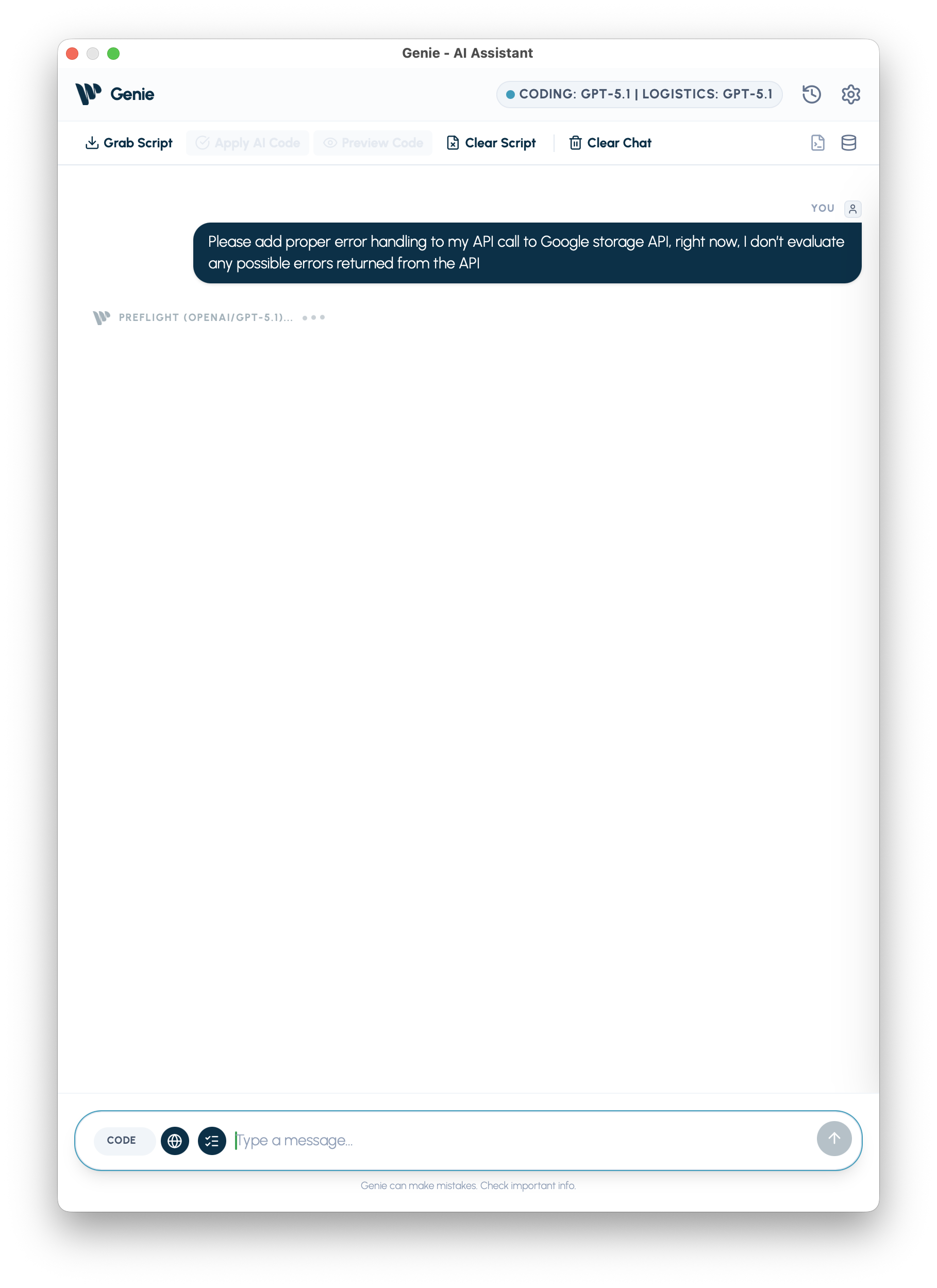
Prompt anything you want - let AI do the work
Step 4 — Optional: Preflight & Web mode
Preflight helps validate the flow before sending:
clarifying questions
quick logic checks
suggestions (e.g. “handle empty found set here”)
You decide how many questions Preflight asks (light vs. strict), depending on how much you want to sanity-check up front.
Web Mode is for anything that needs fresh documentation:
pull current API docs / reference pages without leaving FileMaker
extract the pieces that matter (endpoints, headers, auth, example payloads)
feed that context into the request so the generated script/XML matches the latest spec
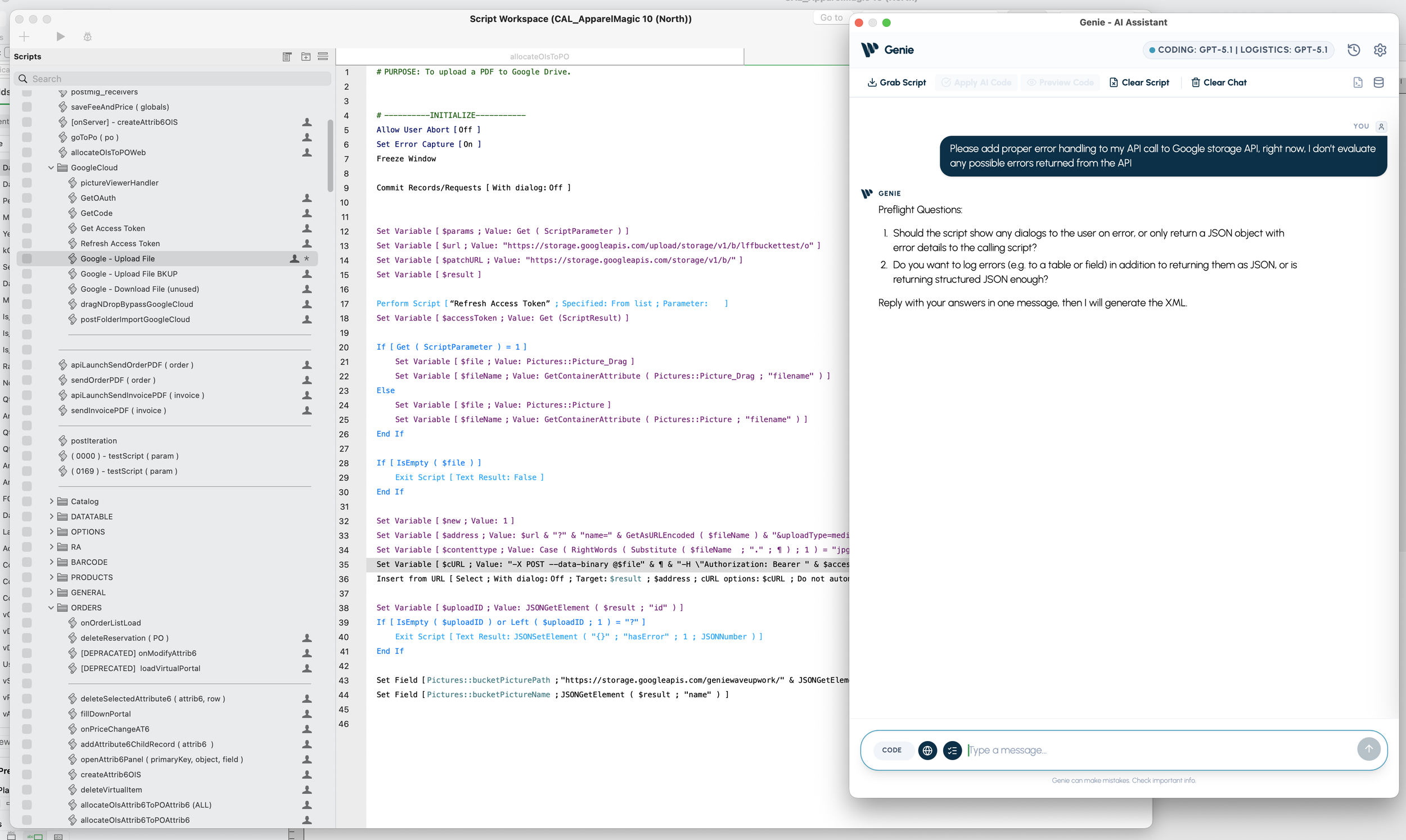
Preflight Questions
Step 5 — AI returns XML… and Genie makes it paste-ready
When the model replies, Genie doesn’t just trust it. It runs a validation pass on:
step IDs
XML tags/structure
calculation formatting
FileMaker-specific conventions
Then it auto-repairs what it can. If something needs heavier repair, Genie can automatically trigger a second pass to fix issues and revalidate.
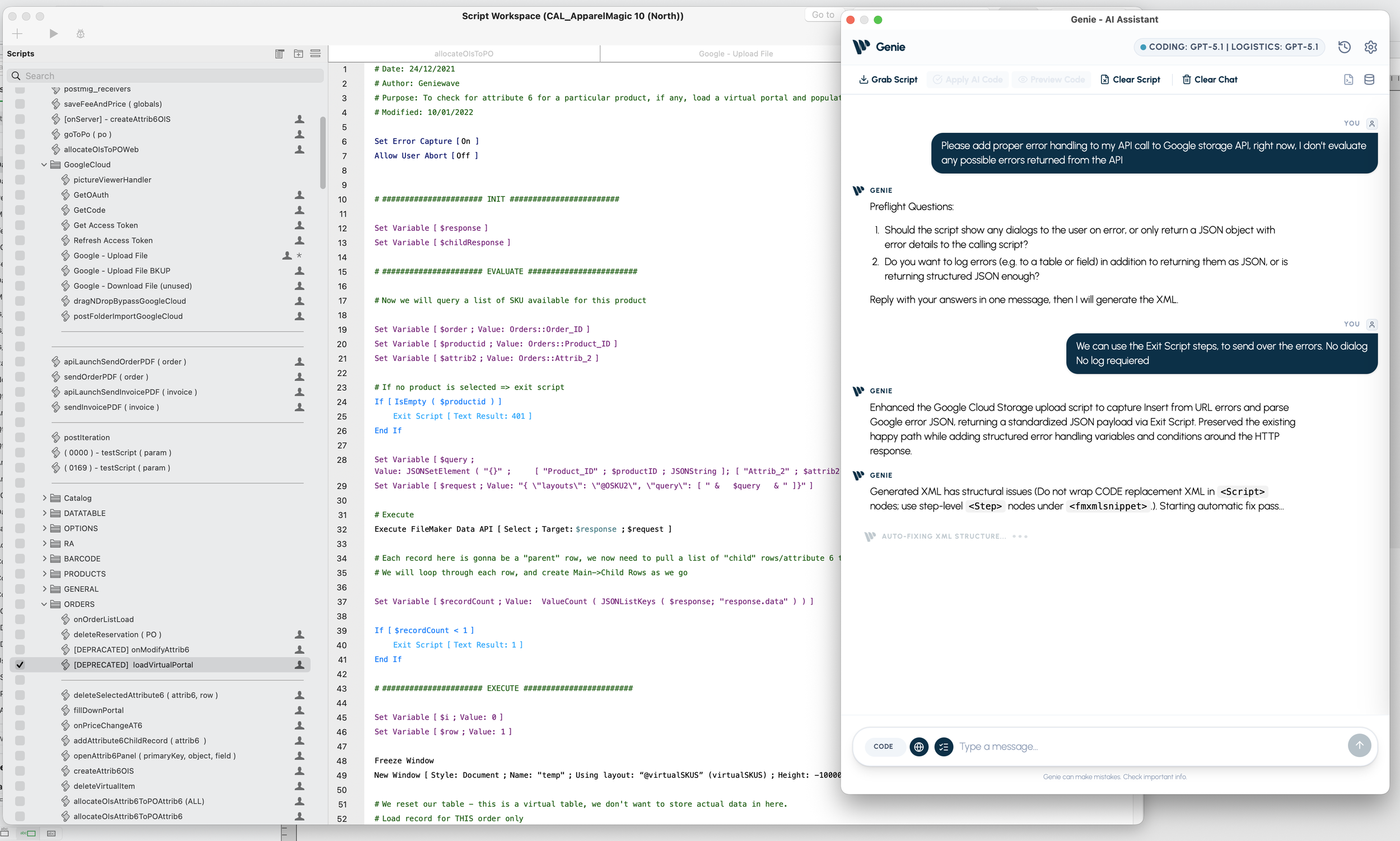
Genie performing auto XML repair
Step 6 — One-click apply back into Script Workspace
Once it’s valid, Genie lets you paste the updated XML right back into the script selection. You can also the raw XML.
Result: most edits become “select → ask → apply.”
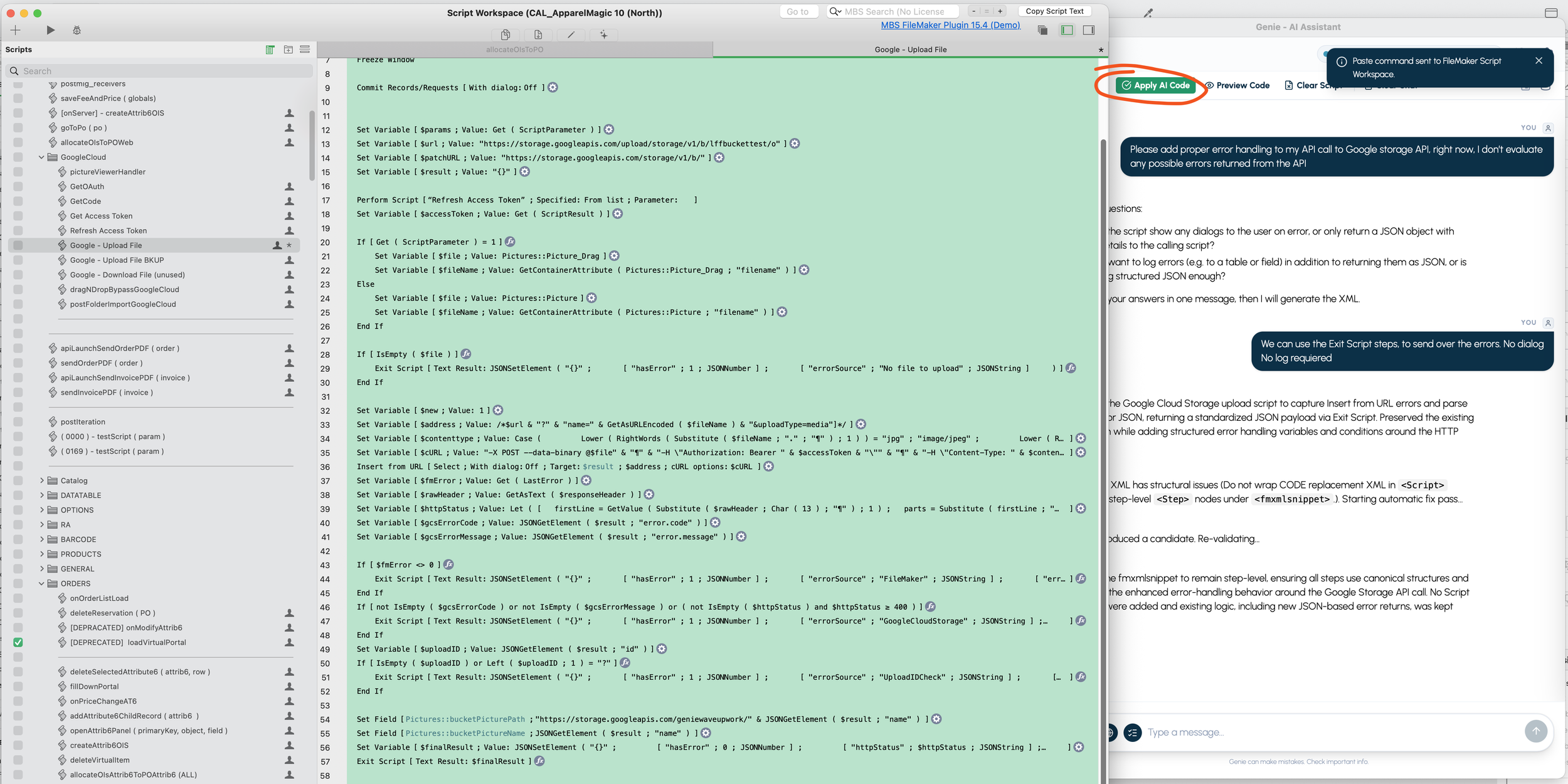
One click apply
What Genie enables (practical examples)
Because Genie understands FileMaker structure and speaks FileMaker XML, you can use it for:
Explaining what a script block is doing (with your actual schema context)
Debugging failed flows (and suggesting fixes that match your file)
Refactoring repetitive patterns into reusable subscripts
Generating new script blocks safely (rather than free-form text)
API integrations (and optionally parsing fresh documentation via web mode)
The goal is for Genie to feel like a development assistant that respects FileMaker reality:
Conventions are encoded in the plugin (step IDs, XML rules, calc patterns)
Context is attached automatically (so the model doesn’t hallucinate structure)
Outputs are validated and repaired before you paste them
With this workflow, I’m seeing the XML come back paste-ready the vast majority of the time —and when it isn’t, Genie catches it before it lands in your script.
See the full tour and supported workflows on the Genie page.