
Genie is here: A Quick Tour
A practical first look at Genie inside FileMaker Script Workspace. Explore context selection, AI-assisted scripting, Workbench workflows, Quick Calculation AI, preview/refine/apply flows, and grounded FileMaker development.

A quick onboarding tour
Now that Genie is out, I wanted a short written onboarding you can skim in a few minutes. I’ll follow up with a walkthrough video, but if you prefer to click around first, this is the map. What Genie is: an AI workbench inside FileMaker, with review surfaces like preview, copy, and apply so you stay in charge. In this walkthrough, we’ll select metadata from the open Contacts file, then use that context to create a small script and refine a calculation, nothing fancy. Full product overview and pricing: Genie for FileMaker
Where Genie shows up day to day
The goal is not to blindly generate scripts.
The goal is to reduce repetitive drafting and iteration while keeping developers fully in control of the final result.
By allowing models, agents, and IDEs to interact more directly with FileMaker, the overall development loop becomes faster and easier to inspect.
Inside FileMaker (where you already build)
Generate, edit, and debug scripts with multiple models directly in Script Workspace.
Ask questions, generate calculations, and create coding plans for handoff.
Query and edit your data with charts, tables, or JSON, and create or edit tables and fields.
Inside your IDE (where you create integrations)
Stage FileMaker work from Cursor or another MCP-compatible IDE with full context.
Create any type of app while allowing the IDE to understand your FileMaker solution.
Query live data to test your web integration directly in your IDE.
Inside your agents (where you already use AI)
Let agents prepare structured work directly in FileMaker instead of manual copy paste.
Use Workbench as the handoff to create and edit both Scripts & Data.
Orchestrate multiple script edits, or generate an entire project from tools like Codex.
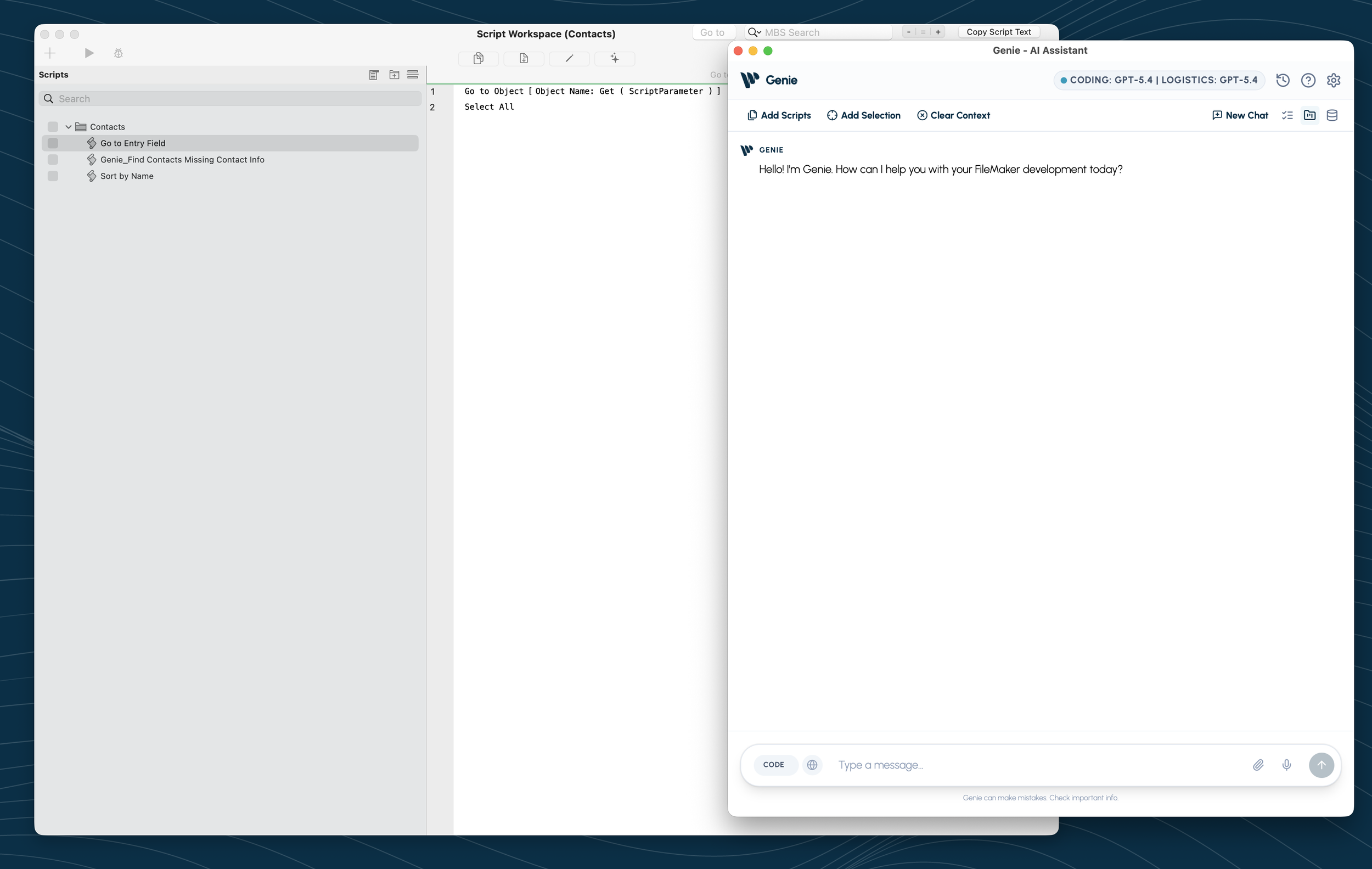
FileMaker Script Workspace with the Contacts starter scripts.
Why selected metadata matters
FileMaker scripting is structured. For this walkthrough, Genie is not working from a vague description of a contacts database. We refresh the open Contacts file, select the Contacts table, select the fields we want Genie to consider, and include the relevant layouts.
That visible selection keeps the task tied to the file on screen.
The work loop in this tour
The examples below are small on purpose, but they show the same habit: select context, ask or stage work, review, refine, and apply when ready.
Step 1 → Start from the open Contacts file
The file has no records, but it has real structure: tables, layouts, and starter scripts. That gives Genie something concrete to work with.
Step 2 → Refresh and select metadata
In Genie, refresh metadata from FileMaker and select the Contacts table, its fields, and the layouts used in the task. This is what keeps the request tied to the file on screen.
Step 3 → Choose where the request starts
You can start inside FileMaker, stage work from Cursor through MCP, or let an agent prepare structured work for Workbench. The entry point can change; the review habit stays the same.
Step 4 → Review, refine, then apply
Preview is where useful correction happens: a draft can make a layout assumption, miss a naming preference, or need a tighter instruction. Refine the prompt before anything is applied.
Step 5 → Use the right surface for the size of the job
Workbench is useful for staged script or data work. CODE can create a full new script directly inside FileMaker or is useful when you want to edit an existing script. Quick Calculation handles small calculation drafts inside Specify Calculation.
Result: the repeated pattern is select context → ask or stage work → review → refine → apply when ready .
One concrete example: Contacts file + Workbench + Quick Calculation
Below is a single pass through two surfaces: a Workbench item staged from Cursor (MCP) and Quick Calculation AI in FileMaker. Same Claris Contacts sample as before; empty data, but real tables, layouts, and starter scripts so the assistant isn’t inventing a fake app.
A) Select metadata in Genie
Open Genie and refresh metadata, then select what this task needs: the Contacts table, the fields you care about, and layouts like Contact List / Contact Details .
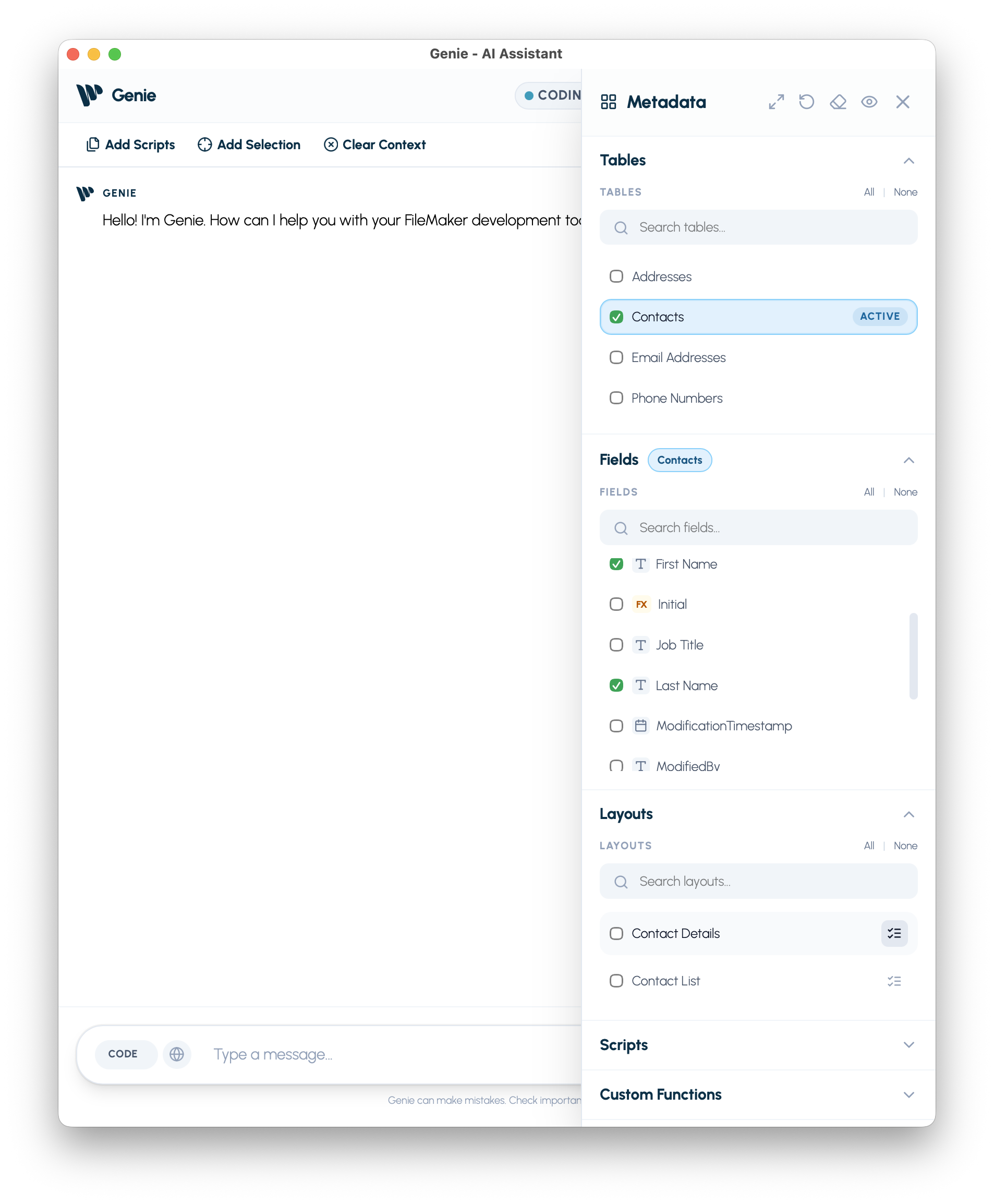
Contacts metadata selected in Genie: table, fields, layouts.
That selection is the difference between “write a script” and “write a script for these objects in this file .”
B) Stage from Cursor, run in Genie
With Solo Developer, Genie’s MCP connection lets Cursor, Codex, or another MCP-compatible IDE stage a Workbench task. It does not paste into Script Workspace or apply steps by itself: it hands intent to Genie for review, and Genie handles the work. If you do not manually select every object up front, Genie’s MCP tools can still help the agent inspect the file and gather useful context. Genie remains the review surface before anything is applied.
Example staging prompt:
Create one new FileMaker script that finds contact records that are incomplete for routine use. Use the selected Contacts metadata and existing layouts. Do not create tables, layouts, or records. Keep the result read-only and leave the user on the found set.
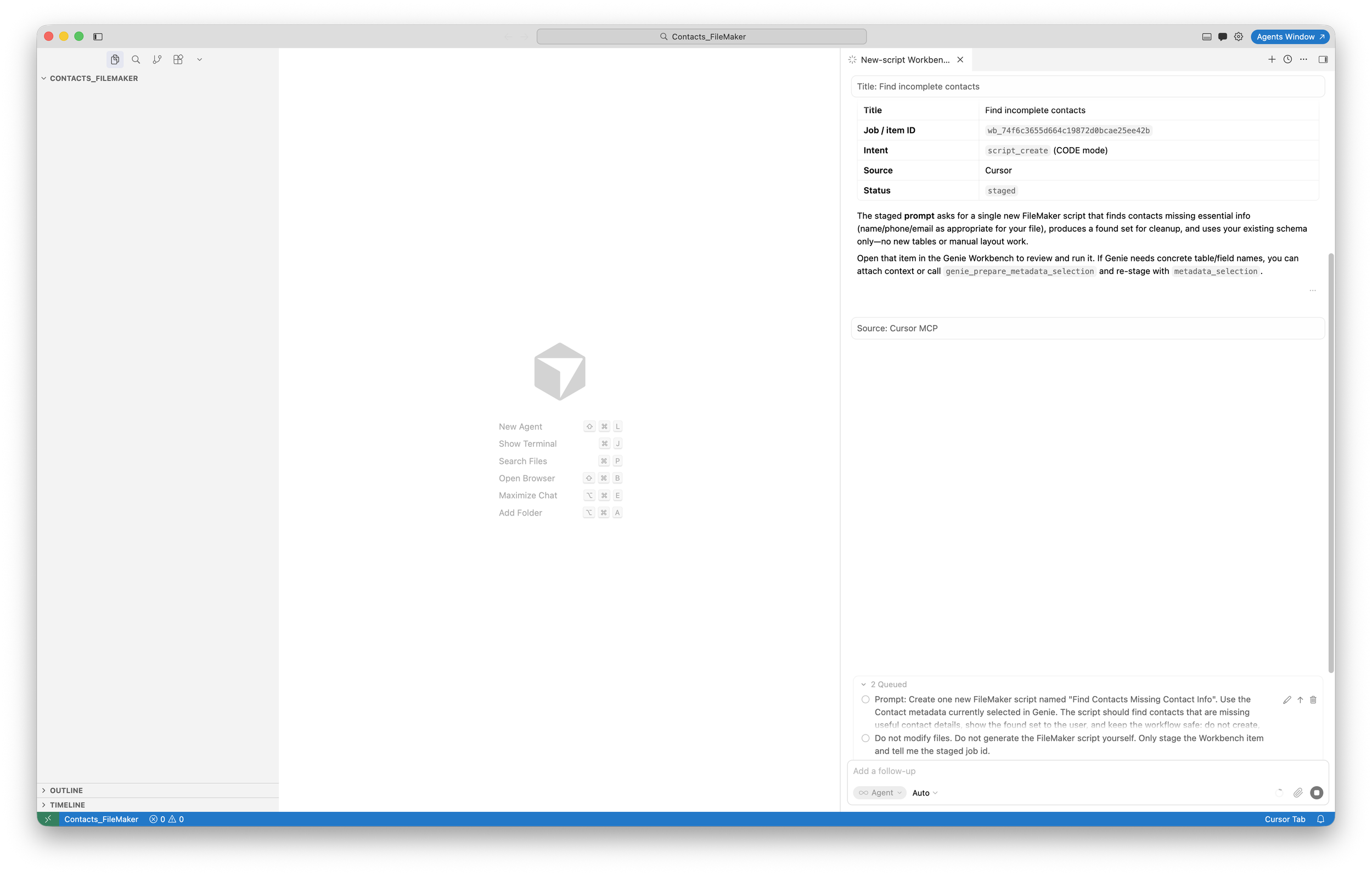
Cursor confirms the Workbench job ID and staged status.
C) Run, preview, refine, then apply
The item shows up in Workbench with Run / Copy / Remove . Run moves it into the normal CODE-style path; Preview shows the plan before FileMaker changes.
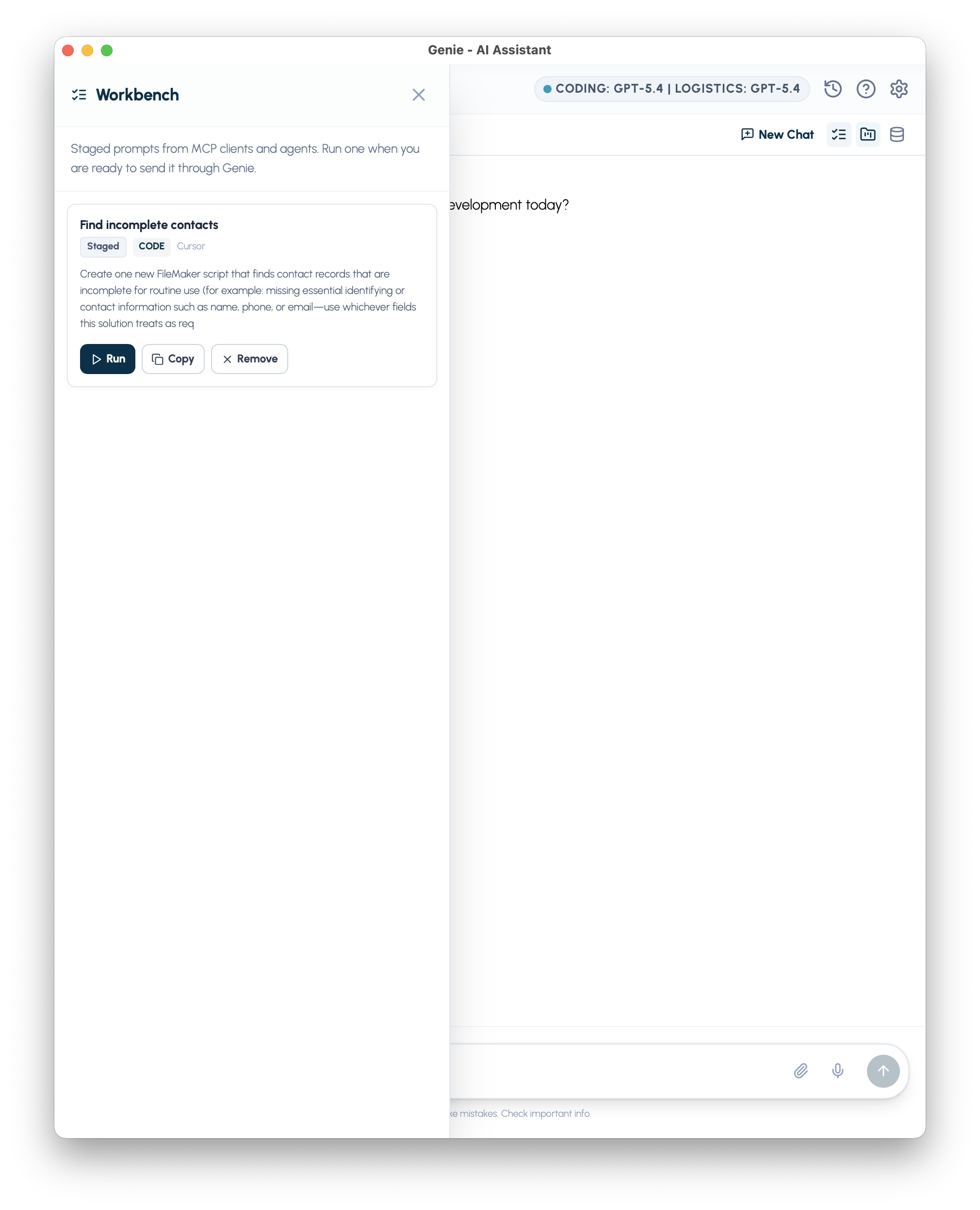
The staged task appears in Genie Workbench.
You can then execute it by clicking Run.
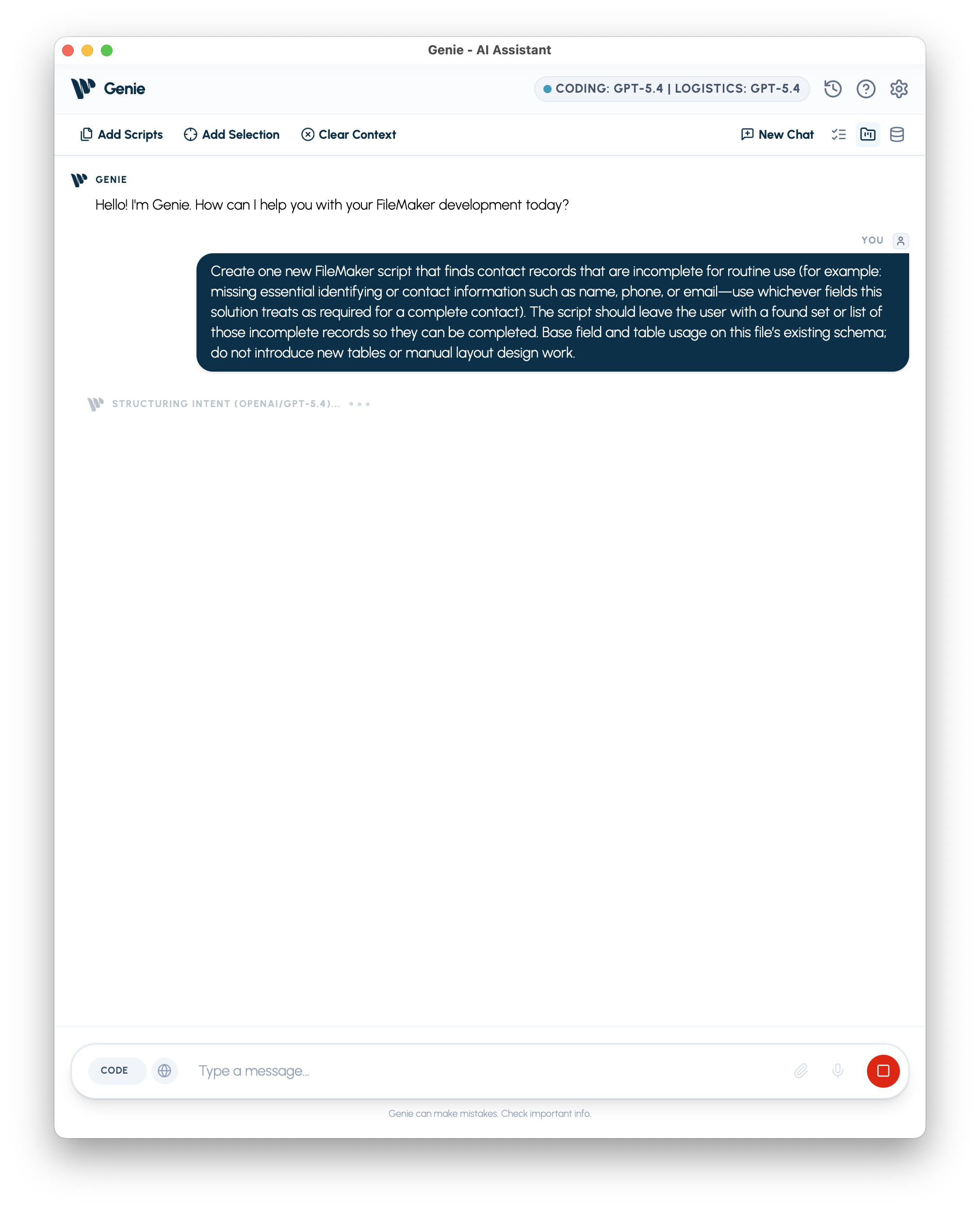
Workbench runs through the same review path as in-app CODE work.
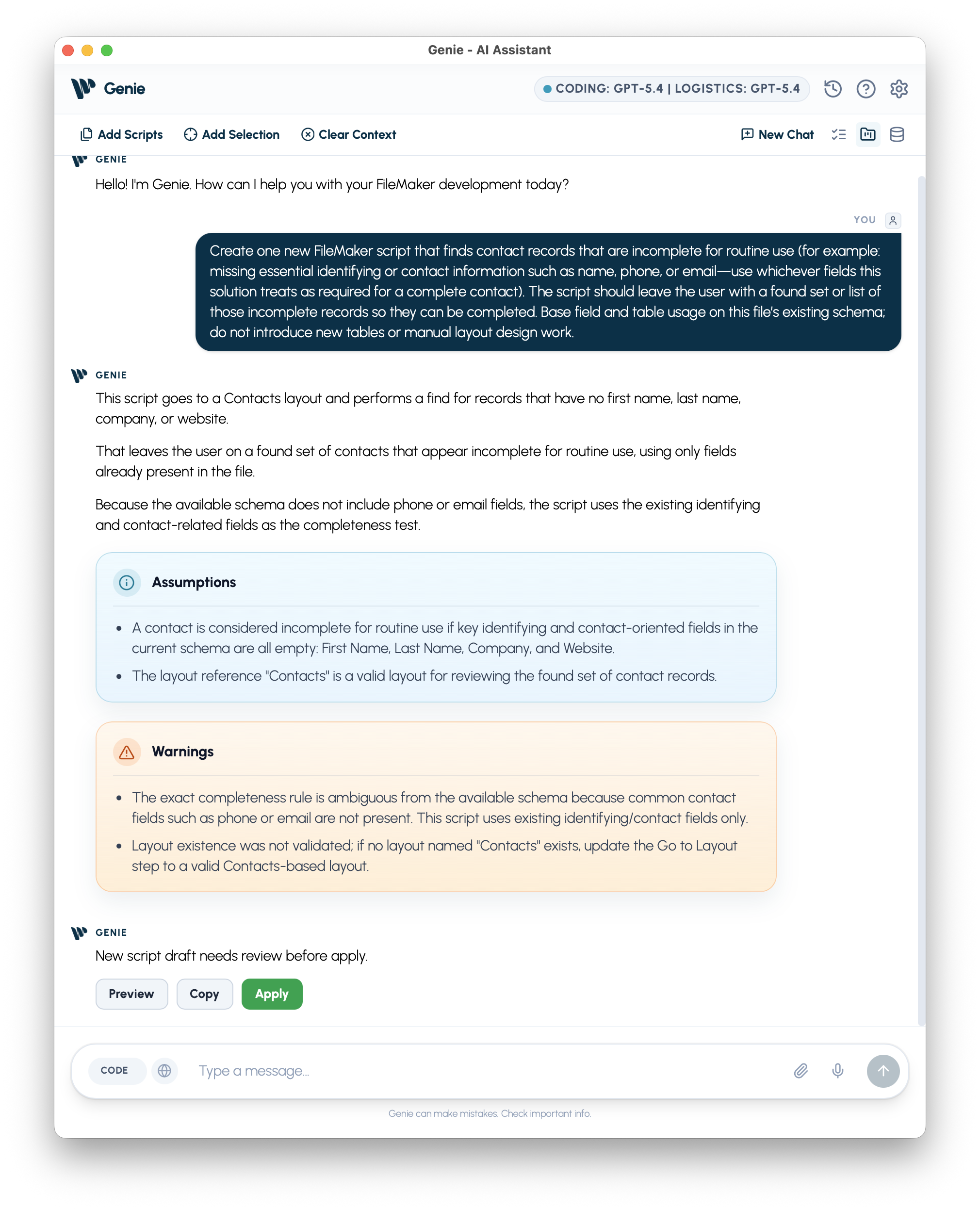
First draft with review notes before Apply.
When you apply, you get native Script Workspace steps , a fast loop with visible assumptions and room to correct before the result lands in FileMaker. Without having to select anything or specify anything, the tools that Genie exposes to your IDE are enough for the AI agents to properly stage the prompt and Genie takes care of the rest.
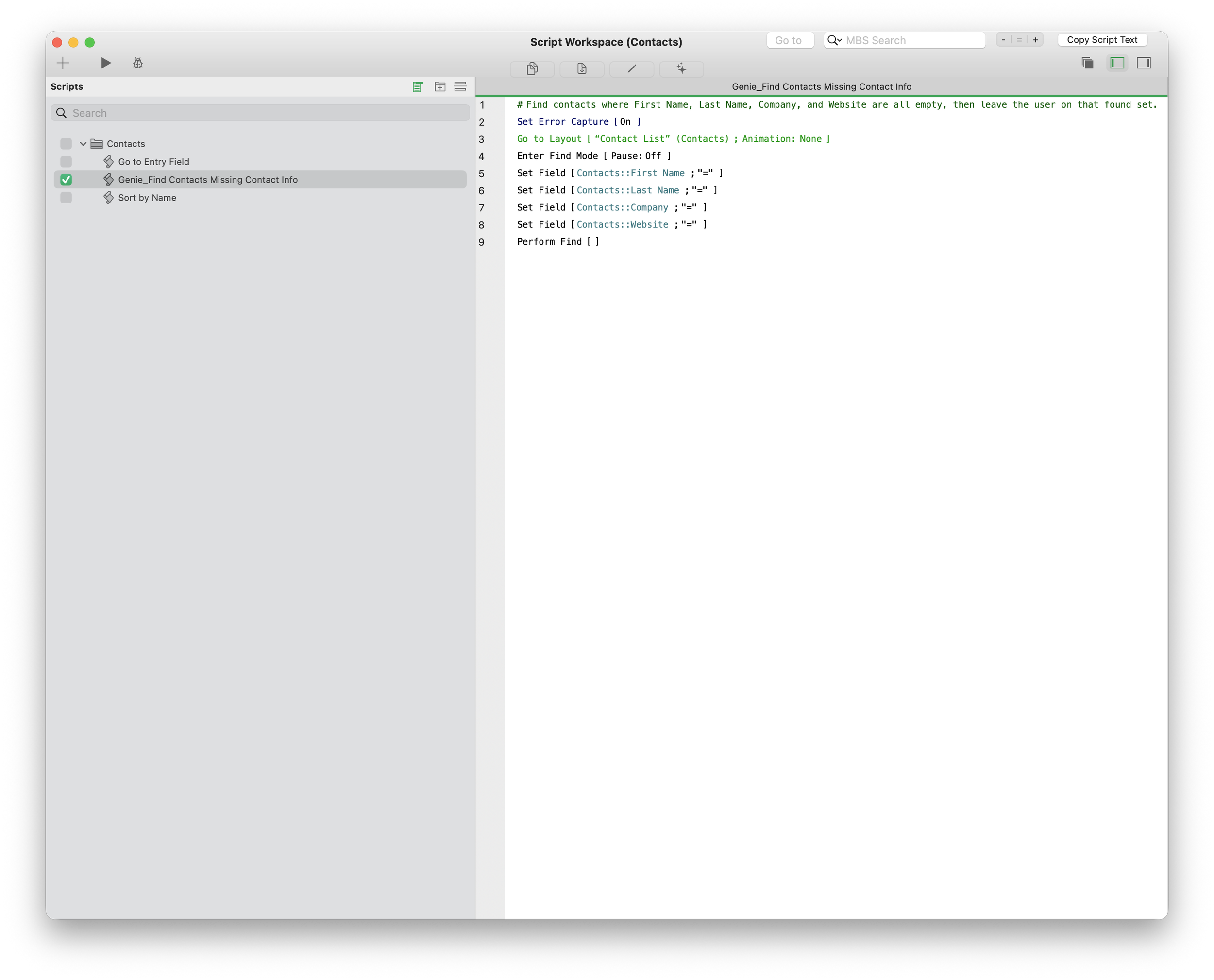
The new created script is applied in your Script Workspace.
D) Quick Calculation AI (small surface, same habit)
Open Specify Calculation from Script Workspace and use the Genie control beside the editor. Example prompt:
Create a FileMaker calculation for a contact display name. Prefer First Name plus Last Name when available. If the name is blank, fall back to Company. Trim extra spaces.
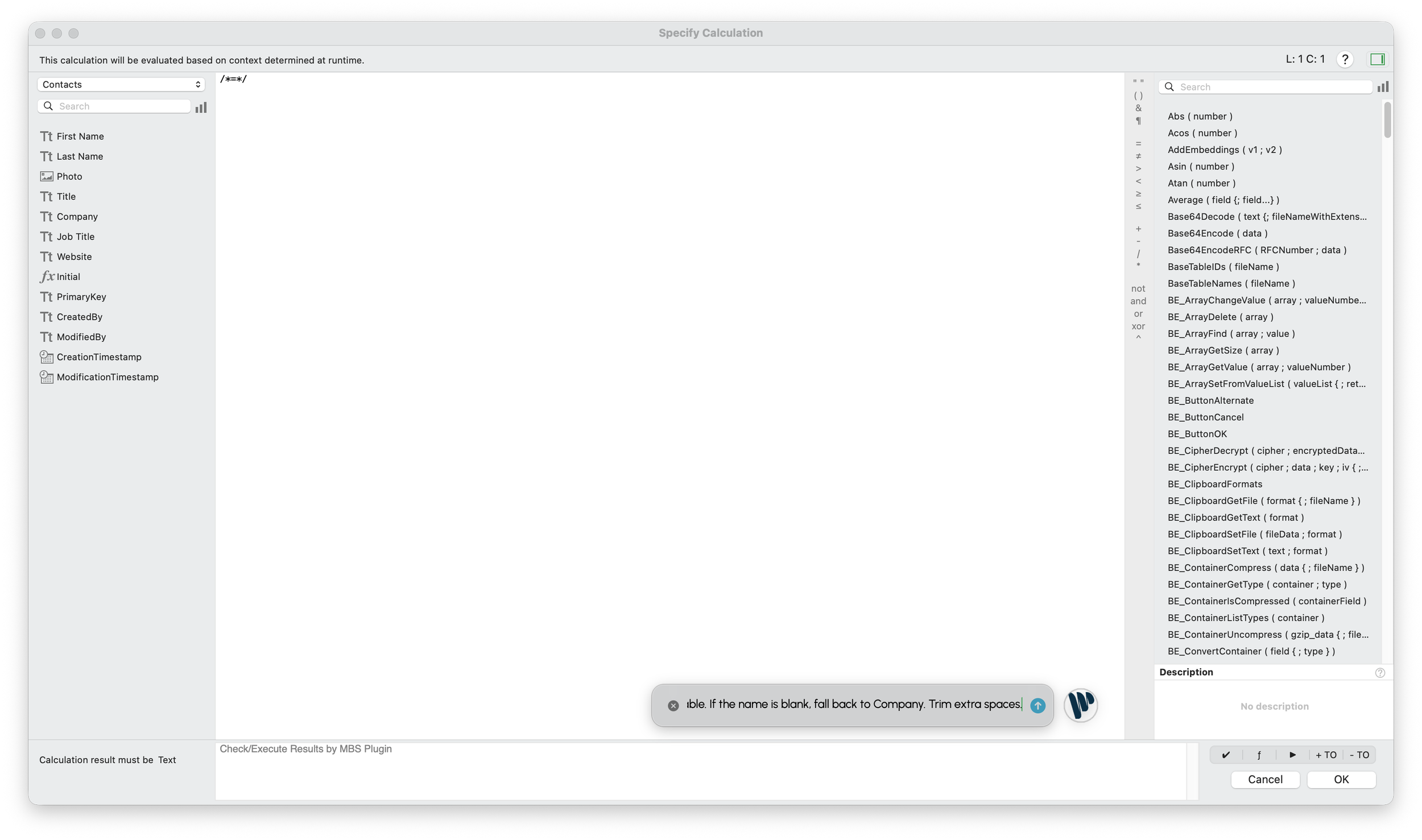
Specify Calculation before Quick Calculation AI.
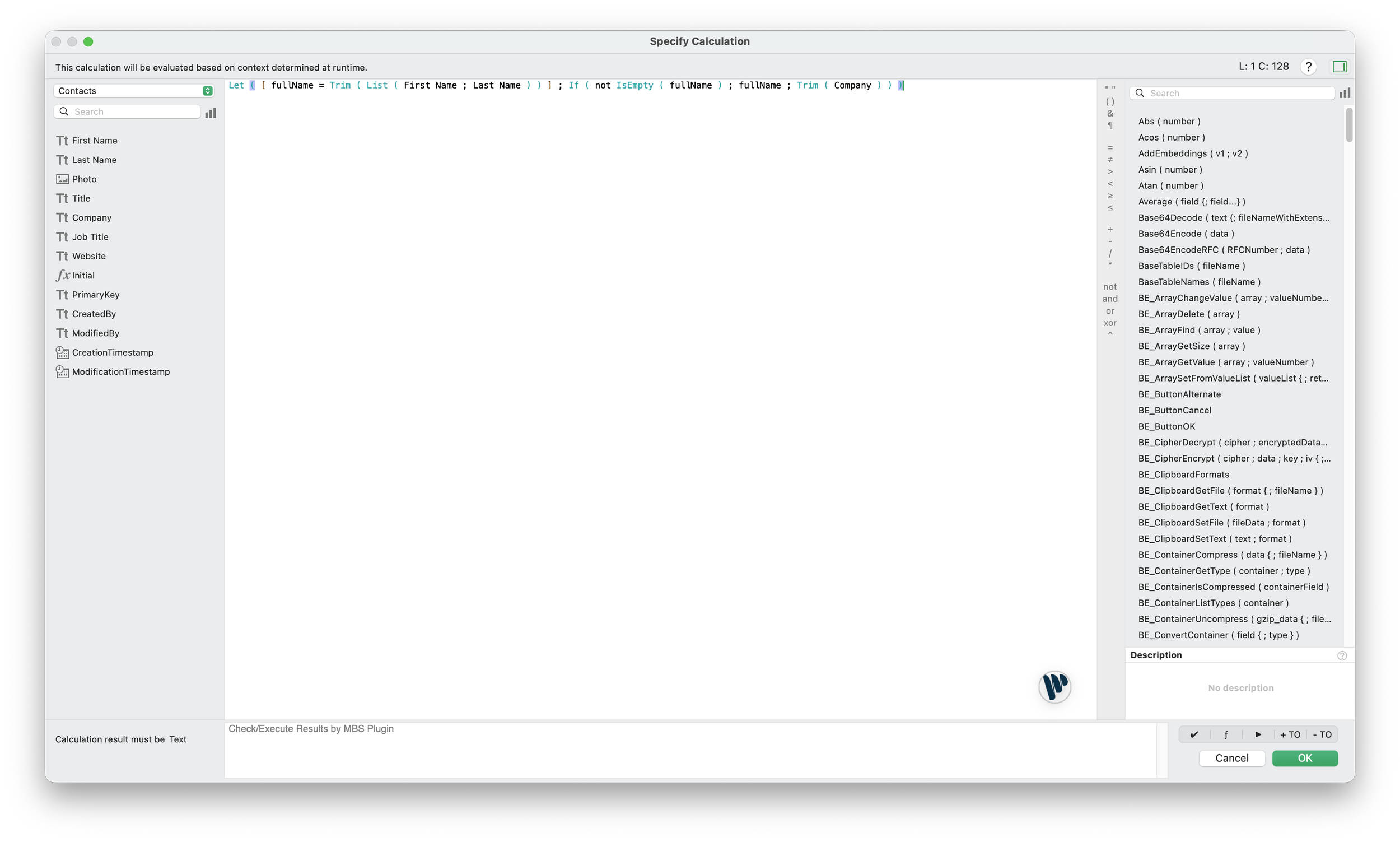
Quick Calculation AI inserts a first draft directly into the calculation editor.
E) Generate a new script directly inside FileMaker
The Cursor example is useful because it shows MCP and Workbench, but you do not need Cursor to generate an entire new script.
You can start inside FileMaker, open Genie, use the Select Fields on Layout button to grab the necessary metadata, and move just as quickly.
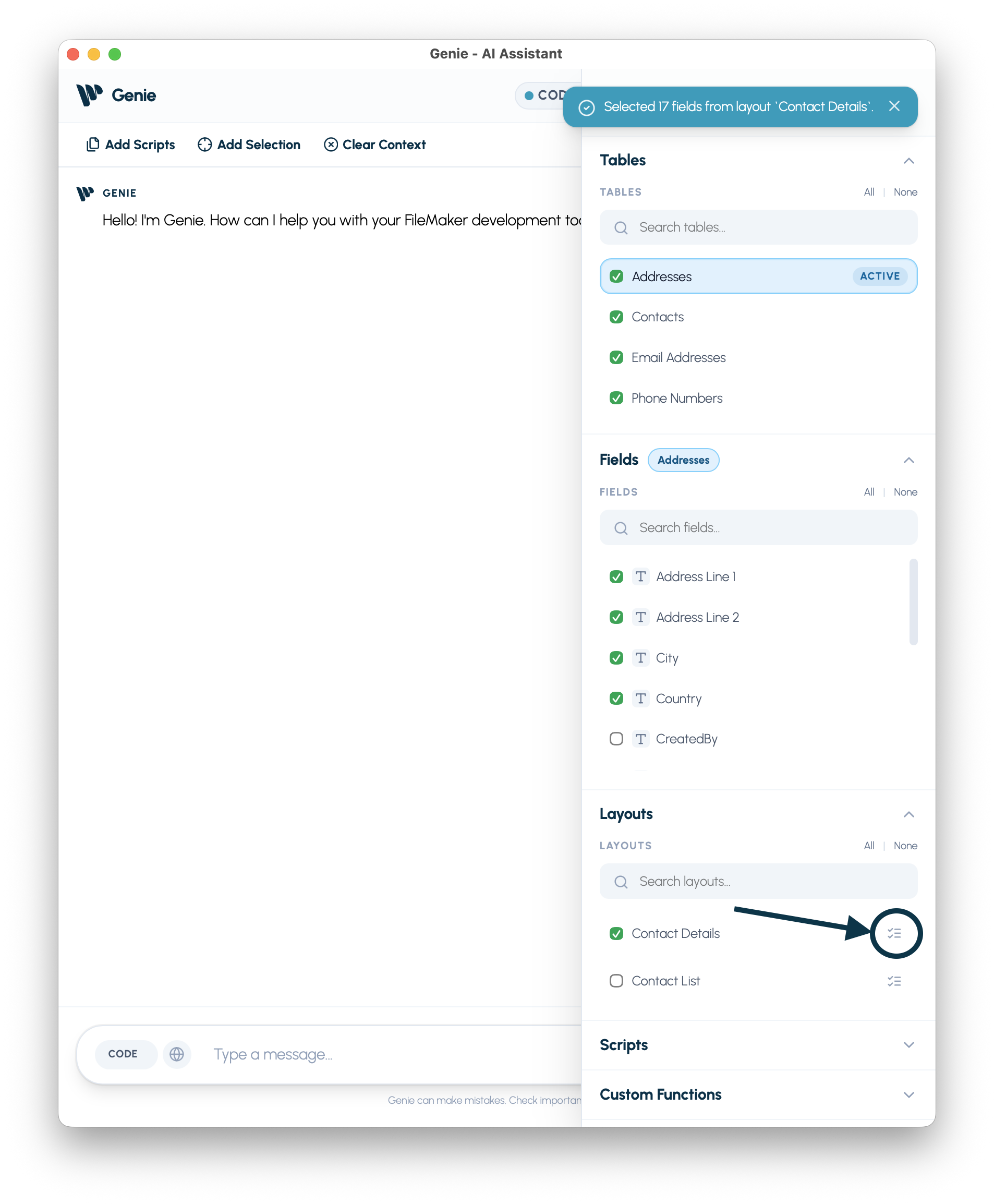
Using the select fields on layout button, Genie automatically attaches layouts, tables and fields.
We are now ready to send our prompt to create the new script, example in-FileMaker prompt:
Create a new FileMaker script named “Find Contacts Missing Contact Info”. Use the existing Contact List layout. Find contact records where First Name, Last Name, Company, and Website are all empty, and have the script loops through it to generate random first name & last name.
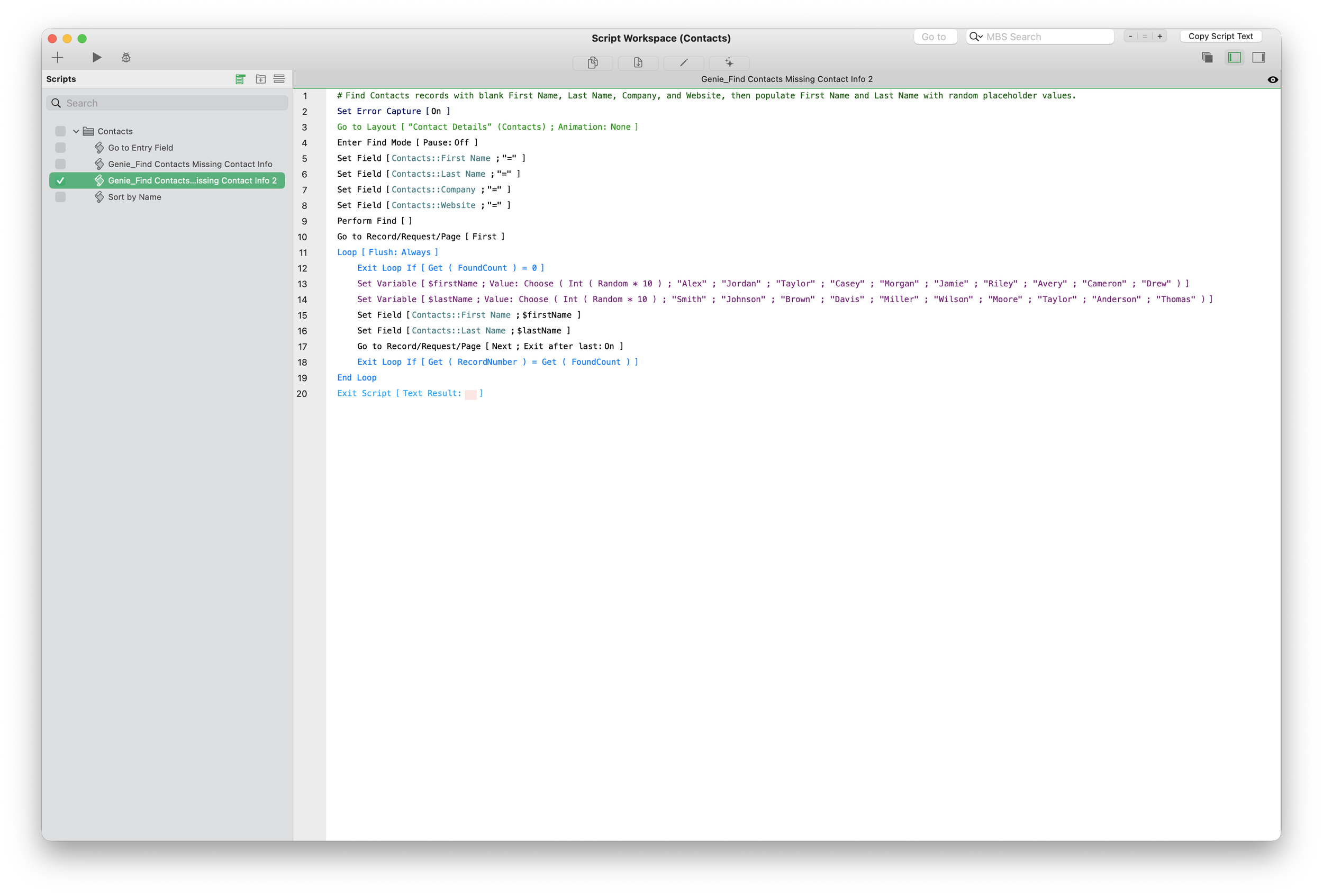
The newly created script is applied in Script Workspace.
Our script does exactly what we wanted it to do, and we didn’t have to do much.
F) Edit an existing script
You can also start from an existing script instead of asking Genie to create a new one. In Script Workspace, select the script steps you want Genie to see, then use Add Selection . In this case we’ll use one of the starter script of the Contacts file and ask for safety handles.
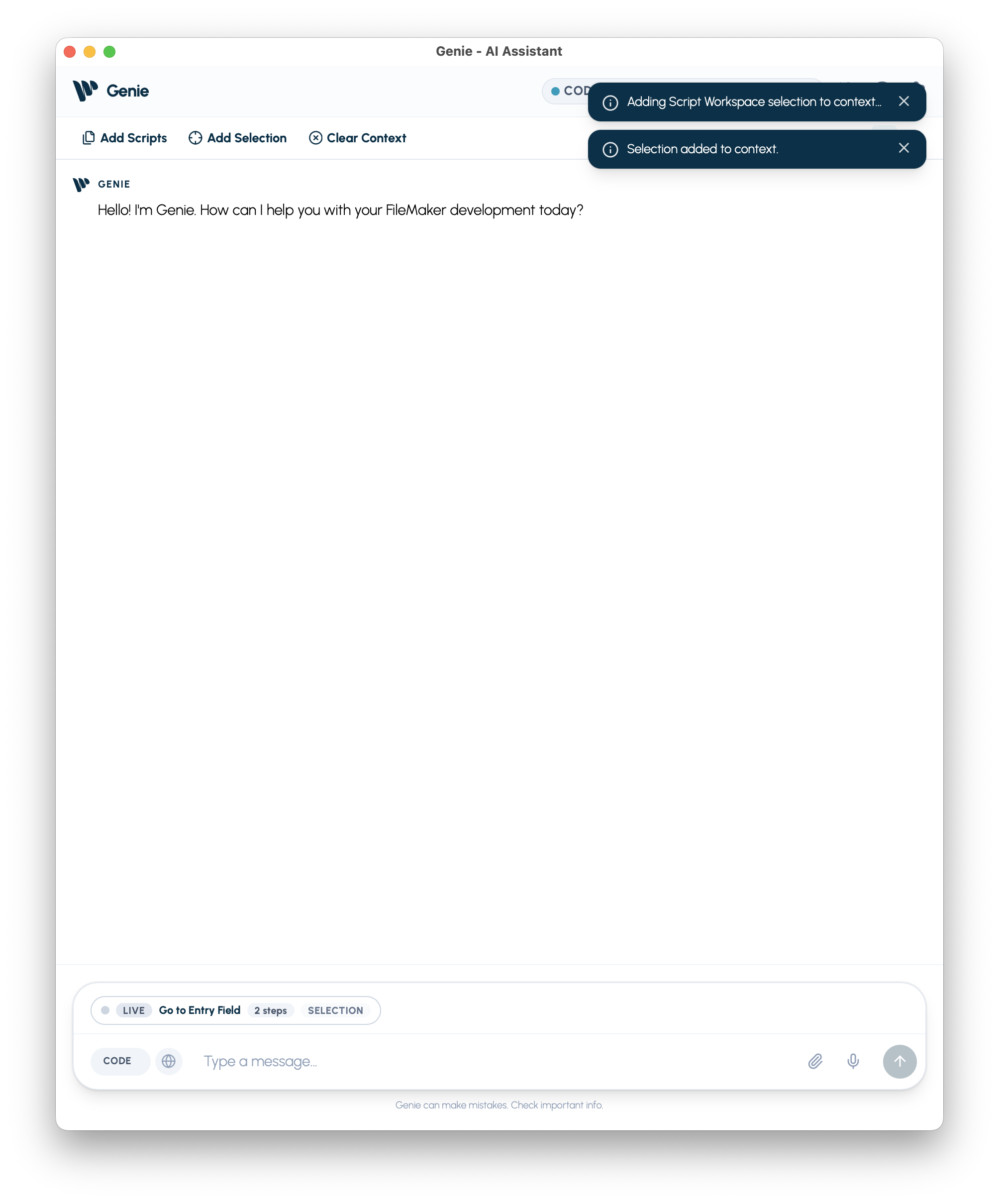
Select existing script steps in Script Workspace, then add that selection to Genie.
Example edit prompt:
Update the selected script so it safely handles an empty script parameter. Keep the existing behavior when a parameter is present. Add only the minimum steps needed, and explain what changed before I apply it.
This is the same review habit, but scoped to an existing script. Add Selection gives Genie the script steps you are already looking at, then your prompt tells it what kind of change you want. You still review the draft and preview before anything goes back into Script Workspace.
The main difference is that Genie can apply target edits without having to paste or read the entire script.
Conclusion
The goal is to give FileMaker developers a faster and more visible development loop: select context, ask questions, inspect the result, refine it, and apply changes when ready.
Whether the entry point is Workbench, Quick Calculation AI or direct prompt, the workflow stays consistent: grounded context, reviewable output, and practical iteration directly inside FileMaker.
More detailed documentation, workflows, and examples are available throughout the documentation site as Genie continues to evolve alongside real FileMaker development work.
Full Documentation : https://docs.geniewave.com
Bruno Pelletier Previous Previous
Genie: Quick Tour (AI inside FileMaker’s Script Workspace)
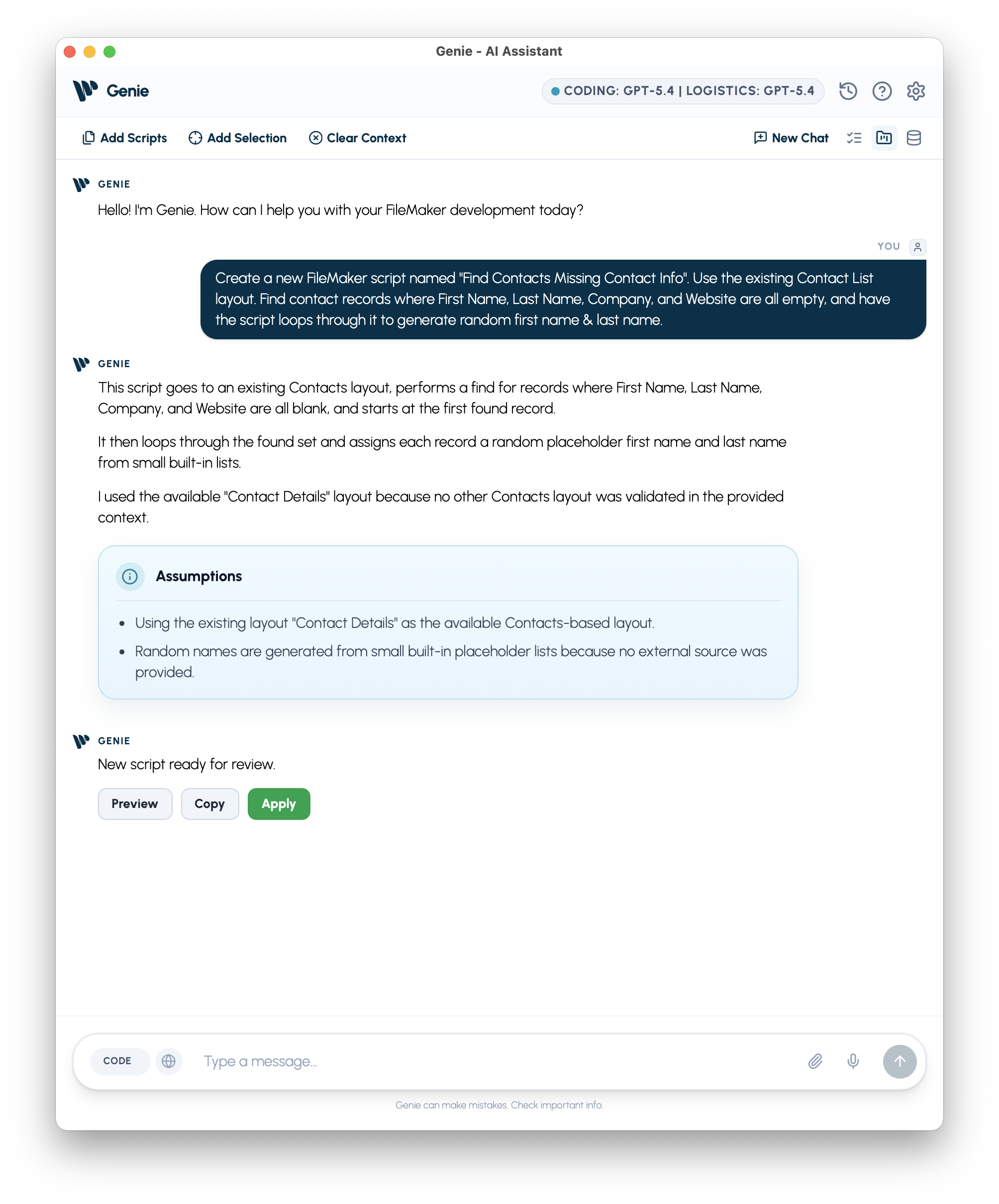
Genie generates the new script from our prompt & metadata
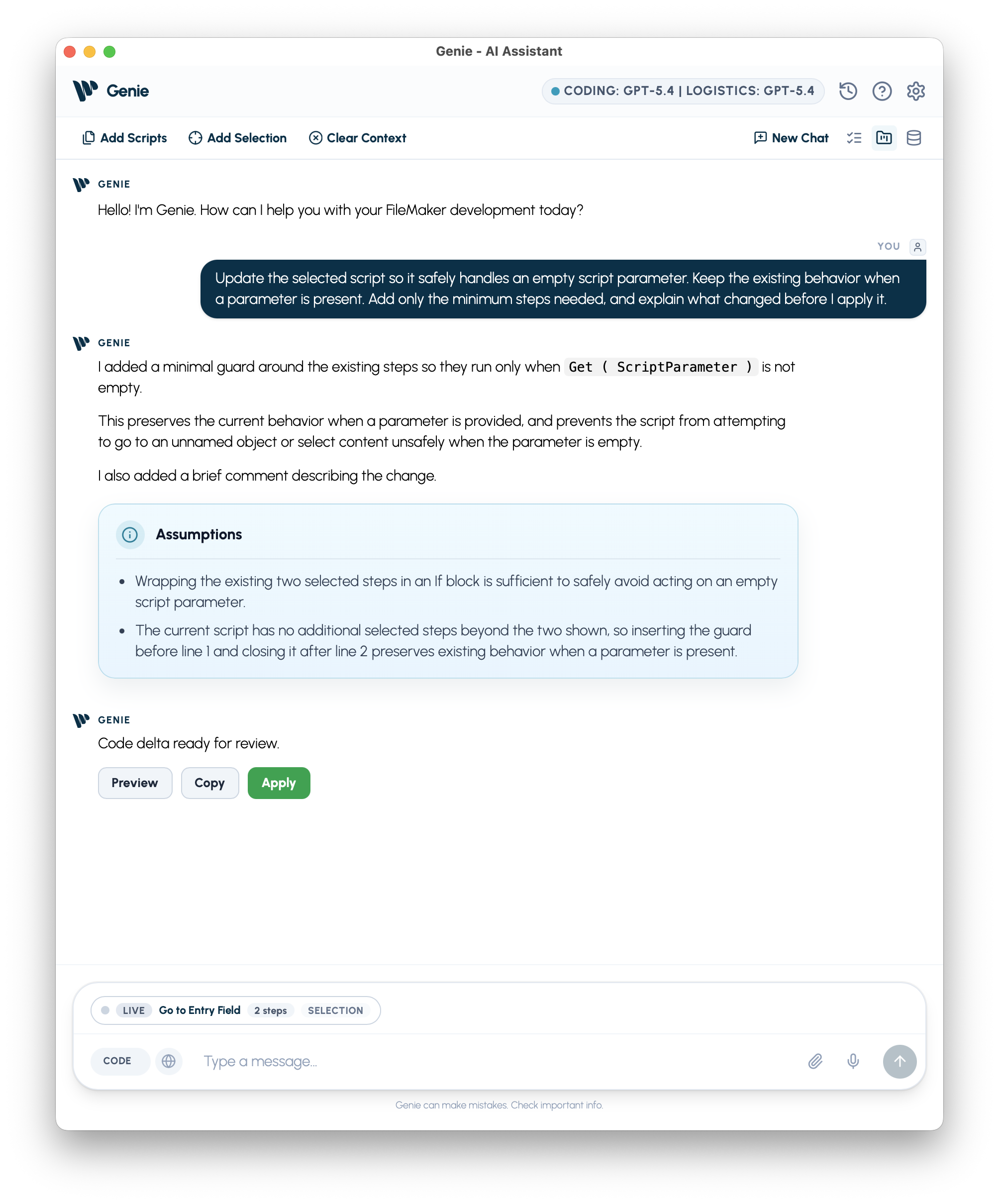
Genie runs the request and return a result normally
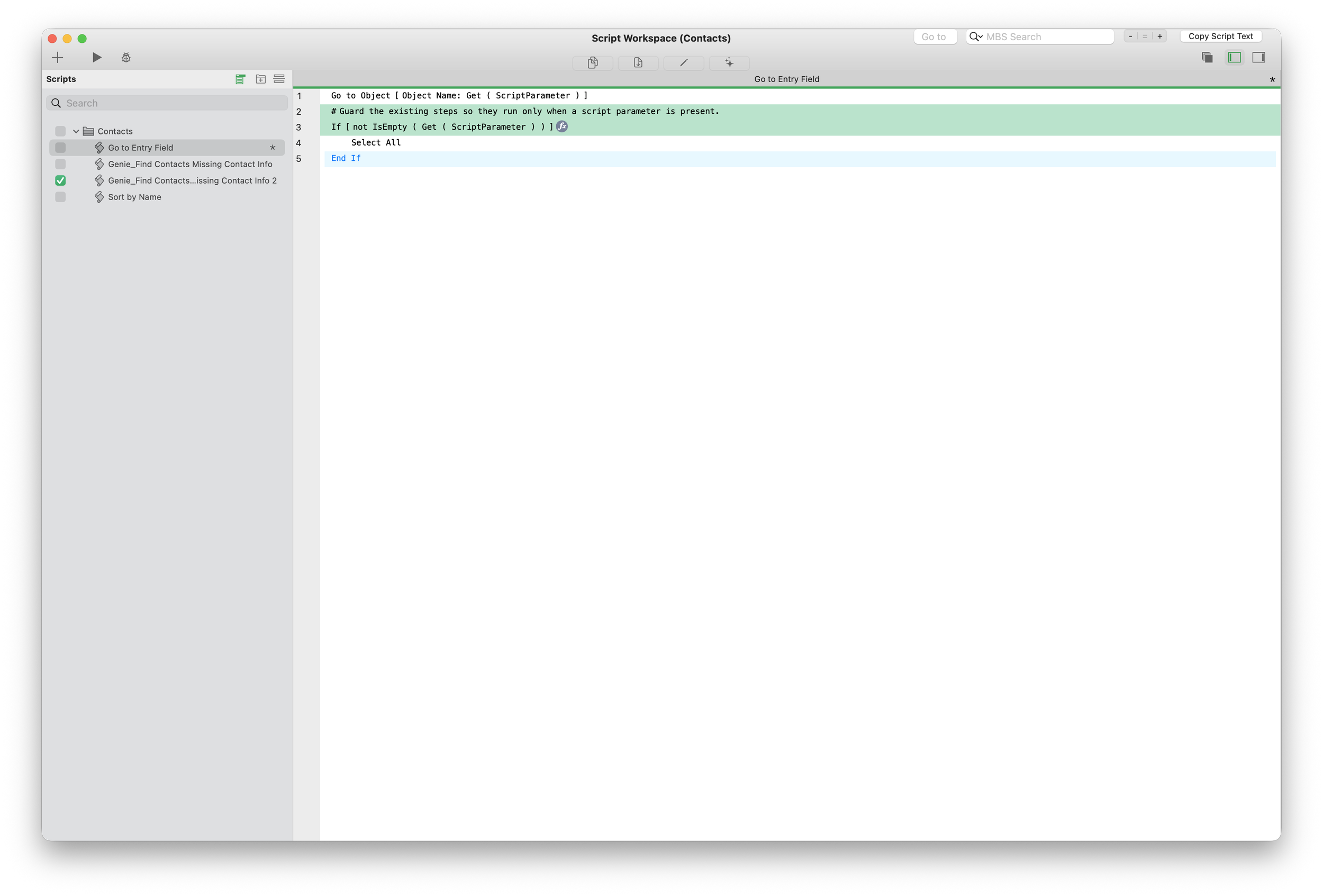
Genie applies a target edit directly in the active script