
Genie AI Workbench: The Right Way to Connect FileMaker to Cursor and AI Agents
Learn how Genie uses MCP to connect FileMaker with Cursor and AI agents, making scripts, fields, layouts, and staged changes available for review before apply.
The video is not meant to be a polished product trailer. It is closer to a real developer walkthrough: open FileMaker, open Script Workspace, connect the MCP server, let the IDE inspect the file, stage work, review it in Genie, and apply the result back into FileMaker.
And honestly, that is the part that feels exciting.
For years, FileMaker developers using AI have had to move too much context by hand. Copy a script. Explain the schema. Paste some fields. Tell the model what layouts exist. Correct the result. Try to paste something back. Repeat.
With Genie and MCP, that loop starts to change.
Starting inside FileMaker
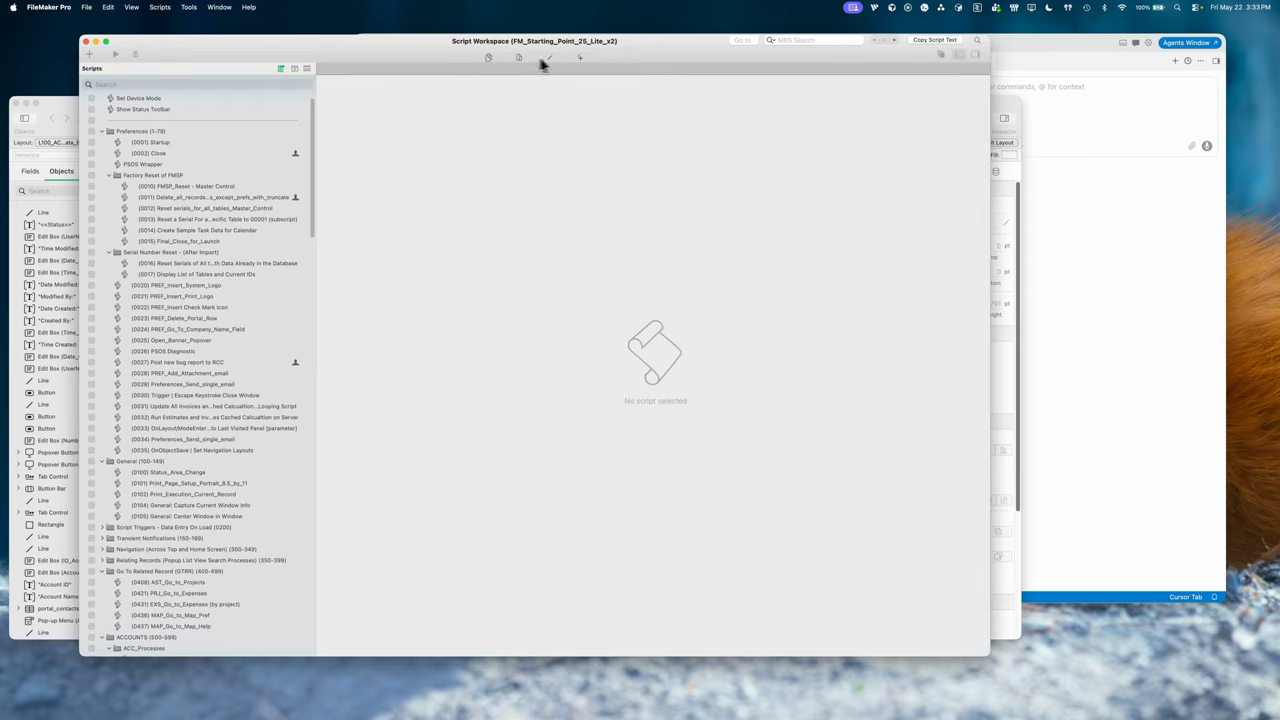
Genie: Script Workspace buttons
For this demo, I started from an FM Starting Point file I had available locally.
Inside Script Workspace, Genie adds a small set of controls for the everyday development loop:
Copy selected script XML
Paste XML back into FileMaker
Edit XML directly
Open the Genie assistant
Those buttons are intentionally simple. They are there because FileMaker scripting is structured, and when AI touches scripts, the safest place to start is still the structure FileMaker already understands.
The Genie window
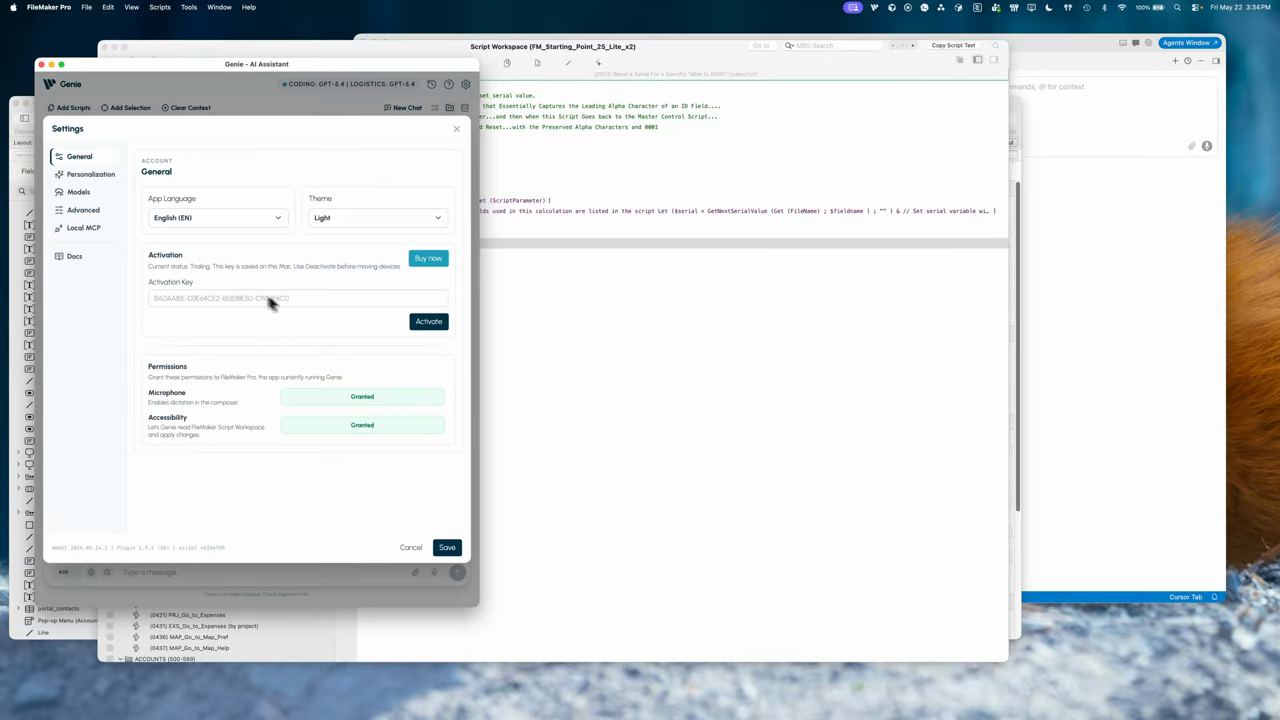
Genie: Setting window
From the Genie interface, you can work in a few different modes:
Ask questions about the file or the selected context
Generate or edit scripts
Query data and view results
Use Data mode to create tables, fields, and sample records
Configure models, providers, permissions, and local MCP settings
For example, you may want a smaller local model through LM Studio for lighter planning or logistics, while using a hosted API model for code generation. The point is not that there is one perfect model setup. The point is that Genie lets you choose the workflow that fits your machine, budget, and project. Provider and model settings can be configured by role.
Optional FileMaker function references
I usually recommend leaving those off unless you need them. MBS in particular has a large function surface, and there is no reason to add that payload if your file does not use it.
But if your solution already depends on those functions, enabling them helps the model understand what it is looking at instead of treating plugin functions like unknown syntax. Optional function references can be enabled when the project needs them.
Analytics and privacy
The analytics setting is optional.
That kind of signal helps improve the product without needing to see the actual content of your work. Optional analytics help diagnose pipeline failures without collecting prompts or database content.
Turning on the MCP server
The important part of this demo is the local MCP server.
In Genie, you can enable the MCP server, choose a local port, and copy a configuration for tools like Cursor, Codex, Claude Desktop, VS Code, or another MCP-compatible environment.
In the video, I copied the Cursor configuration, opened Cursor settings, added it as a custom MCP server, and Genie immediately became available as a tool provider. Genie exposes a local MCP server that your IDE or agent can connect to.Cursor can connect to Genie through a custom MCP configuration.
Once connected, Cursor can see the tools Genie exposes:
List layouts
List scripts
List tables and fields
Read custom functions
Fetch specific layout, table, field, or script information
Access scripts attached to the current workspace
Stage new script work
Stage script edits
Push XML back through the Genie review flow
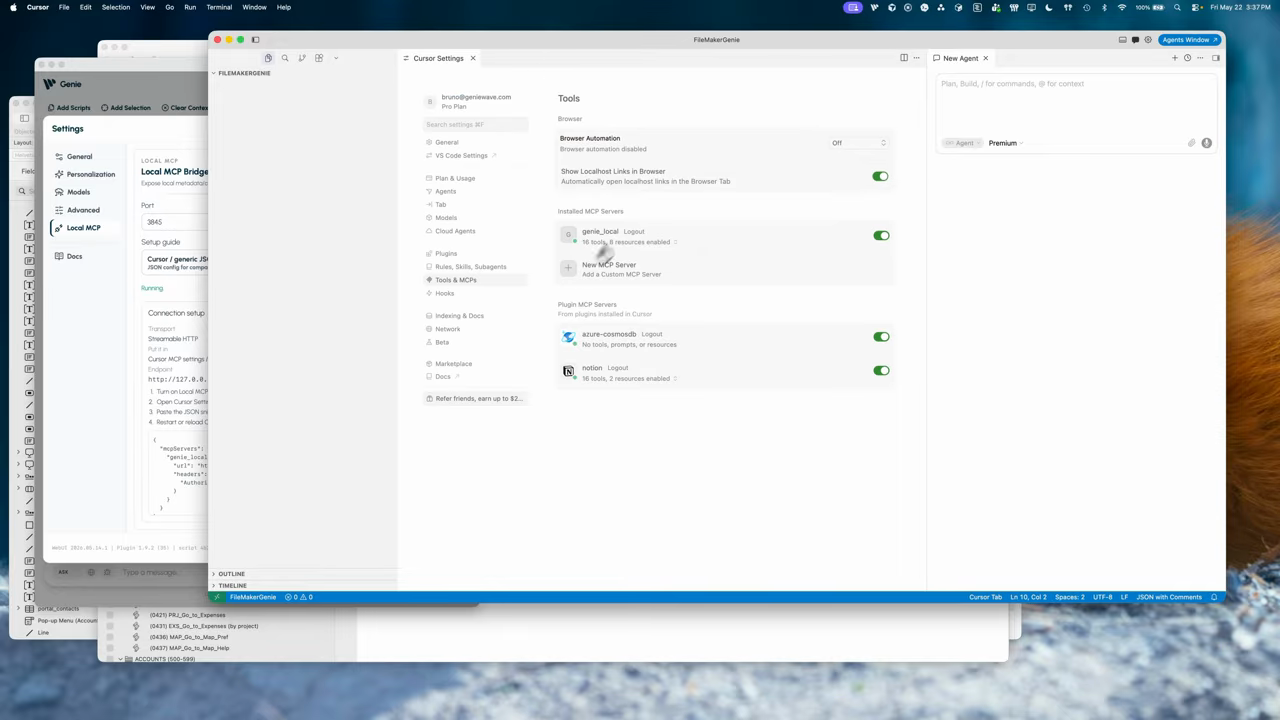
Displaying the MCP connected inside the Cursor
This is the part that changes the feel of the development workflow. Your agent is no longer guessing what exists in the FileMaker file. It can ask Genie. Once connected, Cursor can see the FileMaker-aware tools exposed by Genie.
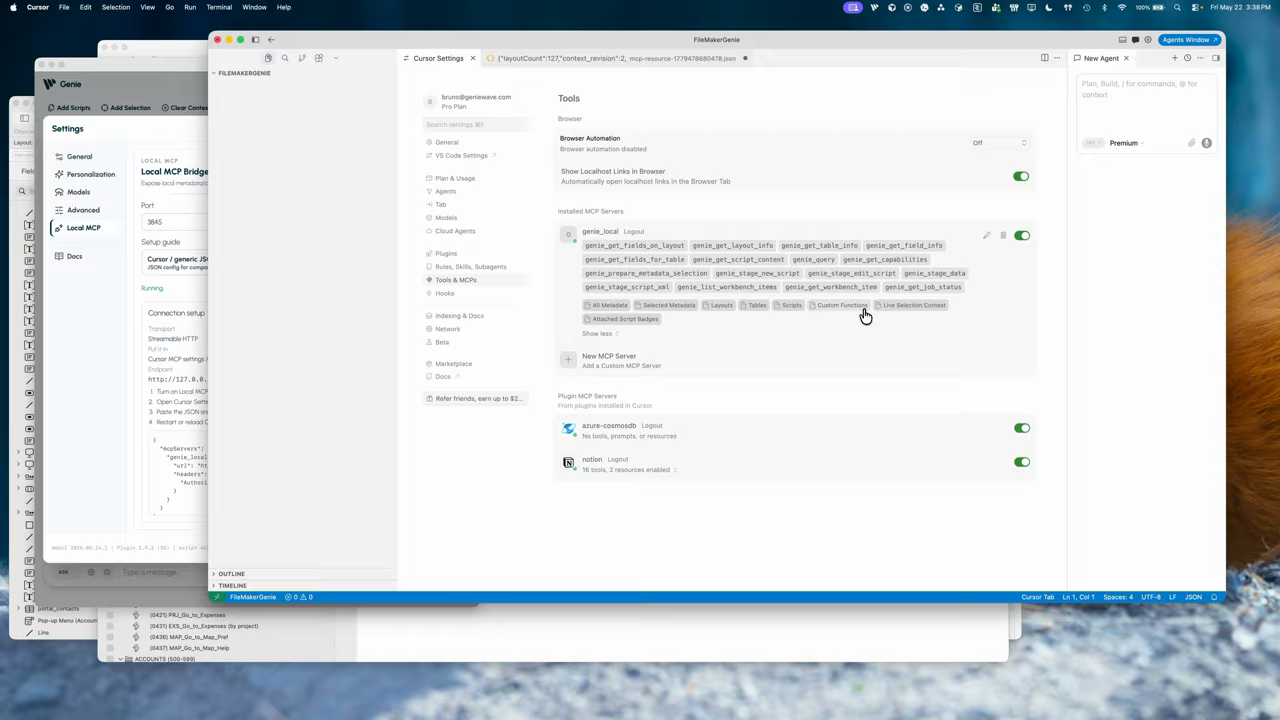
List of tools that Genie MCP offers displayed inside Cursor
Importing custom functions
One of the first things I like to do in a new file is import the custom functions into Genie.
That part is still manual today: open the import flow, select all, copy, and confirm. Once imported, the custom functions are saved for that file, so Genie and the connected agent can understand them in future requests.
This matters because custom functions are often where a lot of business logic lives. If the agent cannot see them, it may misunderstand the script or suggest something that does not match the project. Importing custom functions makes them available to Genie and connected agents.
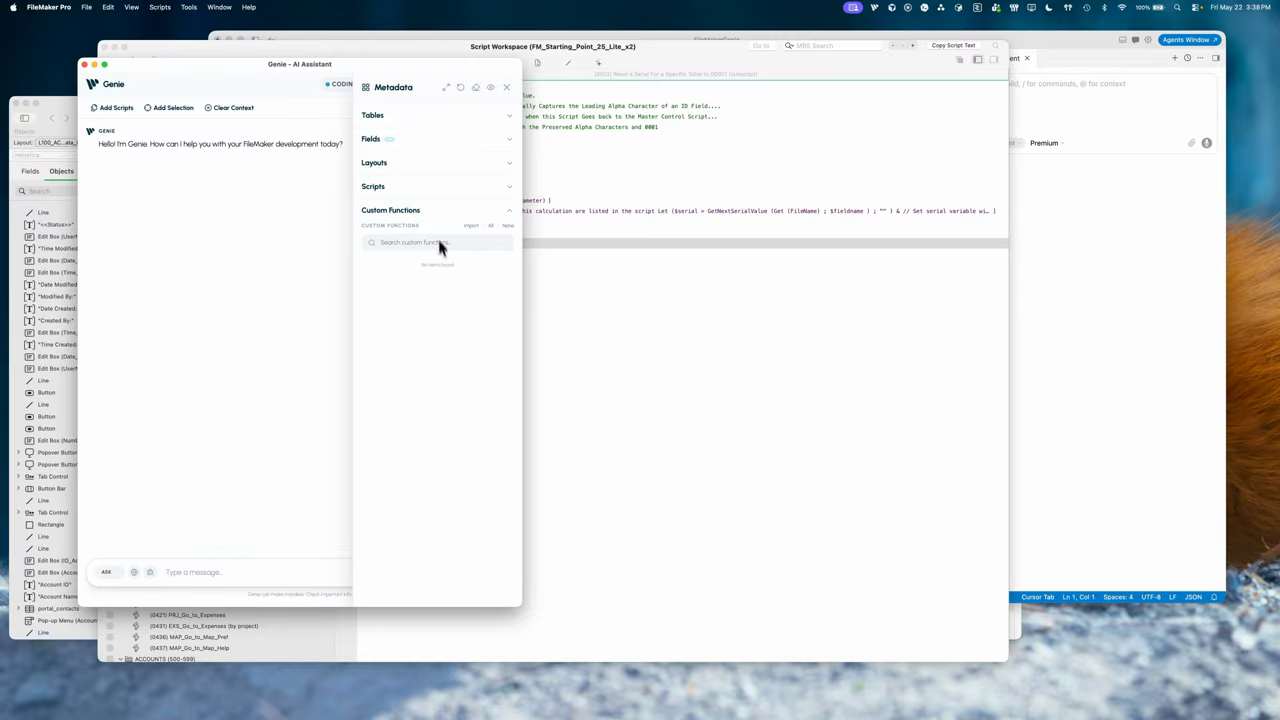
Custom functions panel inside the Metadata Explorer
Saving scripts for agent context
The next useful step is saving all scripts.
In the demo, Genie saved 528 scripts from the file. This does not make the in-app assistant magically know everything forever. Right now, it is mostly about giving the connected agent more project context.
Once the scripts are available, Cursor can inspect them, reason about them, and use Genie tools to pull the specific details it needs.
That means the agent can work with a real FileMaker project instead of a vague description of one. Saving scripts gives the connected IDE agent broader project context.
Asking Cursor to inspect a script
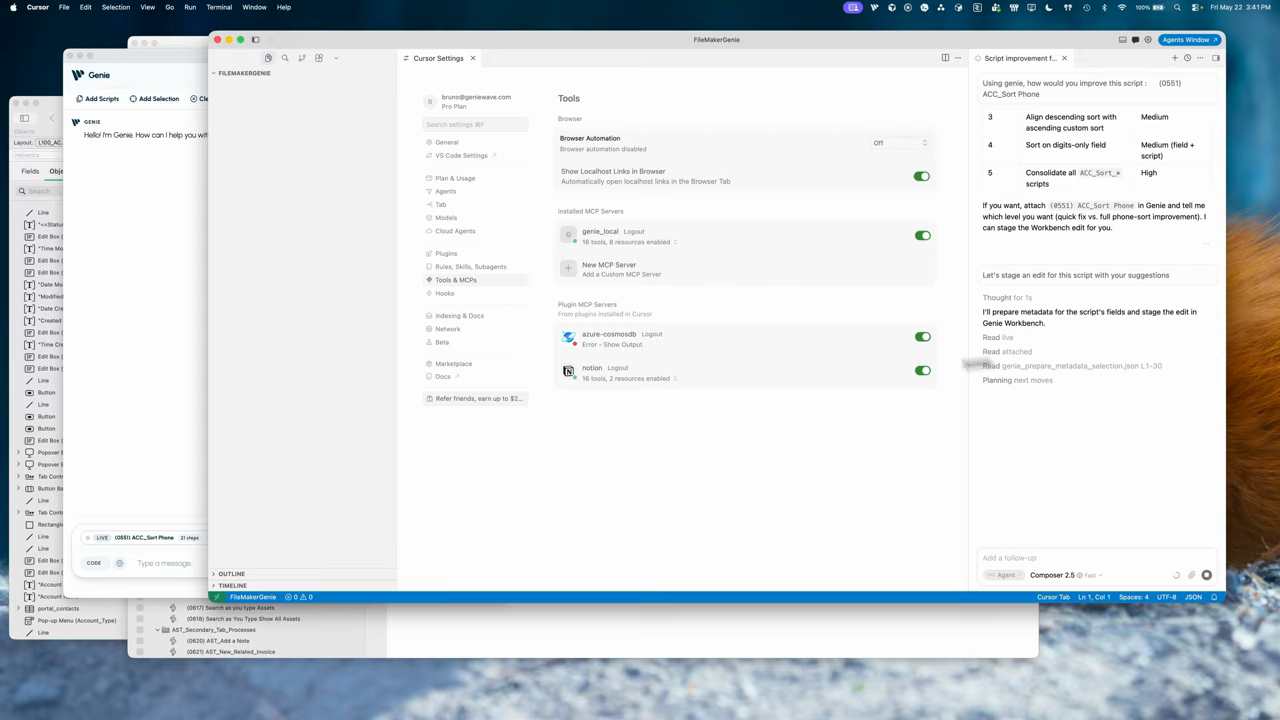
Cursor, using the MCP to automatically inspect a script
After the scripts were saved, I asked Cursor to look at one of them and suggest improvements using Genie.
Because the MCP server was connected, Cursor could fetch the script, inspect related context, and gather field or table information as needed.
This is a different pattern from copy-paste AI.
Instead of manually preparing a perfect prompt with every relevant detail, the agent can use tools to ask the file what it needs to know. Cursor can inspect project context through Genie before preparing an edit.
Staging an edit into Genie Workbench
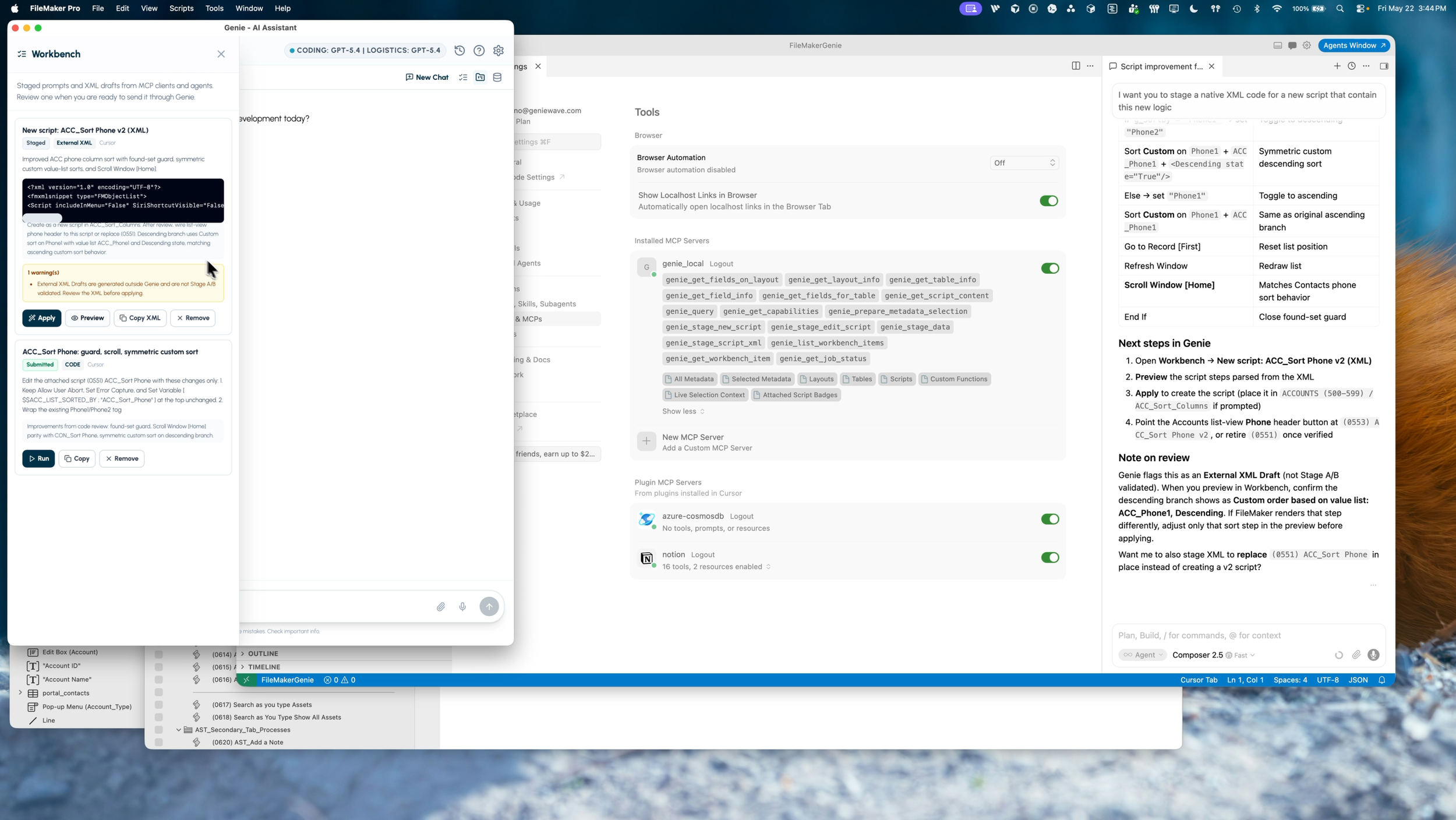
Genie: Workbench panel opened to display code & requests pushed from IDE & Agents
The next step was more interesting.
I asked Cursor to push an edit into Genie. Cursor prepared the request, assembled the context, and staged the work into Genie Workbench.
That staged item did not immediately change FileMaker.
It appeared in Workbench, where I could run it, preview it, copy it, remove it, or apply it through Genie. Cursor stages the request, but Genie remains the review surface before apply.
This is the workflow I want for AI-assisted FileMaker development:
The IDE agent can inspect the file.
The agent can prepare the work.
The developer reviews the output.
FileMaker changes only happen when the developer applies them.
The agent is useful, but it is not silently editing your FileMaker file behind your back.
Preview, copy, or apply
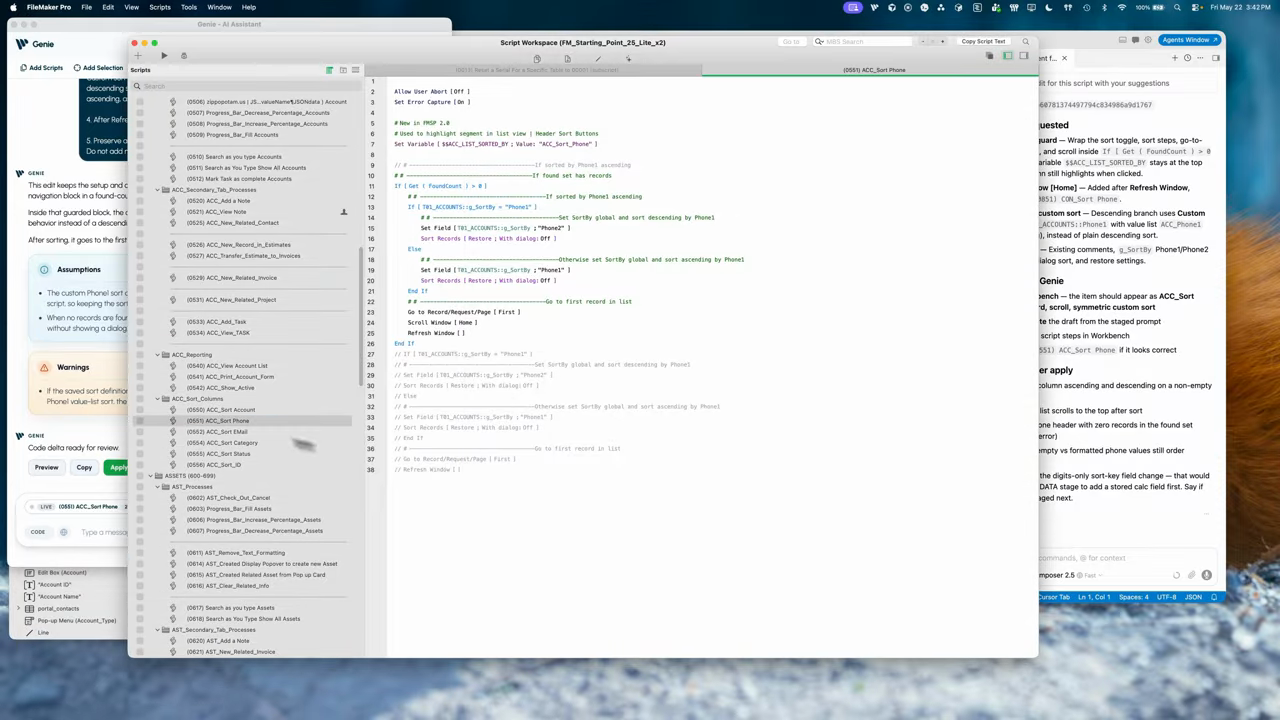
Apply a script to FileMaker
Once Genie generated the edit, I could preview the result before applying it.
If the apply action works, Genie pastes the script steps directly back into Script Workspace. If something goes wrong with the active selection or paste flow, the work is still recoverable through Copy.
That fallback matters. You are never stuck with a generated result that only exists inside the assistant window. Generated work can be previewed before anything lands in Script Workspace.Apply brings the reviewed result back into FileMaker.
Two ways to work: staged requests or native XML
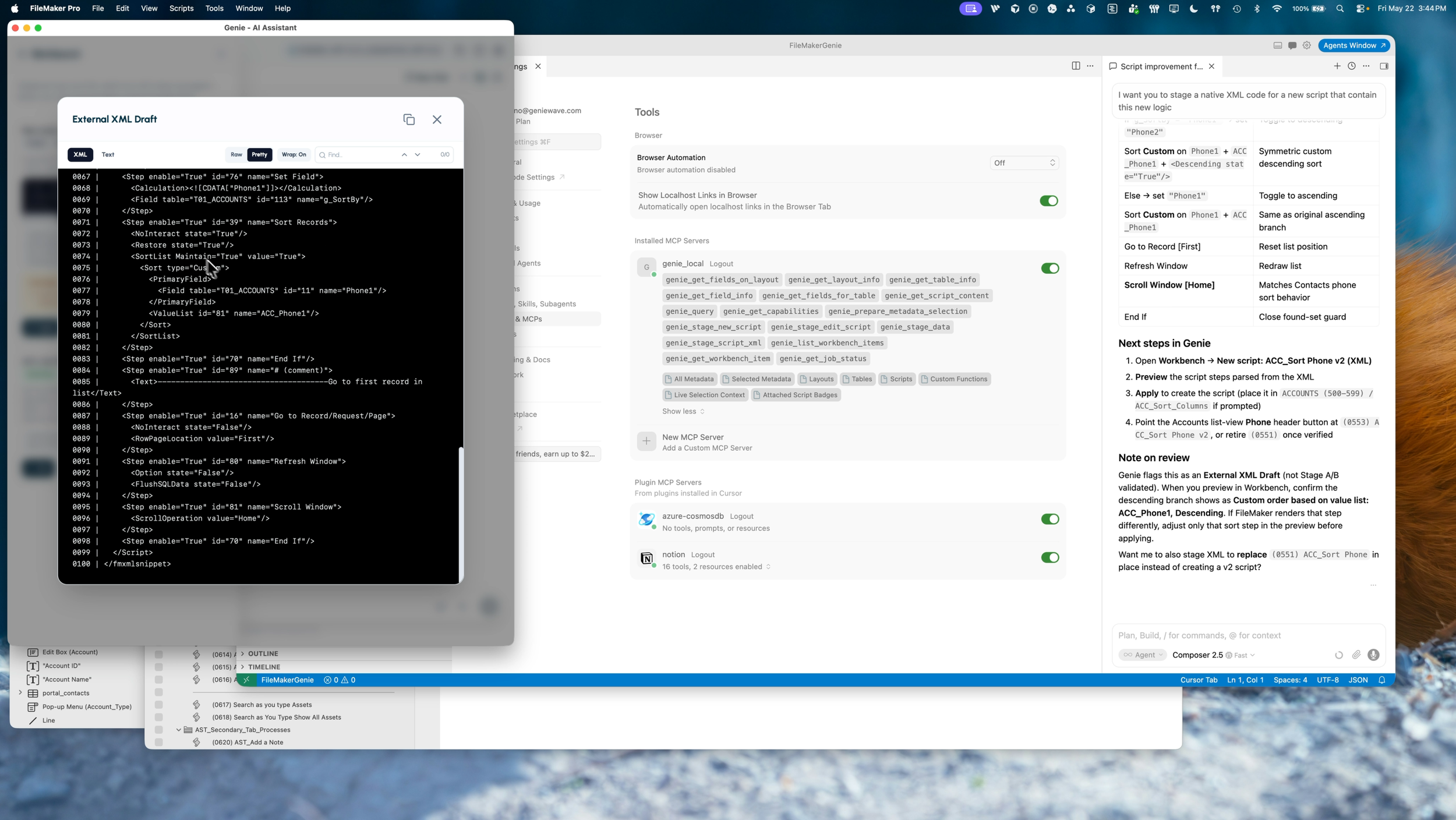
Full XML Preview
There are two useful ways to use Genie with an IDE agent.
The first way is to stage a request.
In this mode, Cursor or another agent gathers the context and sends a structured request to Genie. Genie then handles the FileMaker-aware generation, validation, preview, and apply flow.
The second way is to stage native XML.
If your agent is already configured to generate FileMaker XML, it can prepare the XML directly and stage it through Genie. Genie still gives you the preview, copy, and apply surface inside FileMaker.
That gives advanced users a lot of flexibility.
If you already have strong FileMaker XML workflows in Claude, Codex, Cursor, or another tool, Genie can become the bridge between that agent workflow and the real FileMaker environment. Genie can receive a full staged script, preview it, and apply it back to FileMaker.
Live project context without export-copy-paste
The part I keep coming back to is how quickly the project context can be refreshed.
If scripts change, save all scripts again.
If tables or fields change, refresh metadata.
If custom functions change, import them again.
In a few seconds, the connected agent can work from the current FileMaker file instead of stale notes, screenshots, or manually pasted fragments.
That is the real productivity gain.
The model is still the model. It can still misunderstand things. It can still need review. But it is starting from much better context, and the handoff back into FileMaker is much cleaner.
Quick Calculation AI
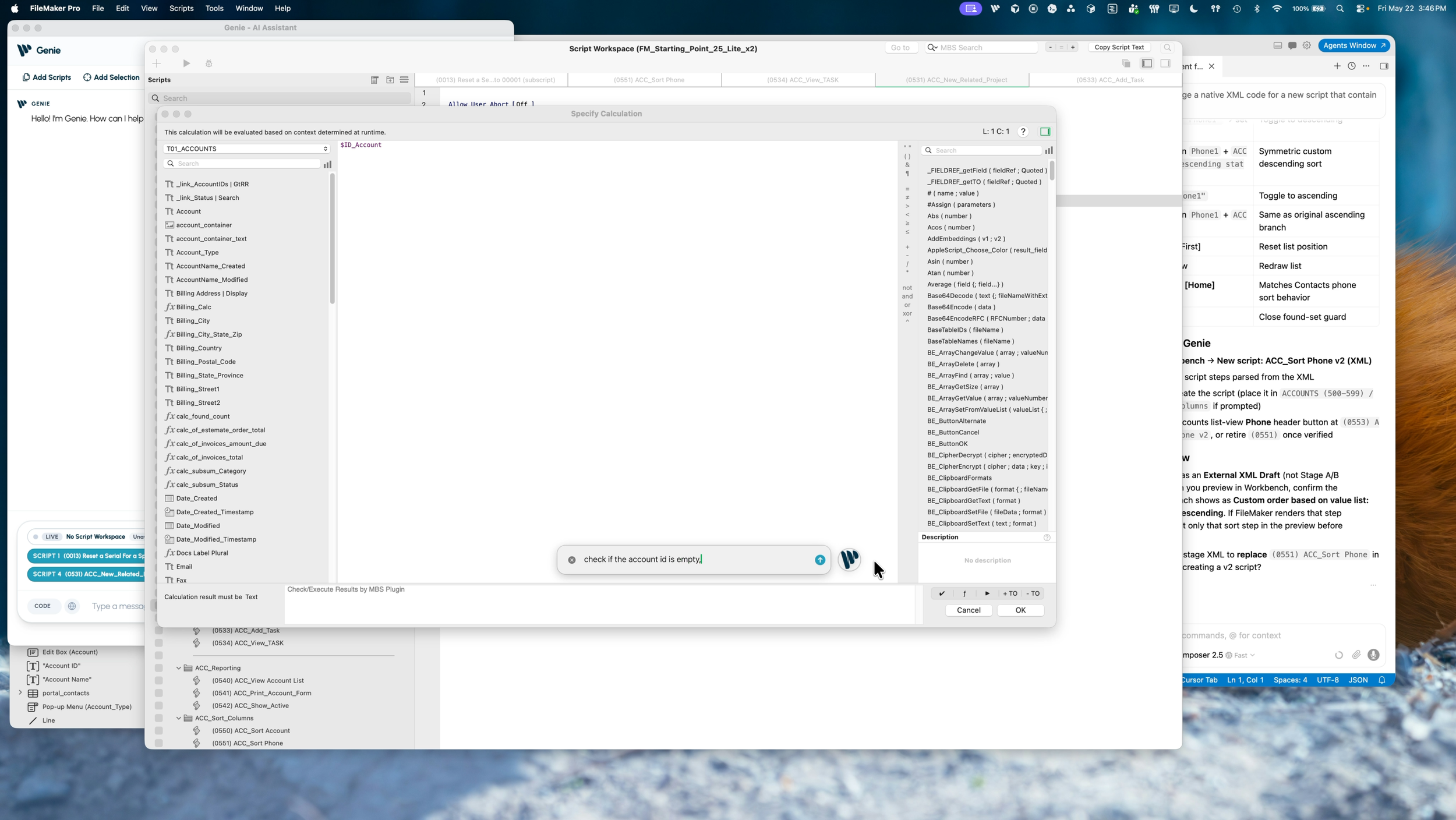
Generating calculations with Genie
The demo also touches on smaller FileMaker tasks, like generating calculations directly from the calculation editor.
For example, you can ask Genie to create or update a calculation, build a JSON array, or help draft a formula from the current FileMaker context.
This is a smaller surface than staging a full script edit from Cursor, but the idea is the same: keep the AI close to the place where the work actually happens. Genie can also help with smaller calculation tasks directly inside FileMaker.
Why this matters
The exciting part is not just that FileMaker can talk to an AI assistant.
The exciting part is that FileMaker can now participate in the same agent workflow developers are already using in modern IDEs.
With Genie and MCP, an agent can inspect the open FileMaker file, understand scripts and metadata, stage useful work, and hand it back through a reviewable FileMaker-native workflow.
That makes AI feel less like an external chatbot and more like part of the development environment.
You can still work directly in FileMaker. You can still use Cursor, Codex, Claude, VS Code, or another agent. You can stage requests, stage XML, preview changes, copy results, or apply them directly.
The important thing is that the developer stays in control.
Conclusion
This demo is just an introduction, but it shows the direction clearly.
In future videos, I will cover more examples: creating web viewer integrations, generating sample data, pulling FileMaker data into an IDE workflow, and using agents to build more complete application features from a live FileMaker file.
For now, this is the core idea:
Connect FileMaker to your agent. Let the agent inspect real project context. Stage the work through Genie. Review it. Apply it when you are ready.
That loop is where things start to feel very different.
Bruno Pelletier Next Next
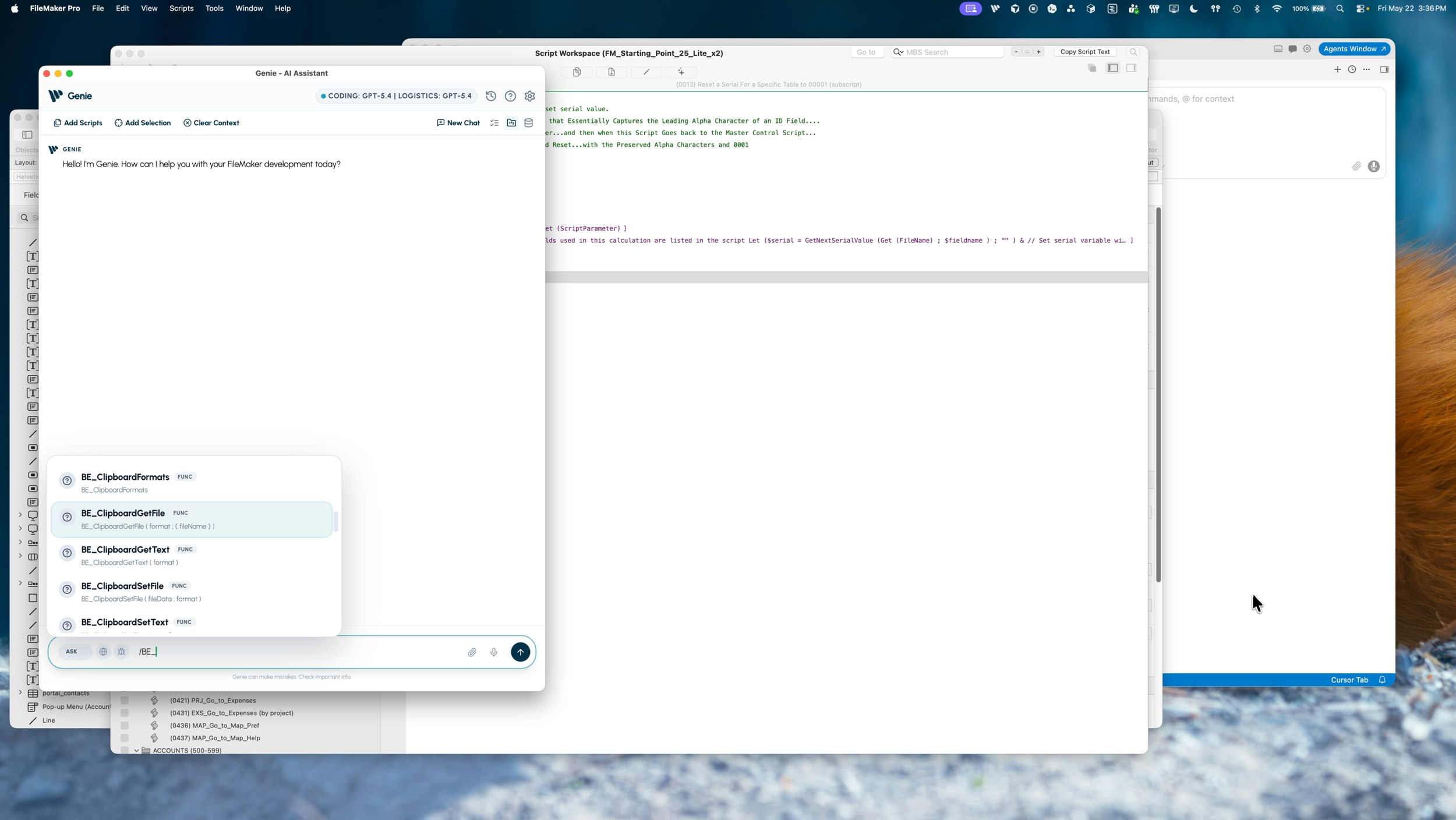
Genie displaying auto-complete for BaseElements plugin functions
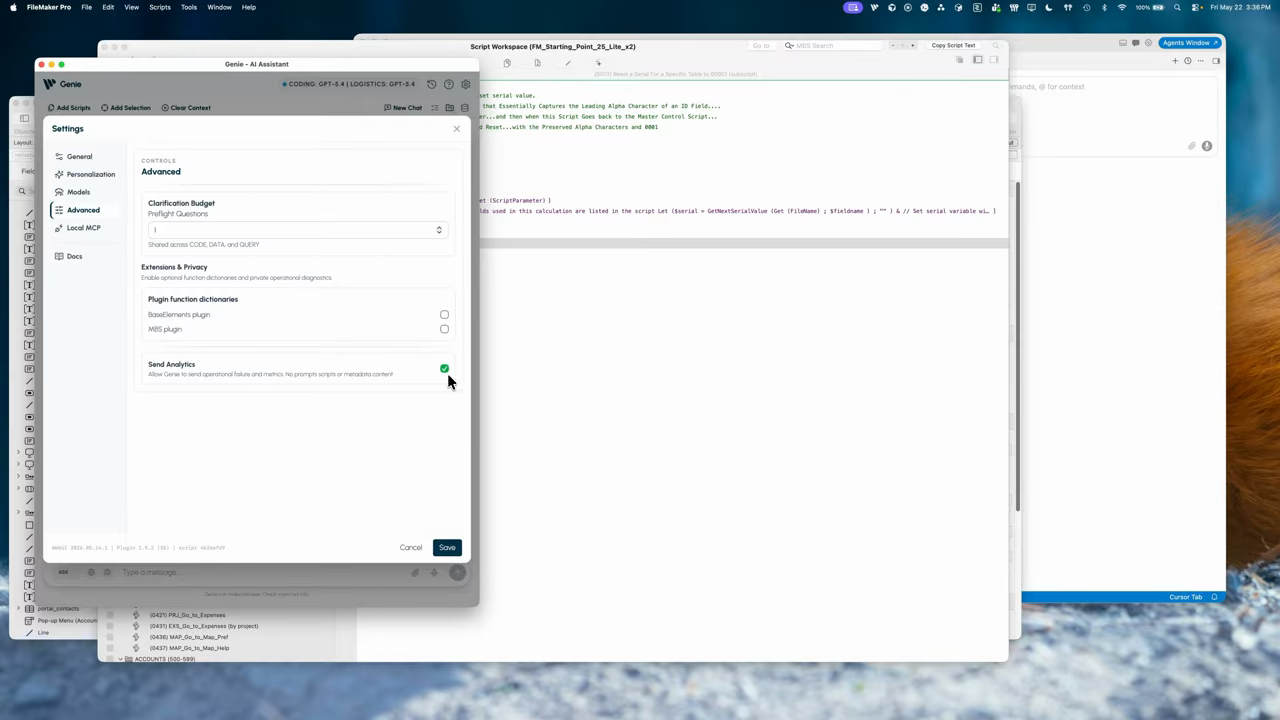
Genie advanced settings with analytics
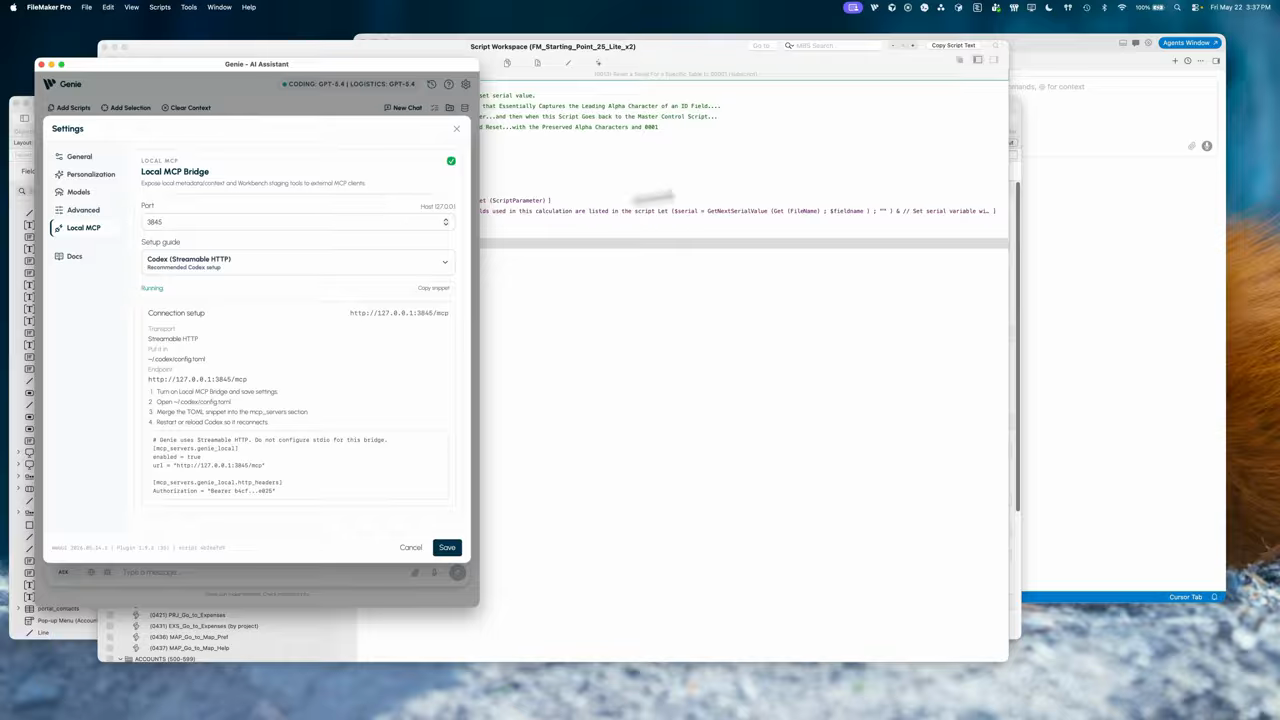
Genie settings - MCP configuration selection
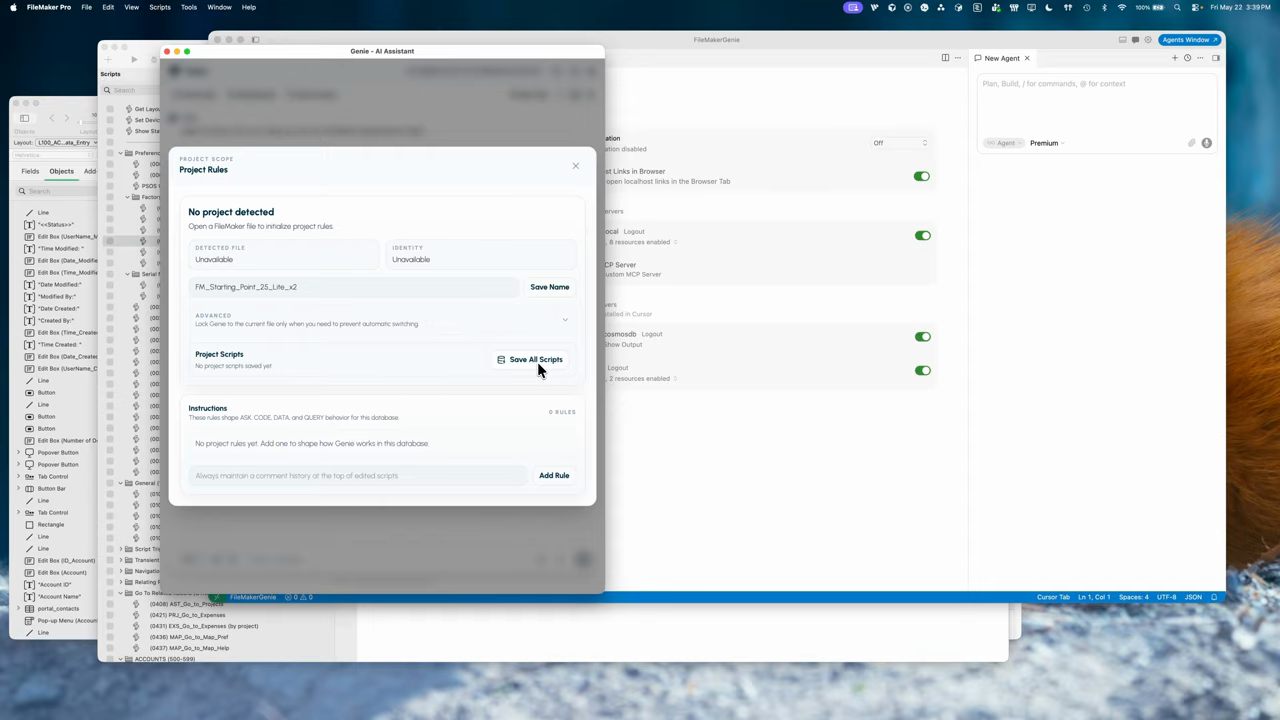
Genie button inside Projects to ingest all scripts